Creative Communities of the World Forums

The peer to peer support community for media production professionals.

Activity Forums Adobe After Effects Expressions Scripting: Generate varying height rectangles based on checkbox controls?

  • Scripting: Generate varying height rectangles based on checkbox controls?

    Posted by Shahid Raza on October 31, 2017 at 8:33 pm

    I’d like to build myself a piano roll generator script in After Effects. Here’s what I am trying to achieve (mocked up in Photoshop):

    I have 2 layers for left/right hands (left hand displays blue colours, right hand displays pink colours):

    Each layer has 88 checkbox controls (from 21-108 which are midi numbers):

    I’ve already got the checkboxes working via a script that detects midi data and activates the correct midi number checkbox at the right time with keyframes.

    How can I make use of these checkboxes to generate rectangles that are going to vary in height (probably adding 1px each time), the length of time a checkbox is active? Would be even awesome to have them rounded like the mockup.

    Basically, trying to get somewhere like this but with After Effects:

    https://www.youtube.com/watch?v=FrpQE9Gdw7w

    Thanks.

    Some contents or functionalities here are not available due to your cookie preferences!

    This happens because the functionality/content marked as “Google Youtube” uses cookies that you choosed to keep disabled. In order to view this content or use this functionality, please enable cookies: click here to open your cookie preferences.

    Shahid Raza replied 8 years, 6 months ago 4 Members · 11 Replies
  • 11 Replies
  • Kevin Camp

    October 31, 2017 at 11:20 pm

    i might try 88 particle generators… each particle system would have the birthrate line to one of the checkboxes. when checked, the emitter would emit enough particles to create a line, when not checked, it would be zero.

    an expression like this on birthrate could work:
    chk = thisComp.layer("activeLeftHand").effect("22")("Checkbox");
    if ( chk == true ) 100 else 0;

    change “100” to a value that would create a steady line of particles.

    Kevin Camp
    Art Director
    KCPQ, KZJO & KRCW

  • Shahid Raza

    October 31, 2017 at 11:28 pm

    I was originally doing something similar with Trapcode Particular but the rendering time was awful.

    I was using expressions here for each particular layer and in the end, I only got a 40sec render before the whole thing crashed:

    https://www.youtube.com/watch?v=JN1VLKaTUXI

    Would CC Particles World have this issue with birthrates? Also, would I be correct in saying keyframes are more efficient to render since you’re not running 176 if statements doing the same thing for different checkboxes?

    Some contents or functionalities here are not available due to your cookie preferences!

    This happens because the functionality/content marked as “Google Youtube” uses cookies that you choosed to keep disabled. In order to view this content or use this functionality, please enable cookies: click here to open your cookie preferences.

  • Jay Brown

    November 1, 2017 at 2:12 am

    A work around I use all the time if rendering is unstable is to render out PNG sequences.
    If your computer craps out on frame 1200, you don’t lose the entire .MOV. All you have to do is open AE back up and start your render beginning at frame 1200. When it’s finally done, you can import the PNG sequence into AE and then render just the PNG sequence as a .MOV.
    Another advantage to this is that you could render your PNGs with alpha. That way you could render a few different types of effects onto individual sequences, bring them all into AE, layer them all on top of each other, and then render out a single Effects Insanity .MOV.

  • Shahid Raza

    November 1, 2017 at 6:30 pm

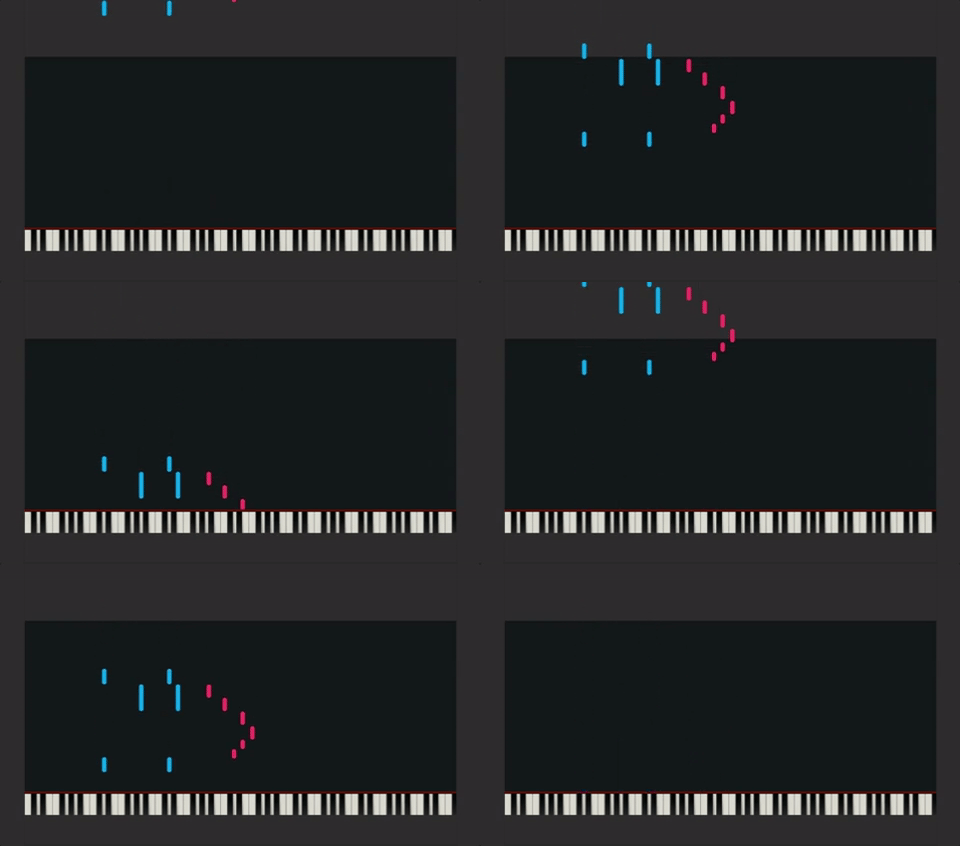
    Thanks for that tip! Seems super useful. However, I’m still trying to find a method that would be a big timesaver for the project. The way I’m picturing it is something like this:

    I’m guessing it would be better to visually see this data in rectangles, precomp’d and offset out of view (e.g. the darker area above) and then just animate the position all the way down, making it go out of view again. Or is this just not feasible? Thinking comp sizes here too as well as timing it with the keyframes.

  • Kevin Camp

    November 1, 2017 at 11:19 pm

    i still think i’d ty to work it out with particle systems… to have the particles rain down and hit the key as the it needs to be played, you’d offset the checkbox controls for the particle emitter/producer by as long as it takes for a particle to move from the top of the comp to the keyboard…. so if it takes a second for the particle to move, you’d offset the checkbox timing by one second. you could do that with valueAtTime().

    chk = thisComp.layer("activeLeftHand").effect("22")("Checkbox");
    offset = 1' // value in seconds
    if ( chk.valueAtTime( time - offset ) == true ) 100 else 0;

    also, once you know how fast the particle is moving and how far it needs to move to go from the top of the screen to the keyboard, you can create a custom particle that is the height that it needs to be if it moves one frame. ex: the particle moves 300 pixels in 30 frames, the particle should be about 10 pixels high.

    with the height of the particle set, you can also calculate the minimum birthrate that is required to have one particle be released for every frame to make a continuous line, thus minimizing the number for particles required. using the previous example, the birthrate would be 30 per second, so the ‘100’ i used in the expression would change to 30.

    Kevin Camp
    Art Director
    KCPQ, KZJO & KRCW

  • Shahid Raza

    November 2, 2017 at 1:32 am

    Thanks for your help Kevin, I’ve done my best with the particle systems method and I think it’s worked well.

    The timeToFrames wasn’t really working so I did the following:

    thisLayerNum = (thisLayer.name).replace(" Left Hand", "");
    chk = comp('MIDI Control').layer("activeLeftHand").effect(thisLayerNum)("Checkbox");
    if ( chk == 1 ) 100 else 0;

    And then moved the comp for particles system to the left, offsetting it enough in time.

    But the death size is too long, it doesn’t stop where I need it to.

    If you look at the top part of each note, it goes slightly over before the next note starts.

    This isn’t the case with the actual keyframes, but rather the particle emitter.

    How can I change this so that it has an abrupt end? Here are my settings:

    Thanks.

  • Shahid Raza

    November 2, 2017 at 2:15 am

    Spoke too soon. When rendering the particle systems for both hands (176 layers of particle systems and the same checkbox expressions), I get these glitching artifacts:

    https://i.giphy.com/3ohBVtcjVG93DyUcxi.gif

    How can I correct this? I can now see these throughout the previews too. Wasn’t seeing them before.

  • Shahid Raza

    November 2, 2017 at 3:56 pm

    Nevermind, I think the rendering glitched out the first time!

    Here’s the completed version for the piano roll. Happy with the outcome ☺

    https://www.youtube.com/watch?v=IUphnATiWso

    Thanks Kevin for your suggestions.

    Some contents or functionalities here are not available due to your cookie preferences!

    This happens because the functionality/content marked as “Google Youtube” uses cookies that you choosed to keep disabled. In order to view this content or use this functionality, please enable cookies: click here to open your cookie preferences.
  • Kevin Camp

    November 2, 2017 at 4:22 pm

    nice job!

    Kevin Camp
    Art Director
    KCPQ, KZJO & KRCW

  • David Cabestany

    November 2, 2017 at 10:09 pm

    I’m curious to know how long it took you to do this, it certainly looks like a ton of work.
    Really cool, by the way.

Page 1 of 2

We use anonymous cookies to give you the best experience we can.
Our Privacy policy | GDPR Policy