

Activity › Forums › Apple Final Cut Pro › Screen Capture app
-
Screen Capture app
Posted by David Mayer on May 5, 2021 at 1:03 pmI have to record and edit Zoom meetings and interviews. I use Zoom to record them. But I need a backup recording, as well. IShowU Instant is not consistent and I am having audio problems with Camtasia.
What’s the best screen capture software – for audio and video simultaneously – for Mac?
Mark Suszko replied 5 years, 2 months ago 10 Members · 10 Replies -
10 Replies
-

Jeremy Garchow
May 5, 2021 at 1:10 pmQuickTime can record your screen. Open QuickTime, File > New Screen recording.
https://support.apple.com/en-us/HT208721
-

Craig Seeman
May 5, 2021 at 1:10 pmTelestream ScreenFlow.
Set Zoom Speaker to Telestream Audio Capture and it’ll capture the Zoom call audio directly.
If you want the local host mic included add that as the Record Audio From source in ScreenFlow.
You can export the recording as ProRes if you want to do further editing in FCP.
-
Craig Seeman
May 5, 2021 at 1:14 pmI don’t think Quicktime will record System Sound/Computer Audio when screen recording.
-

Lawrence Eaton
May 5, 2021 at 1:42 pmDownload and install Soundflower to record system audio. Change the audio input to 2ch and use QuickTime screen recording.
-

W thomas Leroux
May 5, 2021 at 3:49 pmI’ll second Craig’s suggestion of ScreenFlow. Brilliant app, worth the money.
-

Paul Carlin
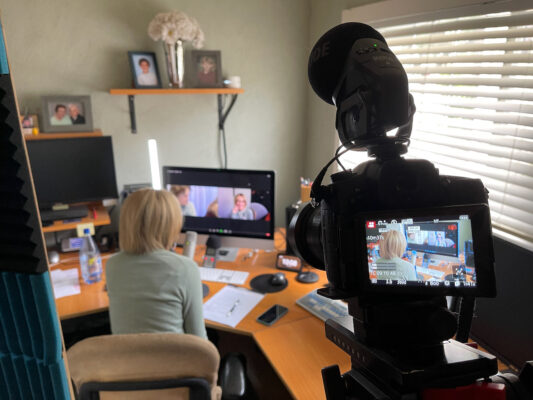
May 7, 2021 at 4:10 pmI would not suggest using a screen capture application as a backup for Zoom recording. Mainly because the computer is already burdened with handling a Zoom call AND recording the call to your hard drive. Adding another CPU intensive task on top of all that would most likely make the quality of the Zoom call drop, not to mention two apps writing data to your drive simultaneously. You computer’s fan noise will most certainly become an issue as well (for audio quality). I would strongly suggest you feed a second monitor output (in mirror mode) to an external device for recording (for example, a BMD UltraStudio Mini Recorder connected to a second computer). You may need to change your screen resolution to be compatible with an external recorder, but this is not a big deal as Zoom only does 720p (free) or 1080p (paid) at the most anyways, and would further reduce the CPU overhead. I would also point a camera at the computer with the interviewee in the foreground as a third option. This gives you something to cut away to and more options in editing (and if all of the recordings have failed, you at least have this one guaranteed reliable recording of the call). In the picture, you can see I even have a separate Zoom H4n (no relation to the other Zoom) as an audio backup (just in case).

-

Cullen Burnett
May 7, 2021 at 4:13 pmhave you tried OBS? Its typically for streaming to twitch and youtube but can also record video and audio and save it1
-

Echo Chan
June 23, 2021 at 10:52 amMaybe you can also try Joyoshare VidiKit. It’s my favorite, and I think it’s easier to use than most other screen recorders. It can record screen in 4K or HD quality. No watermark, no time limit, and no latency, which totally amazes me.
https://www.joyoshare.com/vidikit/
-

Mark Suszko
June 24, 2021 at 1:57 pmI’m old school, but I’m with Paul on this one; use a scan converter on the computer to grab video and audio independently of whatever the software is doing, Paul’s right about over-burdening the graphics card and the drives.
My experience of OBS was not impressive in terms of quality. But that may vary depending on the individual systems.

Reply to this Discussion! Login or Sign Up