

Activity › Forums › DaVinci Resolve › Resizing the user interface
-
Resizing the user interface
Posted by Philippe Verdoni on March 4, 2021 at 10:53 pmMy problem with Resolve is that the icons in the upper right corner do not appear. Consequently I am unable to iconize or close the program. Many thanks for your help to get ride of this problem.
David Baud replied 5 years, 6 months ago 2 Members · 8 Replies -
8 Replies
-

David Baud
March 5, 2021 at 5:21 amFirst the basics:
. your computer?
. your operating system?
. your GPU?
. which version of Resolve are you using?
. in which page are you seeing that behavior?
Time to do a reset: go to the Workspace menu (from the bar menu) and select Reset UI Layout. Does it help?
-

Philippe Verdoni
March 5, 2021 at 8:46 amHi David, I am using a i7-8700 CPU@3.2 GHz – 32 Go RAM – Windows 10 19041.804
Displays: 2 screens @1980 x 1080 – 1 screen @ 1280×1024
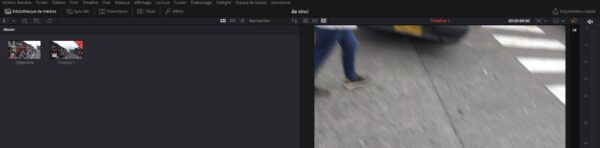
Whichever screen is used as primary display, the grey bar on which the icons should be in the upper right corner does not appear.
Resetting the UI layout does not improve the situation.
-
David Baud
March 5, 2021 at 3:11 pmI would update to version 17 if you can, to remove the possibility of any old bugs, or at least to the 16 official version (16.2.7 or 8 I forgot)
What is your GPU?
Can you share a screen grab of your problem?
What happens when you change the settings for your screen resolution?
-
Philippe Verdoni
March 6, 2021 at 7:58 am -
David Baud
March 7, 2021 at 12:09 amSalut Philippe,
En regardant ta capture d’écran je ne suis pas certain de comprendre ton problème. Je travaille avec la version anglaise du logiciel, mais il ne me semble pas qu’il te manque quoique ce soit dans la version française. Pourquoi penses-tu le contraire ?
Pour quitter l’application, tu peux le faire depuis le menu DaVinci Resolve, à gauche du menu Fichier (ou l’équivalent avec les touches du clavier). Si tu veux réduire la fenêtre de l’application (sans quitter Resolve), j’utiliserais la barre des menus de Windows, pour minimiser l’application.
Translation: Hi Philippe,
Looking at your screenshot I’m not sure I understand your problem. I’m working with the English version of the software, but I don’t think you are missing anything in the French version. Why do you think the opposite?
To quit the application, you can do so from the DaVinci Resolve menu, to the left of the File menu (or the equivalent with keyboard keys). If you want to minimize the application window (without quitting Resolve), I would use the Windows menu bar, to minimize the application. -
Philippe Verdoni
March 7, 2021 at 8:08 amBonjour David,
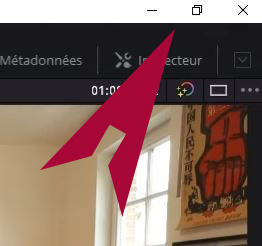
ce qui manque aussi bien dans la version anglaise que dans la version française c’est la barre grise qui apparaît au dessus de la barre de Menu sur les videos Youtube consacrées à Revlove (voir image jointe). Je peux -bien sur- fermer Resolve en utilisant la commande “Quitter Da Vinci Resolve ” du Menu. Je ne peux pas iconiser l’application en utilisant l’icone Resolve de la barre des taches Windows car celle-ci est masquée par l’écran de Resolve. De plus l’icone de Resolve dans la barre des taches ne comporte pas d’option pour iconiser l’application. L’iconisation permet d’ouvrir provisoirement une autre tache sans fermer Resolve.
Translation: What is missing in both the English and the French versions is the gray bar that appears above the Menu bar on the Youtube videos dedicated to Revlove (see attached image). I can -of- close Resolve using the “Quit Da Vinci Resolve” command from the Menu. I cannot iconize the application using the Resolve icon in the Windows taskbar because it is hidden by the Resolve screen. In addition, the Resolve icon in the taskbar does not include an option to iconize the application. Iconization allows you to temporarily open another task without closing Resolve.

-
David Baud
March 8, 2021 at 3:23 amHave you tried to check off Workspace > Full Screen Window? On a Mac it will give you access to minimizing your main window
Reply to this Discussion! Login or Sign Up