Creative Communities of the World Forums

The peer to peer support community for media production professionals.

Activity Forums Adobe After Effects Expressions Resize elements according to comp sizes

  • Resize elements according to comp sizes

    Posted by Neto Dal bon on May 27, 2024 at 5:12 pm

    Hello everyone. I’m producing some user acquisition videos for app campaigns. All videos must have 3 sizes: 1920×1080(16:9) / 1080×1080(1:1) / 1080×1920(9:16)

    All videos are recorded without HUD elements and I add them manually to the 1920×1080 video. I always resize my comps and change the position and scale of all elements to fit the new sizes.

    I was wondering it there’s a way to proportionally(and custom) resize and reposition HUD elements according to a comp size(width and height).

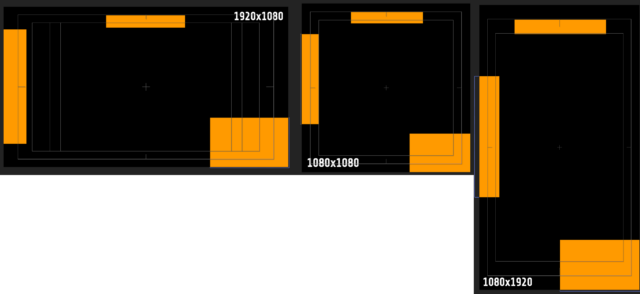
    In the image below it’s easier to see what I mean, I want the elements to change SCALE and POSITION.

    – On the POSITION I want the elements to stick proportionally to their position but I also want to be free to change the values so I can make custom changes to the value.

    – On the SCALE I want to custom scale the values, not proportionally, because for example: if the comp width is 1920px and the element scale is 100%, I don’t want the scale to be proportionally lower when the width becomes 1080px(it would be around 50%), I want it to be only 20% smaller for example.

    Thanks in advance, you guys have been the best!

    Hector Vera replied 1 year, 11 months ago 2 Members · 1 Reply
  • 1 Reply
  • Hector Vera

    May 29, 2024 at 2:51 am

    Yeah from what I have researched, there is a way to proportionately resize and reposition HUD elements according to the COMP Size you presented here from After Effects. Here are the steps you can follow to see if it helps you:

    1. Create a null object that will serve as the anchor point for the HUD elements.
    2. Parent all of the HUD elements to the null object.
    3. Add a “Transform” effect to the null object. In the “Effect Controls” panel, turn on the “Transform” checkbox and set the “Amount” value to 100%. This will scale the null object and all of its children proportionally to the comp size.
    4. Now, you can custom change the position and scaling values of the HUD elements. For example, you can increase the “X” value to move the elements horizontally, or increase the “Y” value to move them vertically. You can also adjust the “Scale” value to scale the elements without affecting their proportions.
    5. Finally, when you render out different resolutions, the HUD elements will automatically resize and reposition based on the new comp size.

    By using the null object as your prior anchor point for the HUD elements, you can easily customize the position and scaling of the elements all in the while of still maintaining its proportions. Hope it helps!

We use anonymous cookies to give you the best experience we can.
Our Privacy policy | GDPR Policy