-
(Answered) Reducing super annoying track height for text clips?
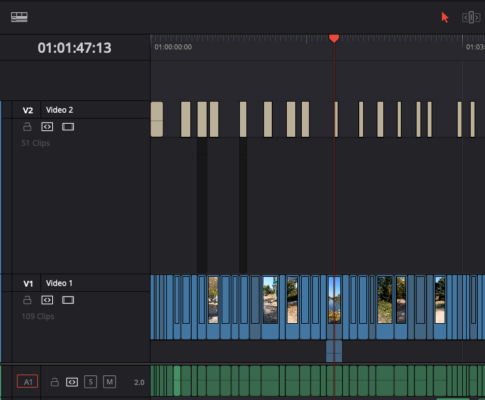
***Edited to answer my own question: I should have trusted my gut. The darkened spots under two of the text clips reflected that I had clicked on the “keyframe” icon that is on the bottom of each clip, which is why the lower level of the track was so expanded. Still not sure why showing keyframes needs to take up such a giant amount of space, but maybe there is some way to modify that.***
Hi folks,
I’m new to Resolve, mostly from an FCP and Premiere background.
It’s always the little things that drive us crazy with new software, right?
So, in my timeline I have text overlays on the track (V2) above my main video clips (V1)
Somehow the height of that V2 track is ridiculously tall, and I can’t shrink it.
The tallest part isn’t even the layer containing the text boxes (which could be helpful if you could read them in the timeline) but the darker part below the text boxes, which as far as I can tell contains zero information.
I can’t get the arrows on the left to shrink it. There must be a way.
Also, does anyone know why below two of the text clips, to the left of the playhead in the pic, the space below the text box is extra darkened? It’s as if they are selected or something, but they aren’t. I wonder if this is related to the tall height.
Resolve 16.2.7
2013 iMac on Catalina 10.15.6
3.2 GHz Quad-Core Intel Core i5
16 GB 1600 MHz DDR3 Memory
NVIDIA GeForce GTX 680MX 2 GB