I will be your Adobese translator this evening… For this journey we’re going to pretend we’re animating the Scale property to 0% using a text animator. Beware! This is going to be a hefty explanation.
This is sort of a preamble to get us in the right mindset:
It’s valuable to think of the selector as determining what percentage of each character (or word, or line) is affected by the property. If a character is selected 100% in our example then its Scale will be 0% of its original Scale value (set in the Transform properties group). If it is ‘selected’ 50% by the selector then it will be scaled to 50% of its original Scale.
Now, imagine that the selectors have a physical shape (which they sort of do) as in: Square, Ramp Up, Ramp Down, Triangle, etc. Imagine each of these shapes on a graph, where the X-axis reads “Range” and the Y-axis reads “Selected.” So at a ‘range’ of 0% we are at the ‘start’ of the range selector and at an ‘range’ of 100% we are at the ‘end’ of the range selector.
A ‘Square’ shape means that the transition from unselected (0% selected) to selected (100% selected) happens immediately at the ‘start’ of the range and remains at 100% (or whatever you specified in the Amount property for the selector) until the ‘end’ of the range.
The ‘Ramp Up’ shape, in contrast, means that the characters are 0% selected at the start of the range and 100% selected at the end of the range. All pictures in this posting will refer to the selection graph for the Ramp Up shape. Thus concludes our preamble =)
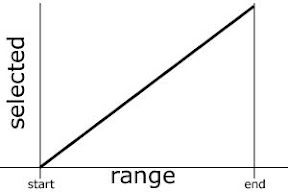
Ramp Up
Here’s the break down on what it says in the Help file:
“Determines the speed of change as selection values change from fully included (high) to fully excluded (low).”
This line is basically saying that Ease High/Low changes the shape of the graph we discussed earlier.
“For example, when Ease High is 100%, the character changes more gradually (eases into the change) while it is fully to partially selected.”
When you set Ease High to higher levels the slope of the graph becomes lower at the high end of the range.
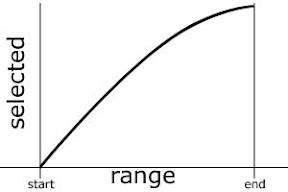
Ease High: 100%
“When Ease High is -100%, the character changes quickly while it is fully to partially selected.”
When you set Ease High to lower levels the slope of the graph becomes higher at the high end of the range.
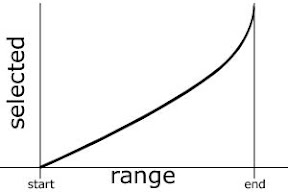
Ease High: -100%
“When Ease Low is 100%, the character changes more gradually (eases into the change) while it is partially selected to unselected.”
When you set Ease Low to higher levels the slope of the graph becomes lower at the low end of the range.
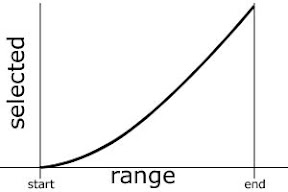
Ease Low: 100%
“When Ease Low is -100%, the character changes quickly while it is partially selected to unselected.”
When you set Ease Low to lower levels the slope of the graph becomes higher at the low end of the range.
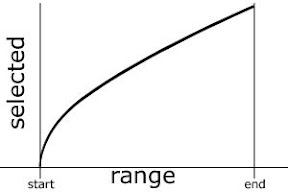
Ease Low: -100%
Note: The values in these graphs are my own interpretation of what I’ve seen happen when these properties change, it most likely doesn’t represent exactly what’s happening inside AE.
Darby Edelen
DVD Menu Artist
Left Coast Digital
Aptos, CA


