-
Premiere Pro glitch, JVC glitch, or (most likely) User Error?
I recently bought a GY-HC500 for 4k shooting of live events, which are normally continuous recording for at least an hour. I’ve used JVC cams for over 20 years and Premiere Pro for about 5 years (and FCP for 20 yrs before that) and have not run into this issue before. My typical shooting setup is plugging live room mics into camera, as well as recording a separate audio source (from soundboard, e.g.) into a stand alone Tascam DR60 digital recorder. I slate the audio at top of show so I can sync them in PPro.
For my first project using this 4k camera, the two audios drifted about 8 frames over an hour program, which is very noticeable to the ear by the end (echo). Thinking it must be camera settings, I checked all the settings that I can think of and they seemed compatible. It doesn’t appear to be a drop/non-drop frame issue, or a sample rate issue (both at 48k). I also looked at 30fps vs. 29.97fps timebase in PPro. Didn’t seem to matter (camera menu doesn’t have a 29.97 option, just the nominal 30).
I’ve zeroed in on something odd, but I don’t know where to go from here.
Because of the 4GB limit on files (3.71GB), I get multiple sequential clips (files) out of the camera when I record longer programs. In this case, I got 16 sequential clips for a 1 hr program. When I created the blank timeline to start, I wasn’t confident about specific settings so I guessed from the options and sure enough, when I dropped the clips into the timeline, there was a mismatch between timeline and clip settings. So when the dialog box popped up and alerted me, I selected the “change sequence settings” to match clips. So I thought I was covered.
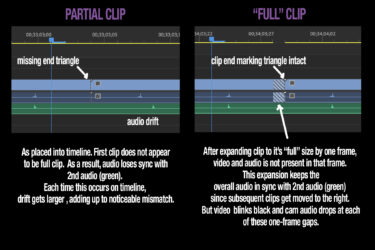
After I laid the 16 clips in, 8 of them didn’t visually appear to be the complete clip. They’re missing that little triangle in the upper right hand corner. See attached image. I moved the subsequent clips later on the timeline and was able to expand the partial clip by 1 frame to its full length (revealing that end-of-clip triangle), but that one frame has no video or audio (see image zebra). Without that frame, the video runs smoothly, so it looks like Premiere Pro removed that black frame on it’s own when I put it in the timeline. However, that missing frame now makes its linked audio shorter than my 2nd audio source, resulting in an accumulating one frame drift each time that happens. The audio connected to the video is in still in sync with the video image, but not with the 2nd audio.
As a workaround, I tried to use the rate stretch tool (keyboard-R) on the 2nd audio to make it match to the end. It sounds good on timeline, but when I export mixed audio, the drift is in the exported audio!
Any ideas on what’s going on? Am I missing an import step perhaps?