Creative Communities of the World Forums

The peer to peer support community for media production professionals.

Activity Forums Adobe Photoshop Original and new layer becomes transparant after using color range

  • Original and new layer becomes transparant after using color range

    Posted by Sander Van pelt on October 16, 2020 at 7:31 am

    Hello everybody,

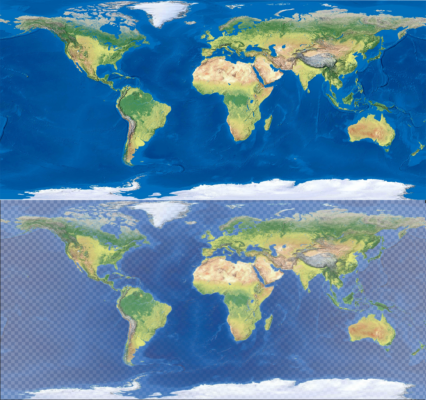
    I have got a foto with the earth map. I want to remove the oceans and seas into another footage. The continents must stay visible and the oceans/ seas must become a new layer.

    But, If I use “colorrange” to select the blue colors of the water, I select “new layer via cut”, the new layer with the water AND the original layer with the continents becomes a little transparant.
    If I select the water with “colorrange” and I am going to erase this with the eraser tool, the part next to the selected area becomes a little transparant also.

    How can I create 2 fully visible layers by using colorrange?

    You see at the attached photo the original photo at the top and the edited photo, containing only 2 layers after using colorrange.

    Thanks for your help

    Sander

    Brendon Murphy replied 5 years, 7 months ago 2 Members · 1 Reply
  • 1 Reply
  • Brendon Murphy

    October 16, 2020 at 2:26 pm

    Sander,

    The transparent areas are there because you are only selecting some of the blue colors, not all of them. Here’s what I recommend:

    -Duplicate your earth map so that there are two layers.

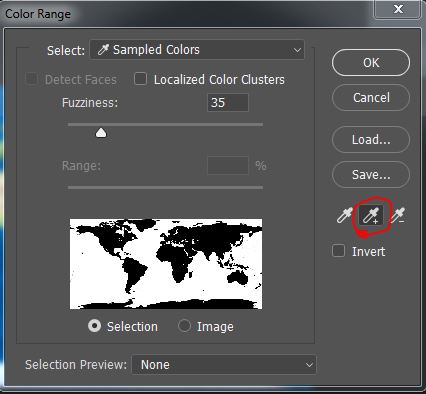
    -In the color range tool, select the blue water with the eyedropper

    -switch to the eyedropper with the + symbol beside it, and click+drag the dropper across more of the water area to make a better selection (see image below).

    -Look at the black and white thumbnail to make sure your selection is good. Press “OK”

    -Invert your selection to select the land (Shift+Cntrl+i).

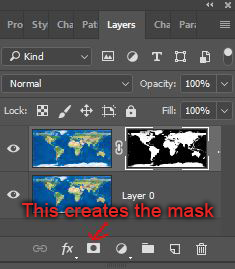
    -Select the top map layer and press the mask button (see image below). This will hide the water on the top layer without actually deleting it.

    This method is better than just deleting the water because you can use a levels adjustment on your mask to tweak the edges of the land (you can edit the mask by alt+clicking it). I do not recommend deleting the land from the bottom water layer, since that can create a gap between water and land. It’s hidden by the top layer anyway, so just leave it!

We use anonymous cookies to give you the best experience we can.
Our Privacy policy | GDPR Policy