Creative Communities of the World Forums

The peer to peer support community for media production professionals.

Activity Forums Maxon Cinema 4D Orange Outline still not visible despite turning off Isoline Editing

  • Orange Outline still not visible despite turning off Isoline Editing

    Posted by Hilary Tsai on September 9, 2021 at 12:41 am

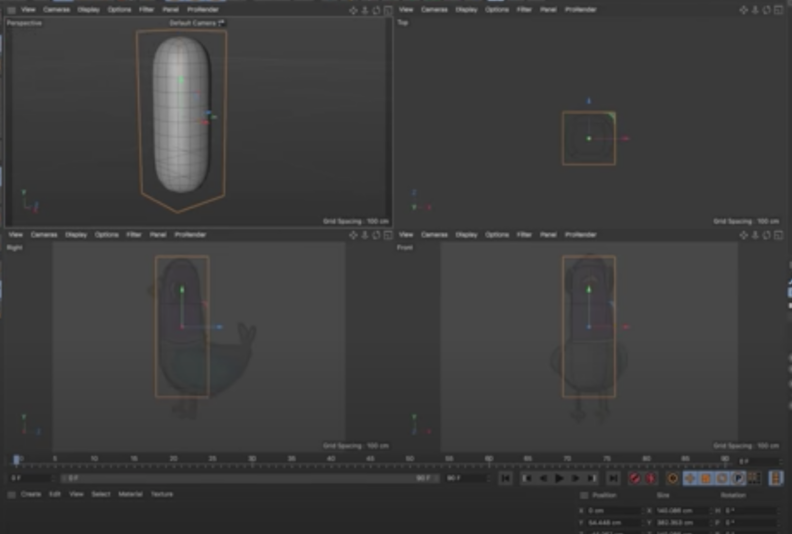
    Sorry I don’t know the official word for it, but you see in this video around 5:18 he has an orange outline around his geometry:

    https://www.youtube.com/watch?v=hyZb7RT2AAU&t=431s

    I didn’t have one, and someone said if I turn off Isoline editing under options, it would appear; but it hasn’t. Anyone know how I can make the outline visible? I’m running S22.

    Thanks!

    Some contents or functionalities here are not available due to your cookie preferences!

    This happens because the functionality/content marked as “Google Youtube” uses cookies that you choosed to keep disabled. In order to view this content or use this functionality, please enable cookies: click here to open your cookie preferences.

    Hilary Tsai replied 4 years, 7 months ago 2 Members · 10 Replies
  • 10 Replies
  • Jim Scott

    September 9, 2021 at 1:47 am

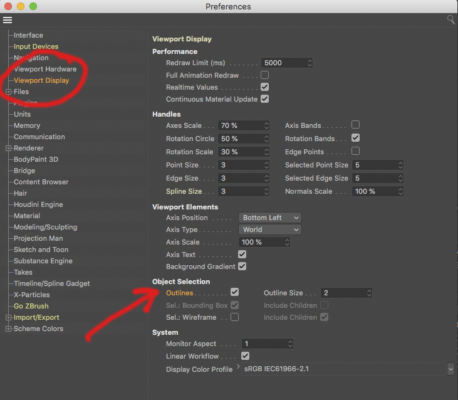
    I think what you want is in Preferences > Viewport Display — Object Selection and enabling “Outlines.” If that’s not it, please upload a screenshot.

  • Hilary Tsai

    September 9, 2021 at 3:22 am

    Hi, Jim,

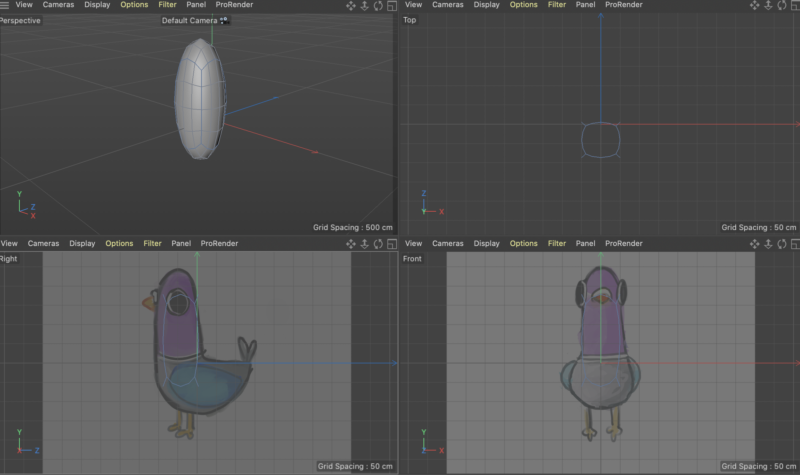
    First of all, thank you for your helpful suggestion! I tried enabling outlines, but I still don’t have an outline. Below is a screenshot of what I see vs. the orange outline I should be seeing. Do you have any idea of what I can try?

    Thank you so much!!

  • Jim Scott

    September 9, 2021 at 5:33 am

    Did you try the other options in that section of the preferences… Bounding Box and Wireframe… and if so, do any of them appear? I hate to ask, but I want to make sure we’re not overlooking anything — do you have the cube selected in the object manager?

  • Jim Scott

    September 9, 2021 at 1:02 pm

    Hi Hilary,

    As I look at your images again the fact that the cube’s polygons are in blue tells me that you were in polygon mode (or edge or point mode) when you grabbed the screenshot. When you select model mode with the cube selected in the object manager you should get the orange outline. If that’s not happening when you have outlines enabled in the preferences I am at a loss to explain why. I don’t know of any other settings that would affect this but I will keep looking.

  • Jim Scott

    September 13, 2021 at 2:39 pm

    Any response would be nice.

  • Hilary Tsai

    September 26, 2021 at 12:20 am

    Hi, Jim

    Apologies that I dropped off the forum for a while. But I did see your responses and meant to reply that yes, I was in polygon mode and highlighting the object but still didn’t have that outline. Then funny thing happened, I ended up upgrading to R24 and when I opened the project there, I did have an outline. So I’m not sure exactly what happened, maybe there was some default setting that was turned off in the other version but it’s fixed now. Thank you for your helpful answers!

  • Jim Scott

    September 26, 2021 at 6:42 pm

    Thanks for the follow-up Hillary. Just to clarify, you must be in MODEL mode for the outline to appear. The fact that you were in POLYGON mode was my explanation as to why you weren’t getting it.

  • Hilary Tsai

    September 28, 2021 at 9:15 pm

    Hi, Jim

    That was my mistake. I see now that you said Model mode, but the tutorial I was following showed he was in polygon mode and had the outline. However, the true issue is that I was a dummy and thought he had an outline when in reality, he just had all his geometry highlighted and showing up orange. This was not a true outline at all, it was an error on my part that I later realized. Thank you so much for your help! I’ve noted everything you’ve said for the future and I know it will come in handy when troubleshooting.

  • Jim Scott

    September 28, 2021 at 9:51 pm

    Hilary,

    You are very gracious and diplomatic. I’m glad if I helped, but perhaps I overlooked something myself in the tutorial (wouldn’t be the first time, nor the last). Thanks for your kindness.

  • Hilary Tsai

    October 2, 2021 at 6:42 pm

    Thank you, Jim! And you are always so kind and helpful. You’ve solved my issue many a time on this forum, including this one. It’s much appreciated:)

We use anonymous cookies to give you the best experience we can.
Our Privacy policy | GDPR Policy