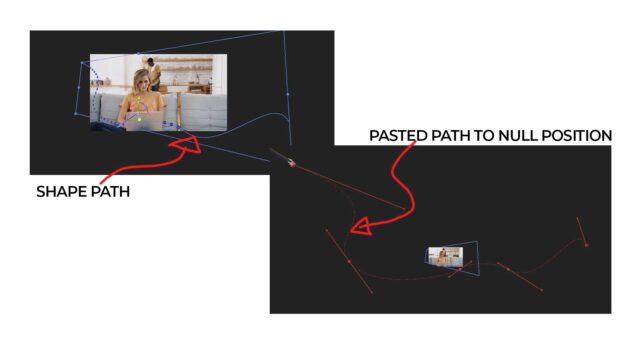
I would make the circles separate layers…
To get them to all move along the same path, I’d animate a null in 3D space to follow the line you have. Note that changing the position keyframes to ‘roving’ should help smooth the animation.
Then I’d create the first circle (smallish layer and add a circular mask, or make a circular shape layer).
To make it follow the null’s motion, I’d use an expression on the circle’s position property, something like this:
target = thisComp.layer("Null 1"); // change "Null 1" to your null or layer to follow
n = .5 ; // change this value to change the spacing between dots
target.position.valueAtTime(time - index * n)
You should be able to scrub through the time line and see that circle follow the null, but be offset in time just a little.
Now if you duplicate the circle a few times you should start to see a trail of circles. Adjust the ‘n = .5’ value in the expression to get the spacing you want. Once you have that set, delete the circles that don’d have that value and then duplicate the circles(s) that do and they should all have consistent spacing.
For colorizing, you could do each manually, or you could us another expression. I would try the Fill effect if you use the layer and mask method, or you can use an expression on the Fill property of the shape layers. Either way, the next steps are the same.
First create a keyframe for each color that you want to randomly select from. Then try this expression:
seedRandom(index, timeless = true) ;
r = Math.ceil( random( numKeys ) ) ;
key(r).value
As you duplicate out the circles, each should be random color from the colors you stored as keyframe values.
If needed, you can also set the circles to always face the camera by selecting all of them and choosing Layer>Transform>Auto-Orient and then choose ‘Towards Camera’