Creative Communities of the World Forums

The peer to peer support community for media production professionals.

Activity Forums DaVinci Resolve Matching settings of original DV Prores 422 footage in exports for Resolve

  • Matching settings of original DV Prores 422 footage in exports for Resolve

    Posted by Tim Gallaher on February 11, 2026 at 2:44 am

    Hi Everyone,

    If I have missed these topics in my searches for existing posts, forgive me. I found zero results in multiple different searches, but I may not be using the right search terms.

    I have to use DaVinci Resolve 19.1.4 on a Mac for an archive project where I just need to take some DV Prores 422 footage and either split it in two or add two clips together. Very simple. But I don’t want to change any parameters of the footage. In other words, I don’t want my exports to downres the footage. I’m used to Premiere where I can a) match the timeline settings to the original footage and b) match the export settings to the original footage. But apparently you can do neither in Resolve. And even if I’m exporting compressed footage out as Prores in Premiere,
    the settings are pretty simple. I’m not finding the settings simple in
    Resolve. All I can find online is the best export settings for youtube videos or for 4K, which is not what I want.

    So, I have several questions for you Resolve experts:

    1. Are the Project Settings in Resolve exclusively for just the monitoring of your footage while you edit or does it affect exports? In other words, even if my Project Settings are set wonky, will the export still be made from the original footage?

    2. For Export Settings, Is constant Bit Rate best?

    3. For Advanced Export Settings, What’s best for Data Levels; Auto, Video, Full or Retain sub-black and super-white data?

    4. For Advanced Export Settings, What’s best for a) Color Space Tag, b) Gamma Tag and c) Data burn-in?

    5. Finally, should Enable Flat Pass be On or Off?

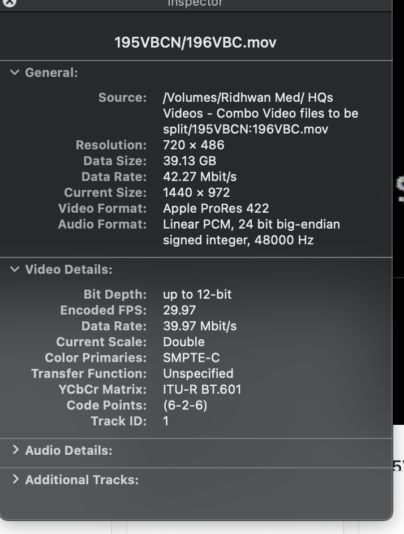
    Again, I just want to match the original footage. Don’t need to upres it and certainly don’t want to downres it. Attached is a screenshot of the Quicktime Movie Inspector window for the original footage (the footage is 720×486. Don’t know why the inspector says it’s 1440×972). Any help anyone can be is appreciated tremendously! Thank you!!

    Tim Gallaher replied 2 months, 4 weeks ago 2 Members · 3 Replies
  • 3 Replies
  • Ivan Eldredge

    February 12, 2026 at 3:00 pm

    Hi, your screenshot actually clears up the confusing part.

    Your file really is 720×486, 29.97, ProRes 422. The reason QuickTime is showing 1440×972 is because it’s reporting the “current size” after display scaling, not the stored pixel dimensions. You can even see it in the Inspector: it says “Current Scale: Double,” so QuickTime is basically just presenting it at 2x. Nothing about that means your media is secretly higher res or that Resolve is changing it.

    In Resolve, the main thing is to avoid putting SD footage into a default HD project and then wondering why it scales. Project settings do affect what you render, so for this kind of archive job you want the timeline to match the clip: set the timeline frame rate to 29.97 and set the timeline resolution to a custom 720×486. Once the timeline matches the source, you can do your simple split or join and you won’t trigger any unwanted resizing.

    On the Deliver page, keep it simple as well: export QuickTime, Apple ProRes 422, and don’t override the resolution to something else. The “constant bitrate vs VBR” question doesn’t really apply to ProRes the way it does to H.264 or H.265. ProRes is profile-based (422, 422 HQ, LT, etc.), so you’re basically choosing the ProRes flavor rather than tuning a bitrate mode.

    For levels, Auto is the safest choice here since this is standard SD video (your Inspector even shows BT.601 and SMPTE-C style metadata). Forcing “Full” is where people accidentally shift levels, so I’d avoid that. Same idea with Color Space and Gamma tags: don’t try to reinvent them, just leave them on Auto/same-as-project so the file stays consistent. Burn-in should be off unless you want text baked into the image, and Flat Pass should be off since you’re not doing any special color-managed bypass.

    If you match the timeline to 720×486/29.97 and export ProRes 422 without overrides, you’ll get a clean archive export that doesn’t uprez or downrez.

    Best,

    Ivan Eldredge G.

  • Tim Gallaher

    February 13, 2026 at 4:24 am

    Ivan, Thanks a ton for your detailed, articulate, thorough and really helpful response. I’m away from work until Monday, but will follow what you say when I get back. Super helpful and I’m really grateful.

    Cheers!

  • Tim Gallaher

    February 18, 2026 at 12:39 am

    Hi Ivan,

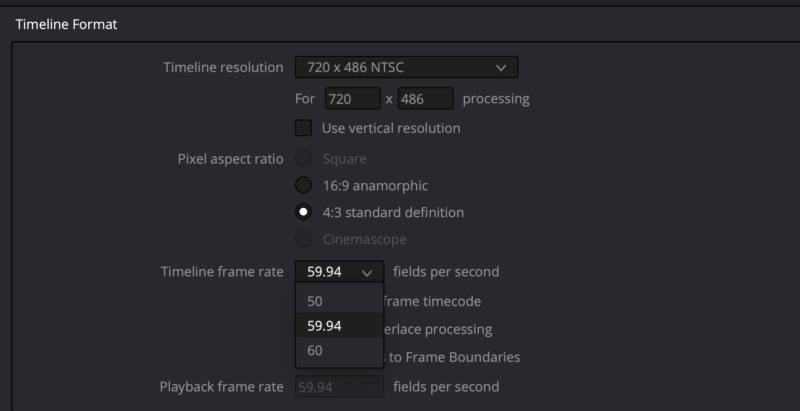
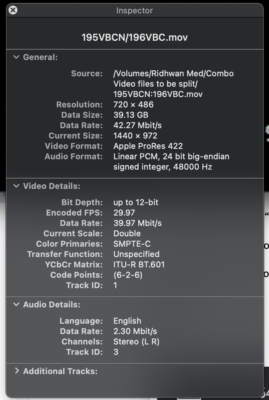
    Thanks again for your help, but now I’m running into problems that make absolutely no sense. I set the project settings for 486×720 with 29.97 fps. But then when I try to import my original footage with the same settings, as evinced by the attached Quicktime movie inspector window (same as last time), I get a notice that my frame rate for the footage does not match my timeline. If I choose to change the footage, the timeline somehow switches to 59.94 fps (see 2nd screen capture of project settings window *after* I change footage). If I choose to NOT change the footage, the video plays fine and is in sync. But that makes me wonder what the heck is going on that I can’t see in which there seems to be a mismatch between my footage and the timeline I created to match exactly that footage.

    By the way, this NEVER happened before. I’ve imported the same footage several times as I’ve been getting familiar with the interface of Resolve, and it never told me the footage didn’t match the 29.97 fps of the timeline until today.

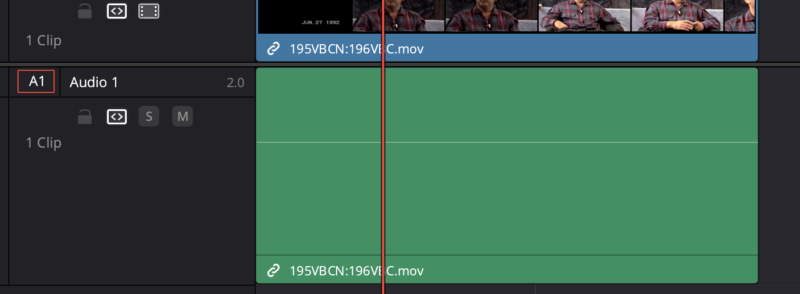
    In addition, I can’t get the wave forms to consistently appear on the audio track (see 3rd screenshot. There’s audio on the track as well as wave forms. They just are invisible for some reason sometimes.). They appeared fine last week, but didn’t show up multiple times this week at all, even if I’d restart the app as well as the computer multiple times. Then suddenly today, the wave forms appear after I restarted one more time.

    So it seems there are random quirks appearing in the interface causing problems intermittently.

    Last question: the db meter in Fairlight seems to go red at anything over -5 db. This is unlike any other meter I’ve used. Usually it doesn’t turn red until you are over Unity or 0. Are the settings different / lower in Resolve for audio or is that just a quirk and, like usual, anything under Unity or 0 is safe?

    Any help will be appreciated again,

    Tim

We use anonymous cookies to give you the best experience we can.
Our Privacy policy | GDPR Policy