-
Low 3D Quality (Possibly Shadow)
Hello,
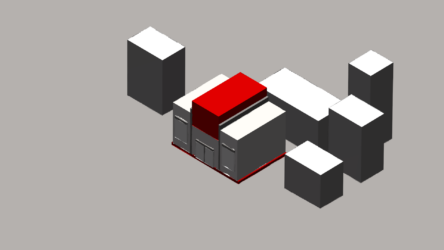
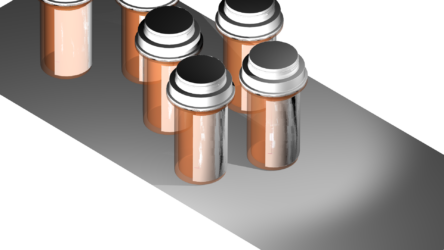
I’m trying to figure out why these Advanced 3D renders look so bad and I don’t think I have the proper language other than it might be related to low quality shadows. I’ve boosted the Render Quality, Resolution, Smoothness and Casting Box Size and have set the Fast Previews to Off. Can someone explain why the edges of each of these objects look so bad?
What you’re looking at is:
Image 1, a shape brought in from Illustrator and extruded. I separated each of the pieces into different layers and made sure they’re not overlapping at all (even moving them much further away from each other to test) and the edges still look bad, so it’s not an overlapping issue. The surrounding cubes are mesh boxes created in After Effects (similarly bad edges).
Image 2 is a .glb downloaded and brought in. I’ve opened it in Blender, similarly making sure that the label on the bottle was not overlapping at all (there is some empty space between though not visible). Even taking the label’s issues out of the question, I notice the cap’s edges are bad on the top and bottom.I’ve had luck in the past with native and imported Objects in the Advanced 3D Renderer but I’m on a different computer from those successes and I’m thinking there must be some setting that’s different by default.
Thanks for any help you can offer
replied 3 months, 2 weeks ago 2 Members · 1 Reply