Creative Communities of the World Forums

The peer to peer support community for media production professionals.

Activity Forums Adobe After Effects Looking for a way to animate top-down car “phsysics”

  • Looking for a way to animate top-down car “phsysics”

    Posted by Michal Frajkor on February 3, 2025 at 3:01 pm

    Hello everyone!

    My first post here so hopefully I won’t break any rules 😅

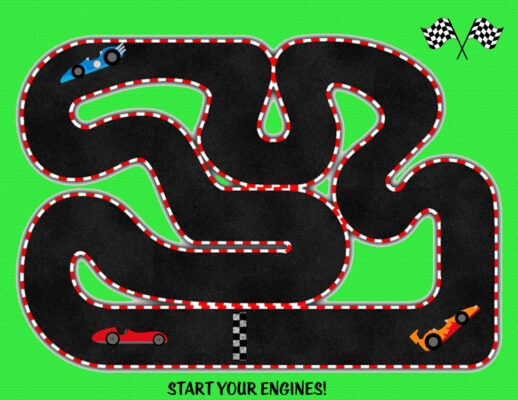
    Anyway, to the point – I’m looking for a best and easiest (but still good looking) way to animate a race car on a racetrack – the view would be top-down. Let’s say I have a racetrack like in the picture (but cars would be top-down as well, not from a side).

    Is there any tool or plugin (even paid) that would let me, let’s say put some kind on an anchor points on the composition and then link the image (car) to them, so the car could rotate around them and create a turning animation?

    Or do you have some better ideas on how to do it? Thanks for any idea, I would like to skip the hard manual way of keyframing every frame.

     

    Kendall Hoover replied 1 year, 3 months ago 2 Members · 1 Reply
  • 1 Reply
  • Kendall Hoover

    February 3, 2025 at 4:33 pm

    Check out this video from Adobe Learn. Hope this helps.

    https://www.adobe.com/learn/after-effects/web/animate-along-path?learnIn=1

    Create a path

    1. Select a layer and use the Pen tool to create anchor points for a path.

    2. Click and drag to add anchor points and expose the handles.

    3. Move the handles to adjust the shape of the path.

    Use the path to create position keyframes

    1. Switch to the Select tool in the Toolbar.

    2. Select the layer which contains the path and press M to reveal the Mask Path property.

    3. Select the words Mask Path and then choose Edit > Copy to copy the path.

    4. Select the layer to which you want to apply the path and press P to reveal the Position parameter.

    5. Select the word Position in the Timeline and choose Edit > Paste to add the path data as Position keyframes.

    Change the timing of the animation

    • Deselect all the keyframes. Then drag the first or last keyframe to change the duration of the animation along the path.

    Orient the object along the path

    1. Go to Layer > Transform > Auto-Orient, and choose Orient Along Path.

    2. Press R to open the Rotation parameter, and scrub to rotate the animated layer to the proper angle on the path.

We use anonymous cookies to give you the best experience we can.
Our Privacy policy | GDPR Policy