

Activity › Forums › Adobe After Effects Expressions › Layer Opacity
-
Layer Opacity
Posted by Sabah Shahdi on May 18, 2016 at 9:40 amHi Dears,
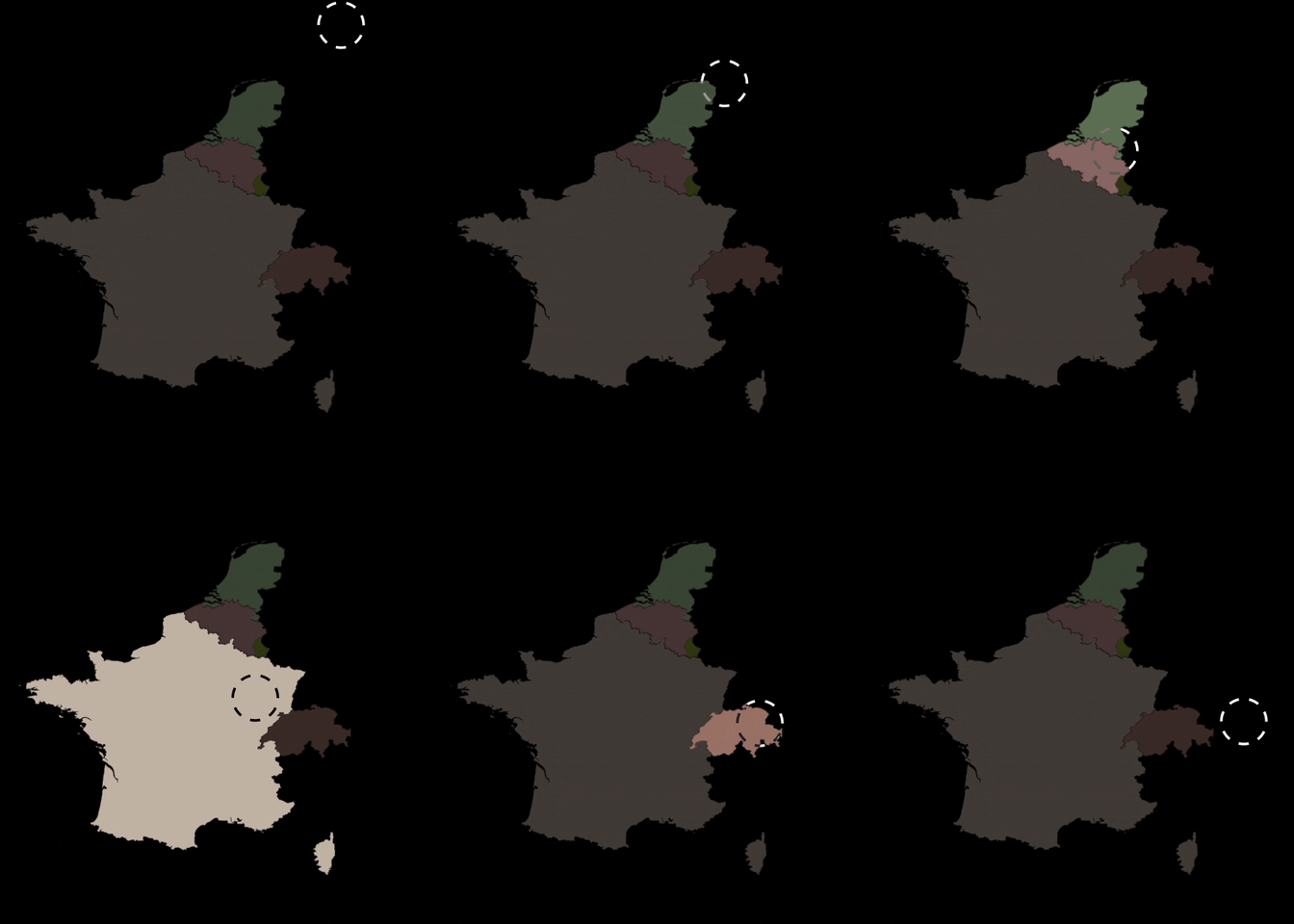
I need to know how to control a layer opacity with position of another layer.for example if layer A reaches B, opacity of layer B change to maximum value and if layer A is far from layer B, opacity of Layer change to minimum value.
or
when layer A crosses over layer B, opacity of Layer B changes from 0 to 100 and 100 to 0.
layer A and B are in same comp.
thanks for helping.
Sabah Shahdi replied 10 years, 3 months ago 3 Members · 10 Replies -
10 Replies
-

Wallace Adrian d’alessio
May 19, 2016 at 12:51 pmSelect your layer for position info and hit p for position. ALT-Click the stopwatch to activate animation and to reveal the expression control. Make your keyframe layout You might also like a follow path command if a pattern is involved.
Select your layer for opacity and hit t for transparency. ALT-Click the stopwatch to activate animation and to reveal the expression control.
click on the spiral icon ( the pickwhip) and drag it to the position property of the target layer. The expression language should reflect the change of control.Using the graph editor on your keyframes to refine the movements and changes with acceleration curves and easing will make it look very nice. If you are unfamiliar with that don’t be afraid to play with those controls.
Sometimes this simple means will do the trick.
For more control of other layers create a null layer from the layer menu and give it an expression control. A slider will work.
Then pick whip the properties of the other layers to the slider.
Here you would drag connections for your position and opacity.Adrian D\’Alessio aka; Fluxstringer
fluxstringer@gmail.com
https://www.facebook.com/FluxStringer
https://www.linkedin.com/in/fluxstreamcommunicationshttps://twitter.com/FluxStringer
https://mog.com/FluxMuse -

Sabah Shahdi
May 19, 2016 at 2:14 pmThanks dear ….
I tried that but it was not useful.imagine, your are going to control opacity of countries on a map with position of a null object.
when position of null object achieves to the borders of each layer (country), opacity of country changes from 0 to 100 and then from 100 to 0 while null object is crossing the country layer.I think some codes Like this ( if … then … else .. end) can help but I’m not good in this type of scripting.
thanks again.
-
Wallace Adrian d’alessio
May 19, 2016 at 3:18 pmThe process I described , if followed will write the script for you. All you have to do is connect the properties via that method and then click the little key frame diamond to establish your keyframes values. Or just move on the timeline and drag the number values.
By clicking the composition panel and clicking the tilde key (~) you can expand it to see it all in detail.
An alternate method of copy pasting the position keyframes into the opacity property would be a labor intensive one if there were a lot of keyframes. But it could work if your project is small.
Without more info from you the failure point
for the pickwhip method is undetermined.Did you enable all expressions?
See image:
Expression Toggle
Adrian D\’Alessio aka; Fluxstringer
fluxstringer@gmail.com
https://www.facebook.com/FluxStringer
https://www.linkedin.com/in/fluxstreamcommunicationshttps://twitter.com/FluxStringer
https://mog.com/FluxMuse -

Filip Vandueren
May 19, 2016 at 7:42 pmIf it were simple objects, you could get away with calculating the distance between the anchor points of your reacting layers and the Null layer.
But since you gave the example of a map of countries…I think the best approach would be to use an expression that uses sampleImage().
You can see if the point were the Null Object is is transparant or not ( every country is on is own layer and has an alpha channel), then use that information to drive the opacity of the layer.Here’s the expression:
n=thisComp.layer("Null"); // make sure this is your Null !p=fromComp(n.toComp(n.anchorPoint));
// do some fromcomp layer space transform in case the Null or country is parented to something elser=10; // the radius of the sample -> this will make the country fade in as you approach r pixels from it's border
// make sure the radius is smaller than your smallest country, and larger than 0.5 pxs=sampleImage(p, [r,r], postEffect = true, t = time);
alpha=s[3]; // sample returns [r,g,b,a] between 0-1, we only need the alpha channel
linear(alpha, 33,100); // convert alpha 0-1 to opacity 33% - 100% (or any other thing you want.)
-
Wallace Adrian d’alessio
May 20, 2016 at 7:40 amI have a hunch you are not using an expression control in the form of a slider on the null.
I also presume you have not pickwhipped any properties.Adrian D\’Alessio aka; Fluxstringer
fluxstringer@gmail.com
https://www.facebook.com/FluxStringer
https://www.linkedin.com/in/fluxstreamcommunicationshttps://twitter.com/FluxStringer
https://mog.com/FluxMuse -
Filip Vandueren
May 21, 2016 at 8:10 amLooks like your post and my reply disappeared ? Not sure if you got the updated expression:
You’re using just 1 dimension (X) which makes things a lot simpler.
The problem now is that you’re doing a simple subtraction:thisComp.layer(“Controller”).transform.position[0]-transform.position[0]
This will have the layer fade form 0 to 100 while the position of the Null moves from 100 to 0 pixels away, however, as the Null layer moves further to the right, the value just keeps rising (but is clipped of at 100).
Here’s what you need:
100 – Math.abs(transform.position[0] – thisComp.layer(“Controller”).transform.position[0]);
I’ve flipped the order of the subtraction, but add Math.abs -> this makes it an absolute value (negative values become positive).
That should work perfectly for a fade in/out over 100 pixels.if you need more control over the distance:
xDiff=Math.abs(transform.position[0] - thisComp.layer("Controller").transform.position[0]);closeDistance=50;
closeOpacity=100;
farDistance=200;
farOpacity=0;ease(xDiff, closeDistance, farDistance, closeOpacity, farOpacity);
-
Sabah Shahdi
May 22, 2016 at 9:11 amDear Filip Vandueren,
Thanks a lot.
That works great for my case. -
Sabah Shahdi
May 22, 2016 at 10:24 amDear Wallace Adrian D’Alessio,
Thanks for your step by step explanations.
Actually I tried those steps.
But I couldn’t figure out how to achieve the goal.I’m sure that they are helpful.
Thanks again.


Reply to this Discussion! Login or Sign Up