Creative Communities of the World Forums

The peer to peer support community for media production professionals.

Activity Forums Adobe After Effects Importing logo from AI to AE

  • Importing logo from AI to AE

    Posted by Andre Sebastien on June 1, 2021 at 10:02 am

    Hi all,

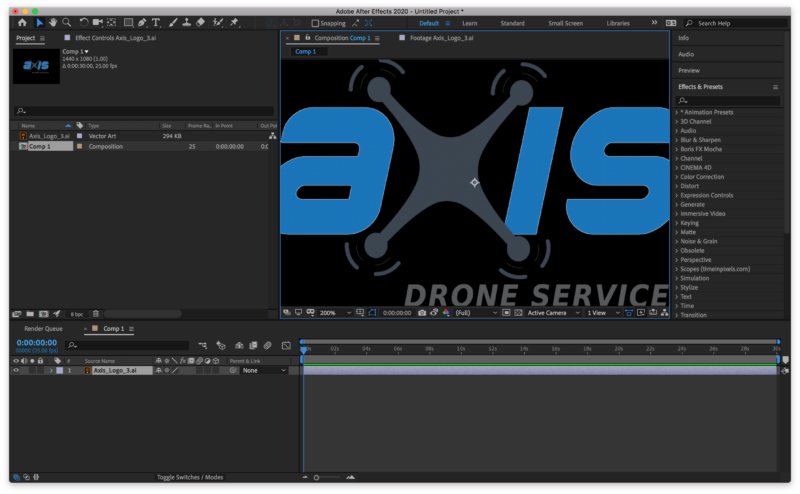
    I need to import an EPS logo into After Effects. I’ve been trying to do this by brining it into illustrator first and then importing the AI file to AE, both 1920 x 1080. The image is smooth in AI but remains pixelated in AE, even though I have ‘continuously rasterize’ checked and the composition is at full resolution. Rending the composition as a QT results in a pixelated image, so I figure it’s not a display issue. Any idea as to why this would be? I’m a video editor but not very familiar with Adobe/graphics work in general.

    Thank you,
    Andre
    Andre Sebastien replied 4 years, 11 months ago 3 Members · 6 Replies
  • 6 Replies
  • Patrick Grossien

    June 1, 2021 at 12:32 pm

    Hi Andre, tbh, I don’t see the pixelation. Maybe you can mark it in the screenshot!?

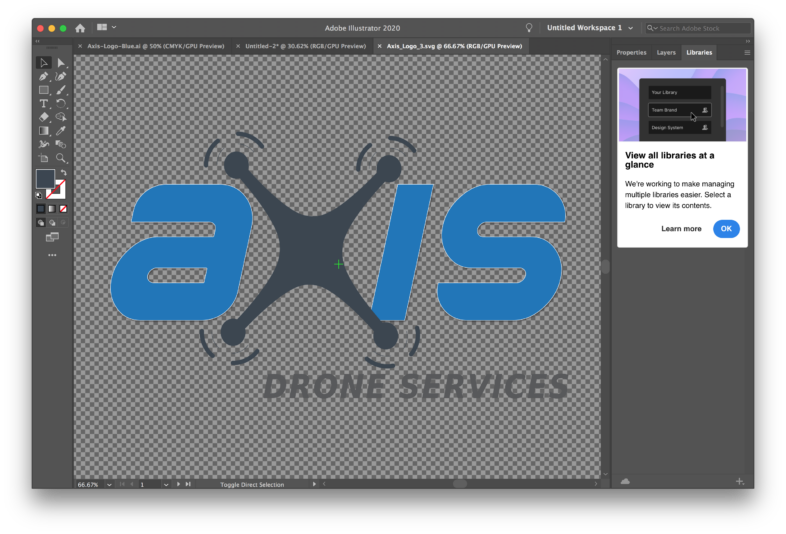
    Only thing I noticed is that you’re comparing a 200% with a 66% view, so for us, it’s hard to tell what it should look like.. but maybe that’s already the solution? Set both to 100% and compare again.

  • Eric Santiago

    June 1, 2021 at 1:53 pm

    Can you upload the file?

    Patrick is right. Viewing it at 200% can do that.

    Another factor is the use of strokes.

    Anything less than 3px is scary.

  • Andre Sebastien

    June 1, 2021 at 4:21 pm

    Thank you both. You were right that viewing it at 200% had made it look more pixelated – I thought even at 100% they were different but having rechecked closely it seems the same, and maybe I’m mistaking something in the original EPS for pixelation. It does seem to be rendering out of AE pixelated but I assume I’m doing something wrong on export so will try and troubleshoot.

  • Eric Santiago

    June 1, 2021 at 6:00 pm

    Opened it in Illustrator and noticed it had an effect on the vector.
    That I avoid since the effects causes issues for me when imported to AE.

    That’s just my opinion of course.

    I imported the original EPS and it came in with a white box behind the logo.

    I’m assuming that’s to help push the drop shadow effect created in Illustrator.

    Saved the EPS into an Adobe Illustrator file and that one imports cleanly.

    So clean that the drop shadow is intact.

    Switched on Raster and scaled it to 400% and looks great to me.

    You cant zoom in, you must keep it at 1:1 (100% view) to get the idea of it.

    I think your issue is both the EPS version and that awful thin stroke.

    My AI version works great, try doing that first on your end.

    I created a simple AE 2020 version for you that has both formats imported, scaled and with a white BG.

  • Andre Sebastien

    June 2, 2021 at 8:23 am

    Fantastic, that’s really helpful thank you. I’ll check it out tonight once I’m finished work. That all makes sense though, thank you again for the advice!

  • Andre Sebastien

    June 3, 2021 at 5:15 pm

    Thanks again for this, it was a huge help and the AE project looks good. I still see slightly jagged edges on the writing, is that to do with the thin stroke/effect you were talking about? Either way I can work with it, just curious as my knowledge of illustrator is basic and would like to know how to avoid. Thanks!

We use anonymous cookies to give you the best experience we can.
Our Privacy policy | GDPR Policy