Creative Communities of the World Forums

The peer to peer support community for media production professionals.

Activity Forums Adobe After Effects Expressions How to use a checkbox to enable or disable an expression?

  • How to use a checkbox to enable or disable an expression?

    Posted by Gareth R on February 20, 2024 at 5:10 am

    I’ve animated a layer with multiple position keyframes, and now I want *some* of those keyframes – but *not* all of them – to have an overshoot expression applied. In other words, I want an expression to only affect certain specific keyframes on a layer.

    I’ve been told that it’s possible to do this using a checkbox control to keyframe the expression on or off as necessary. Unfortunately, I have no coding experience (although I can copy and paste an expression with the best of them!) and I can’t work out how to link an expression to a checkbox such that the checkbox can be used to enable or disable that expression.

    Any advice gratefully received…

    Gareth R replied 2 years, 5 months ago 3 Members · 4 Replies
  • 4 Replies
  • Dan Ebberts

    February 20, 2024 at 7:31 am

    This is a keyframe overshoot expression from my site, which I’ve modified to skip the overshoot unless the checkbox is on at that keyframe. It may not exactly fit whatever you’re using for overshoot, but hopefully it will give you an idea on how to incorporate the checkbox.

    cb = effect("Checkbox Control")("Checkbox");
    freq = 3;
    decay = 5;
    n = 0;
    if (numKeys > 0){
    n = nearestKey(time).index;
    if (key(n).time > time) n--;
    }
    if (n > 0 && cb.valueAtTime(key(n).time)){
    t = time - key(n).time;
    amp = velocityAtTime(key(n).time - .001);
    w = freq*Math.PI*2;
    value + amp*(Math.sin(t*w)/Math.exp(decay*t)/w);
    }else
    value
  • Tom Morton

    February 20, 2024 at 7:58 am

    There’s lots of info on the web generally on this so I’ll try and offer a brief outline. Not sure how much of this you already know so let know if you want more specifics on anything.

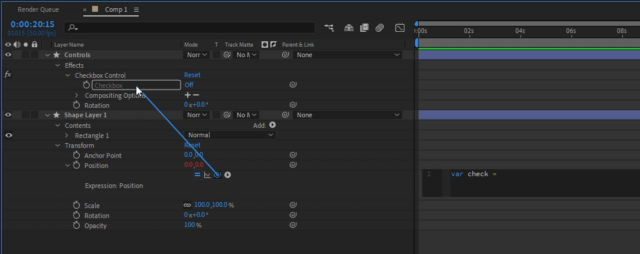
    You first need a layer to hold your checkbox, this is an Expressions effect. I usually add a blank Shape layer but you can use a null layer or any other layer too. I rename it “Controls” and then right click on it and go to Effects > Expression controls > checkbox

    Now open a layer you want to control with the checkbox, work out which property you want to change and Alt + click on the stopwatch sign for that property. This will open a code panel for the property. For instance if you want to move the layer, you might want to open the Position property in the Transform section. Or you might want to change the Scale property etc.

    In the code panel you just opened, type:

    var check = 

    and then you’ll see a little twirly spiral symbol near the code panel. Click and drag it to the checkbox effect you added to the Controls layer, and it will automatically link it to the “check” variable. The code text should look something like this:

    var check = thisComp.layer("Controls").effect("Checkbox Control")("Checkbox")

    Now you can do a simple if statement. The “check” variable will link to the checkbox, and the value will be 0 (zero) if unchecked or 1 (one) if checked. Thus:

    var check = thisComp.layer("Controls").effect("Checkbox Control")("Checkbox");
    var pos = [0,0];
    if (check == 0) {
    pos = [200,300];
    } else {
    pos = [400,600];
    };
    pos

    When you check the box on or off, it will change the position variable in this script. The position is an array of 2 numbers hence the use of square brackets to encapsulate the x and y position. Putting the pos variable at the end basically returns the value of that variable for the layer to use.

    That’s the basics of using a checkbox to control expressions. Play with that for starters – do you need some more tips on how to set up the keyframing too?

  • Gareth R

    February 20, 2024 at 11:52 pm

    Thanks for that, Tom. Dan’s example has helped me understand that it’s not a matter of turning the expression on and off by linking the checkbox to the equals sign that enables and disables expressions, but using a conditional statement to check the value returned by the checkbox and then either run the expression code or not.

    What I really want to do now is understand the Javascript syntax. The only coding I’ve ever done is the most basic sort of BASIC programming in the 80s, so I don’t know why Javascript uses normal, curly and square brackets or why you use two equals signs rather than just one – the whole thing, really. Are there any good complete-beginner tutorials for expression-writing?

  • Gareth R

    February 20, 2024 at 11:53 pm

    Cheers Dan, I’ve already thanked you over on the Apple site, but thanks again 🙂

We use anonymous cookies to give you the best experience we can.
Our Privacy policy | GDPR Policy