

Activity › Forums › DaVinci Resolve › How to insert clip between other clips in timeline?
-
How to insert clip between other clips in timeline?
Posted by Jacek Antek on May 16, 2018 at 8:28 amHi Guys,
like in the topic how to insert clip between other clips in timeline?
I want to insert black tile with text between clips…
Thank you for help,
JacekChristoph Heimer replied 5 years, 9 months ago 8 Members · 9 Replies -
9 Replies
-

Joseph Owens
May 16, 2018 at 5:28 pm“Insert” edit is the correct answer.
There is another type of edit called “over write” which substitutes your trimmed source media into the timeline “over-writing” the previous clip. If you are clicking and dragging media, this can be tricky to differentiate. In versions of Final Cut Pro, there was a directional arrow that indicated what action would be taken. This depended on whether the release point was above or below a criteria line superimposed on the layer.
jPo, CSI
“I always pass on free advice — its never of any use to me” Oscar Wilde.
-
Jacek Antek
May 17, 2018 at 6:53 amThank you very much Joseph !
Insert edit is working for me !
Than you for help and support,Best,
Jacek Antek -

Peter Alessandria
September 4, 2018 at 11:18 amSo the problem with Insert edit it two fold:
1. Let’s say I am only inserting the video portion of a clip from the trimmer window between two other video clips. There’s no way to only insert the video portion of the clip
2. More importantly, the track below is split at the insert point. This is unwanted (e.g. a music soundtrack).So how do I insert a clip between two other clips on the timeline without those unwanted effects?
http://www.greatproductshots.com
http://www.superstarheadshots.com
http://www.peteralessandriaphotography.com -

Laurent Fluttert
September 5, 2018 at 9:53 amThis is basic editing. Of course there are several ways to do what you try to achieve. You could do it like this:
– select the part of the video you want to edit into your timeline by setting an in and an out marker on the source.
– deselect audio tracks on the left of your timeline so that no audio is presented to the timeline (red boxes around A1, A2 and so on.
– make the audio tracks in the sequence inactive by deselecting the boxes with <> in it (otherwise silence will be inserted).
– press Insert, the fifth button from the left below your source window . You can also drag the clip into the timeline.
Done. -

Nathan Jackson
December 18, 2019 at 9:14 amNobody really answered your question properly here.
The insert edit button is severely limiting – as mentioned above there is no way to use it with only video and not audio, but more importantly, it is exclusively for use when bringing media from the media pool into the timeline. What if you want to insert a clip that is already in the timeline between 2 other clips, ie. change the order of clips in the timeline?
What you were looking for was this:
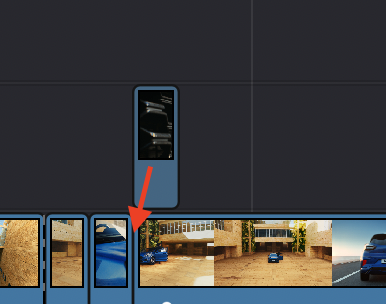
Hold down command + shift while you drag a clip. This allows you to place it between any 2 clips, and of course works to drag video without audio from the media pool too.
See here: https://www.4kshooters.net/2015/10/12/how-to-swap-edits-in-davinci-resolve-12/
-

Brad Hurley
December 18, 2019 at 11:55 am“The insert edit button is severely limiting – as mentioned above there is no way to use it with only video and not audio”
But as described above there is actually a very simple and effective way to perform insert edits with only video and not audio. Learning how to use the track destination controls and the auto-select buttons in the track headers is key to efficient editing in Resolve or any other traditional track-based editor. Using those you can precisely control what happens when you edit new clips into the timeline or (in the case of the auto-select buttons) what happens to other tracks when you make edits to clips already in the timeline.
If you don’t want to insert any audio, just be sure none of the audio tracks have their destination controls enabled. The audio will have nowhere to go and won’t be added to the timeline. The destination controls are essential if you use the function keys instead of drag-and-drop to add clips to the timeline, but even if you use drag-and-drop they’ll save you time.
There’s also another easy way to drag video without audio into the timeline: just hold down the option key on Mac or the alt key in Windows while dragging the clip. If you want to edit audio only into the timeline, use the shift key while dragging.
-

Christoph Heimer
December 7, 2020 at 12:45 pmI have exactly the same problem right now.
I have one short clip on top of a long clip and I want to drag it so that it snaps BEFORE the long clip. In Premiere this is a super easy task by clicking alt while dragging – but in Resolve it seems nearly impossible. With the aforementioned cmd+shift shortcut, it KINDA works but not as expected, as when I drag and click this combo, it never drags the clip down into the same layer, but always onto a new video track. Cmon, this has to be possible to do somehow?


Reply to this Discussion! Login or Sign Up