Creative Communities of the World Forums

The peer to peer support community for media production professionals.

Activity Forums Adobe After Effects How to create a master comp with different multiple comps

  • How to create a master comp with different multiple comps

    Posted by Samik Pal on September 11, 2020 at 12:04 am

    Hello experts,

    I have newly started using after effects and I am trying to create a compositions which would contain multiple compositions. I can’t seem to figure out how to do that.

    To elaborate, let’s suppose I have made four different aep projects (eg. Anim1, Anim2, Anim3, Anim4) of same width and height 1280×720 px and 30 fps each 3 seconds in long. Each of them contains keyframe animations.

    Now I have created a separate comp (e.g. master) of 1280 x 720 px containing 4 grids of 320×180 px each 30 fps and 3 seconds in duration.

    I desire to bring in all 4 projects into master and resize them to the grid so that it looks like all 4 animations are visible from one single composition.

    Is it possible in after effects? How do I split separate comps into the desired grid length,height and position?

    If someone can please point me to the correct direction would be great.

    Thank you in advance.

    Hope Holmesby replied 5 years, 7 months ago 3 Members · 5 Replies
  • 5 Replies
  • Hope Holmesby

    September 11, 2020 at 6:46 pm

    render all animations 1-4, import into master project, they will be 4 layers in the one comp. resize them to be the desired format : like this one would guess from the description

  • Brendon Murphy

    September 11, 2020 at 8:18 pm

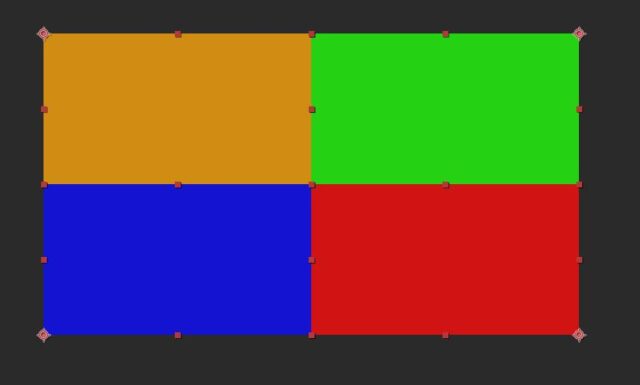
    Drag all 4 precomps into the master comp. With snapping enabled, use the pan-behind tool (y key) to drag each layer’s anchor point to a different corner of the comp. Scale all layers to 50%. Here’s the end result:

  • Hope Holmesby

    September 11, 2020 at 11:24 pm

    hi Brendon
    why do you put the anchor point at the corners of each like above?

  • Brendon Murphy

    September 12, 2020 at 4:56 am

    It’s a quick way to make sure the precomps land in the exact right place without needing to tweak the position.

  • Hope Holmesby

    September 12, 2020 at 6:51 pm

    ok, so you just drag them in and the anchor point makes it go to that place…nice…

    oh, because you have snapping enabled…ok…smart, thank you.

We use anonymous cookies to give you the best experience we can.
Our Privacy policy | GDPR Policy