Creative Communities of the World Forums

The peer to peer support community for media production professionals.

Activity Forums Maxon Cinema 4D How do you save your custom command manager settings?

  • How do you save your custom command manager settings?

    Posted by Daz van Helfteren on November 13, 2021 at 6:34 am

    Hi folks,

    Strangely, in the command manager file menu, we have the option to “load”, but not to “save”!

    I suspect that the option “rename” will actually save the settings to a file somewhere.

    If that’s the case, could anyone tell me where on my peecee i can find that file?

    And if not, how do you save your custom settings?!

    Thanks!

    Kouraib Abdmalek
    replied 2 years, 4 months ago
    4 Members · 4 Replies
  • 4 Replies
  • Steve Bentley

    November 13, 2021 at 10:48 pm

    It’s kinda clunky – you duplicate your current manager (up in the file menu of the command manager), then make your changes, make sure your changed manager is the one selected for use, then rename that duplicated manager (Rename is again up in the file menu). I guess they ran out of “save as” slots in the menu.

    If you save your layout as the default startup layout, that new manager should be the one to load when you make a new file. If not you can set it to the command manager to the one you want active and then save an empty project as “new.c4d” and put this next to your C4D executable in the program files folder, and any new file you make will load this file with everything set up the way you like.

  • Trung Nam

    December 7, 2023 at 4:13 pm

    C:\Users\PC\AppData\Roaming\Maxon\Maxon Cinema 4D 2024_A5DBFF93\prefs\shortcuts

  • Kouraib Abdmalek

    December 8, 2023 at 9:38 am

    Thanks for sharing this with us, I tried to follow the path but there seems to be something missing, if the issue is to create new shortcuts for commands I think this tutorial will help.

    https://www.youtube.com/watch?v=oCSX7DIVGLs

    Some contents or functionalities here are not available due to your cookie preferences!

    This happens because the functionality/content marked as “Google Youtube” uses cookies that you choosed to keep disabled. In order to view this content or use this functionality, please enable cookies: click here to open your cookie preferences.

  • Kouraib Abdmalek

    December 31, 2023 at 7:48 am

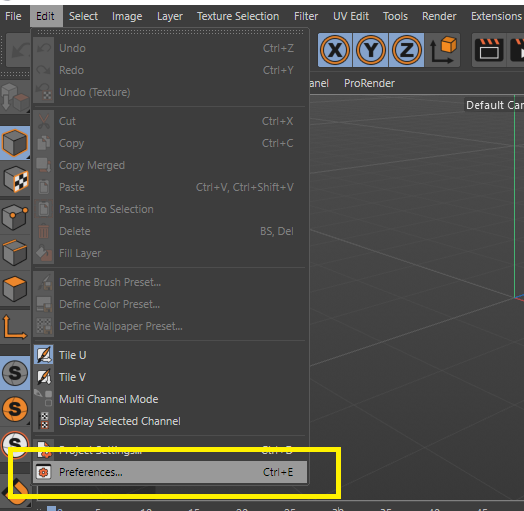
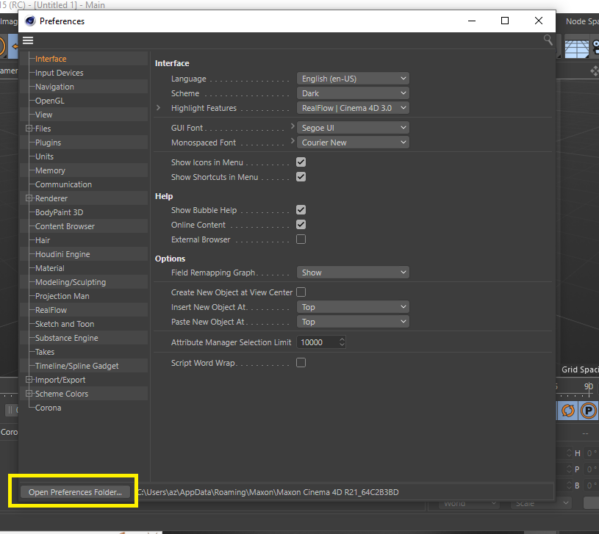
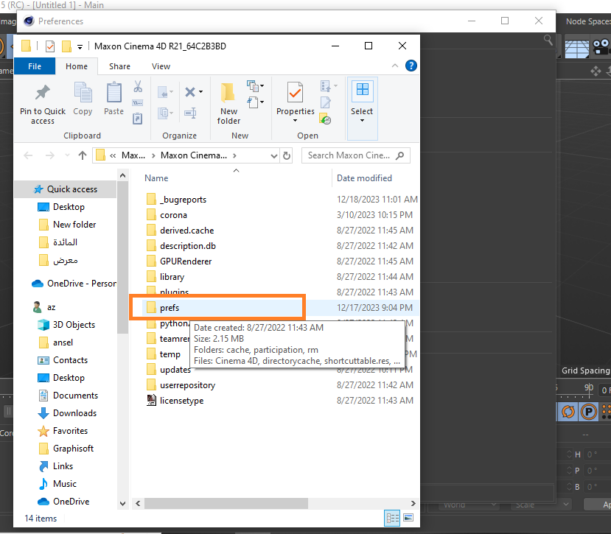
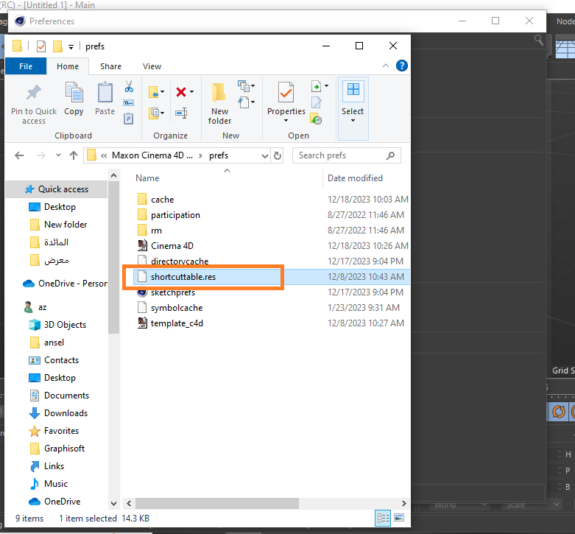
    As for the file location where your commands are saved, I think it is better to go to Edit and then follow the steps shown in the attached screenshots, instead of following the path, which may not work for everyone, especially on Mac.

    Thanks!

We use anonymous cookies to give you the best experience we can.
Our Privacy policy | GDPR Policy