Creative Communities of the World Forums

The peer to peer support community for media production professionals.

Activity Forums Adobe After Effects How do I achieve this look?

  • How do I achieve this look?

    Posted by Paul Phoenix on November 19, 2020 at 4:09 am

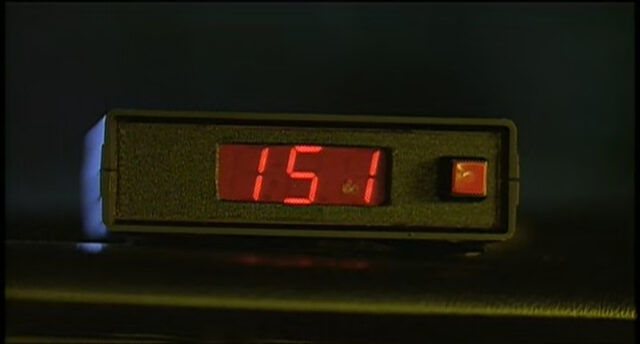
    I’m trying to achieve this look of little bits of interference on bright coloured areas. These are from old VHS tapes.

    You can see it on this picture on the red numbers.

    I’ve also uploaded a video:

    https://youtu.be/LnDGnGjQh04

    This video demonstrates what I’m talking about. It sticks out on the KERRANG logo in top right hand corner (Right along the edges, I zoomed in also to help). And also the explosion after that seems to have sort of diamond shapes on the bright orange fire.

    Thank you in advance, any help will be greatly appreciated.

    Brendon Murphy replied 5 years, 5 months ago 4 Members · 5 Replies
  • 5 Replies
  • Eric Santiago

    November 19, 2020 at 2:30 pm

    Basic analog video anomalies.

    Look for plugins that deal with old school video looks.

  • Paul Phoenix

    November 19, 2020 at 3:02 pm

    I’ve looked through tons of VHS/TV plugins and can’t find anything like this effect.

    Is there no way to replicate it in After Effects?

  • Kevin Camp

    November 21, 2020 at 1:31 am

    To do it for free (if there aren’t any free plugins) look for tutorials for analog video to get some good techniques — there are probably good posts and tutorials here on the Cow.

    Some basics for that Kerrang! logo would be to use a layer with fractal noise where the height scale is scaled way down and the width scale is scaled up, so it creates a horizontal texture. Hide that layer and then create an adjustment layer with the Displacement Map effect and chose the fractal noise layer as the Layer Map. Set the Vertical Displacement to 0 and then animate the Horizontal Displacement and you should start to see a similar distortion.

    Unsharp Mask can start to create the ghosting around the edges.

    That’s just to get you started : )

  • Paul Phoenix

    November 23, 2020 at 12:47 am

    Thanks for the reply Kevin. You’re advice really helped!!!

    I’ve used After Effects for several years now but only in a very noobish way XD. But you’re advice was easy to follow and I have achieved the desired effect!

    The only problem I have now is trying to keep the effect only to the brightest parts of the picture. You wouldn’t have any idea how to achieve that would you? Should I maybe use some sort of mask?

  • Brendon Murphy

    November 23, 2020 at 4:23 pm

    You can create a luma matte to isolate the brighter parts of the image.

    -Duplicate your source twice.

    -desaturate the very top layer, and the use a curves or levels effect to crush the blacks and midtones (leaving only the brightest parts of the image visible. Blow out the whites to make those areas pure white).

    -Set the second layer’s track matte to “luma matte”. Layer 2 now only shows up where the top layer is white.

We use anonymous cookies to give you the best experience we can.
Our Privacy policy | GDPR Policy