Creative Communities of the World Forums

The peer to peer support community for media production professionals.

Activity Forums Apple Final Cut Pro FCPX “audio crossfade” bugged- once you remove it- impossible add it again

  • FCPX “audio crossfade” bugged- once you remove it- impossible add it again

    Posted by bob smith on June 30, 2023 at 1:05 pm

    Note: This is for removing the “audio click” between clips in larger projects.

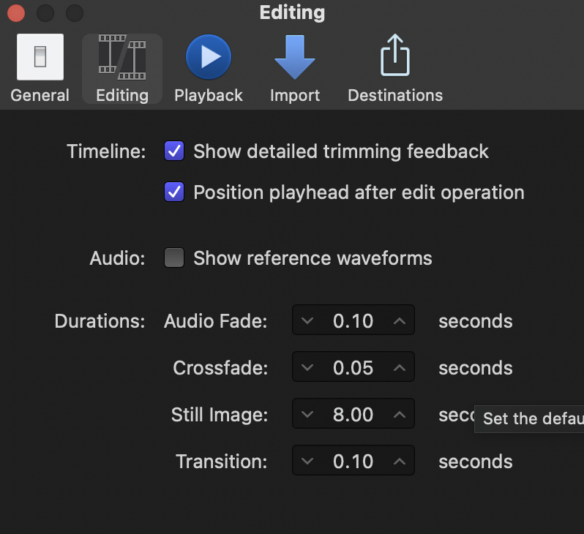
    NB: I recommend altering the default audio fade to “0.1” in (preferences->editing) if all you want is to remove the click between audio clips.

    I tried a forum search but haven’t found anything about this.

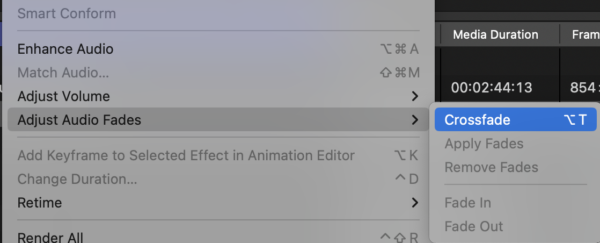
    In fcpx when editing projects I’ve noticed the audio crossfade option (option-t) is often greyed out.
    It turns out that once you you add an audio crossfade between clips, it often becomes impossible to reset it or re-add it again if ever it was removed. The option is greyed out & if you press (option-t) you’re met with an error sound.

    This is a problem in larger projects where you simply want to remove the audio click between clips.

    The only solution seems to be to manually create an audio crossfade from scratch for every single clip, which is impractical in larger projects with hundreds of clips.

    Steps to repeat this problem:

    1. Add a few video clips to a project.
    2. Select 2 adjacent video clips
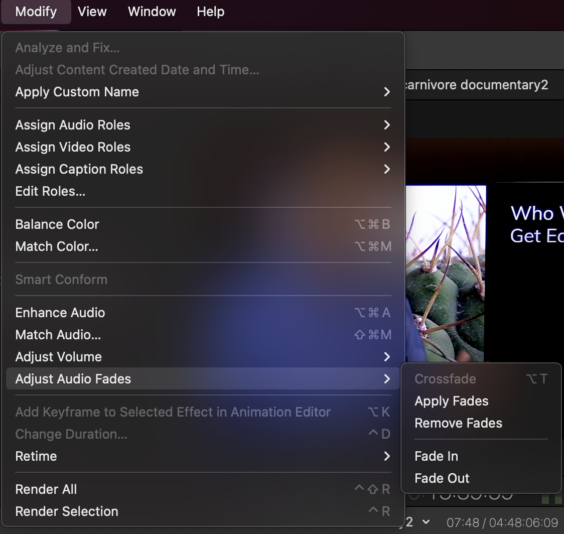
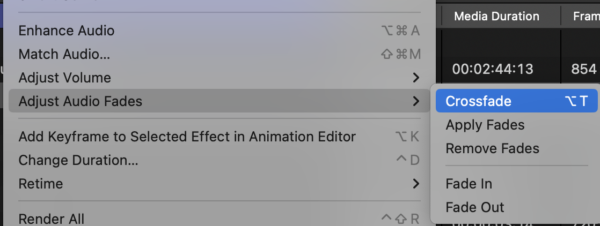
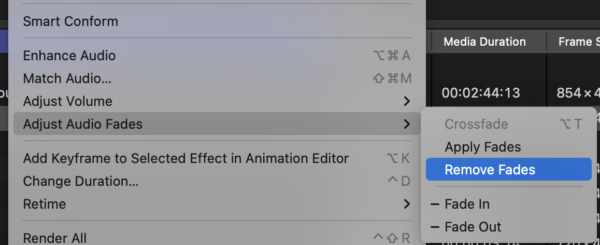
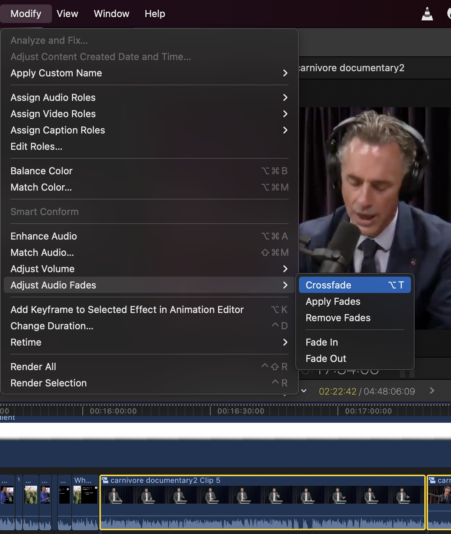
    3. Press “option-t” (or using the menu command modify->adjust audio fades->crossfade)
    4. Notice it adds the audio crossfade
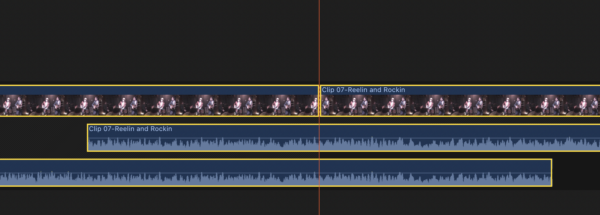
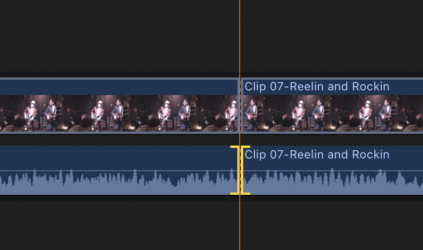
    5. Select the point on each crossfade & move it so that each cross fade is removed
    6. Alter the colour or saturation of each clip (this is an example of random editing)
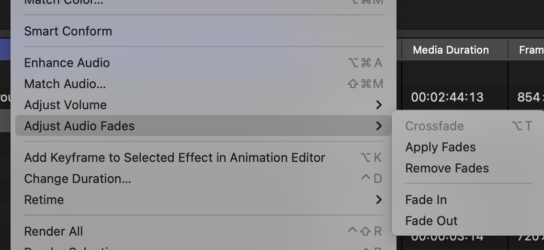
    7. Add the audio crossfade again by pressing “option-t”. Notice the error sound. Open the (modify->adjust audio fades) menu & notice the “crossfade” option is greyed out.

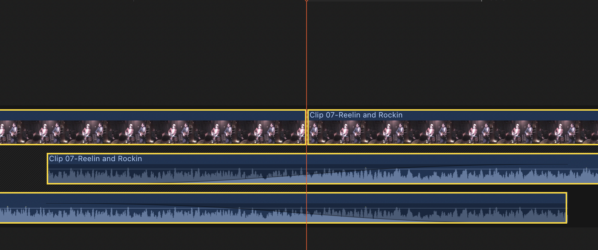
    I’ve attached a series of images to help follow the above steps.

    SOLUTION:
    It turns out that if you have added & removed the audio crossfade once while editing a project, the only options are:
    A. Use the “undo” command until you get back to the crossfade (This potentially loses you a lot of work or may be impossible if it’s a long time ago)
    B. Manually create the crossfade from scratch: Separate audio and video of each clip (“control-s”), drag each audio section so that they overlap, manually adjust the crossfade points using the mouse, on both clips, so that an audio crossfade is manually created.

    Both the above solutions are impractical when speed-editing even medium or large sized projects.

    You will notice that the “remove all audio fades” command in the menu also doesn’t help this situation: the audio crossfade option is still greyed-out.

    I’ve researched this quite a lot and I believe the “add audio crossfade” option is effectively a one-time only function: once you use it, you can’t use it again, and can’t reset it.

    MY ADVICE:
    If you have a large project I recommend leaving in all clicks between audio clips until the very end- yes this may be annoying but once you’re sure you’ve finished editing the content, select all – > add audio crossfades. Even if you re-order clips after that, it messes with the audio crossfades, so be sure you’ve completely finished edits before using the “audio crossfade” command.

    WHY THIS IS A PROBLEM:
    Almost every other video editing software has a method to add, reset & edit audio crossfades with ease. I have scoured the FCPX manual to no avail unfortunately. Even Sony Vegas (an old PC software), has the ability to automatically add audio crossfades when you import video clips & automatically updates crossfades when you re-order clips. This is essential in larger projects. You don’t want harsh “audio clicks” between each video clip, and it isn’t always appropriate to add pre-fades, music or narration on top. This is especially useful in larger projects where you’re importing hundreds of clips.

    QUESTION:
    Do you know of a faster way to reset the audio crossfade of each clip to its default setting, by selecting a group of clips in a large FCPX project?

    I have been editing long documentaries and various programs for over 20 years and as yet have not found a solution to this in FCPX, which is a shame because the back-end of FCPX (rendering etc.) is faster than anything else, particularly on the latest Macs.

    Doug Metz replied 2 years, 10 months ago 3 Members · 5 Replies
  • 5 Replies
  • Doug Metz

    July 7, 2023 at 4:33 pm

    I haven’t used this function, but your documentation is bulletproof.

    When applying Crossfade in this way, the audio is extended on both sides and the fade handle is applied. When you Remove Fades, it only undoes the fade handle and does NOT return the audio extensions to their previous, cut-at-the-edit-point position. You can observe this by selecting the affected clips and selecting Expand Audio. Once you trim the audio back to the video cut point on both sides, Crossfade is once again available.

    They really need a specific Undo Crossfade function that returns the clips to their unextended state.

    The first transition I ever made in Motion was an audio-only crossfade, and I’ve only ever used that when needing a video cut with audio cross. You can readily see and adjust it without expanding the audio.

  • Ben Balser

    July 8, 2023 at 2:33 am

    You’re really misunderstanding things here. What you are doing is not adding an “audio cross fade” but a video Cross Fade video transition, which does an automatic crossfade on the audio, also, which can not be manipulated independently of the video except in the Inspector. Thus, there’s no fade handles the command you are accessing via the menu can affect, as stated, you’re applying the default VIDEO Cross Fade, which fades audio automatically, it does not use fade handles. The menu option you’re trying to access via the menu only affects fade handles. You have to manipulate the fade handles first, to use that option.

    If you’re trying to do an audio only transition, you’re going about it totally wrong. There is no bug here, you’re simply using the wrong tools.

    1. Double click the audio portion of a clip to expand the video and audio of that clip so you can trim the video and audio independently of each other.

    2. Extend the audio portion if desired, adjust fade handle as desired.

    And yes, this has been a huge weakness in FCPX for 12 years now that Apple thinks is unimportant.

  • Doug Metz

    July 8, 2023 at 9:16 am

    I think you’ve missed my point, and focused on the tangent.

    OP applies the Crossfade function (01). Behind the scenes, it extends the audio portion of the clips on both sides of the cut point and applies fades via the handles (02). If you then select Remove Fades (03), behind the scenes it removes the handle adjustment, but leaves the audio ends of the clips extended (04) and you can’t reapply fades using the Crossfade command (05), unless you first trim back the audio components to the original video cut point (06, 07).

    It was not my intention to imply that the video cut was ‘the way forward’, simply an anecdote about an alternate way to crossfade en masse that you can readily see on the timeline without expanding components. And in/out fade types are adjustable in the inspector. Apparently, it’s too late to edit the post and remove the comment which is unfortunate, as it is poorly worded and implies much that I hadn’t intended.

    If OP were to set the Audio Fade duration to the same value as Crossfade in prefs, then Modify / Apply Fades would operate on those extensions to re-apply the original Crossfade without having to trim them all back.

  • Ben Balser

    July 19, 2023 at 4:02 pm

    Nope, you are not following my answer. Repeating the OP doesn’t change it. Sorry. You’re mixing functions that don’t work the same as each other. It’s one of the many ways FCPX gets confusing, unfortunately. But it’s not a bug. The two functions work very differently.

  • Doug Metz

    July 20, 2023 at 4:01 pm

    Ben, I understand your answer perfectly fine. I’m not disagreeing that the functions are totally different and that expanding audio offers the most flexibility. It’s what I usually do. You are absolutely correct.

    Ignore my remark about using a simple video cut transition to quickly crossfade audio, which is not something I typically do, and is the part of my first comment that I wanted to, but cannot, modify or remove. Focus instead on the OP’s problem with the Crossfade function.

We use anonymous cookies to give you the best experience we can.
Our Privacy policy | GDPR Policy