

Activity › Forums › Apple Final Cut Pro › FCP and MP4 files from Sony A7s3
-
FCP and MP4 files from Sony A7s3
Thomas Kaufman replied 4 years, 7 months ago 5 Members · 20 Replies
-

Thomas Kaufman
January 19, 2022 at 2:53 pmGuys, thanks for your help. Do you think the issue could be in trans-coding Sony XAVC footage into FCP?
-
Thomas Kaufman
January 19, 2022 at 2:57 pmI was able to use Resolve to easily morph frames from one shot to the next without any issue, using the same footage my client was wrestling with using FCP.
Do you think the length of the flow transition might affect the artifacts? If a 24-frame transition was used instead of a 4 frame transition, do you think that would help?
-

Doug Metz
January 19, 2022 at 2:59 pmIt isn’t likely to be a transcoding issue, but without an actual sample of the artifacts you’re seeing, we’re just guessing.
-
Thomas Kaufman
January 19, 2022 at 3:03 pm<font face=”verdana, sans-serif”>Guys, thanks for your help. I’m able to do this same transition using the same footage in Resolve )”smooth cuts”) with no issue whatsoever. Could it be that FCP, while transcoding the footage from Sony XAVC, is corrupting the file?</font>
-

Joe Marler
January 19, 2022 at 6:08 pmThere is no possibility it’s caused by FCP transcoding. We know that because you tried recording the A7SIII HDMI output on a Shogun as ProRes and it still happened. In that case FCP did no transcoding.
Every implementation of the flow transition is unique — just like each NLE implements stabilization differently. Simply because one NLE stabilizes a certain clip poorly, it doesn’t mean they are “late to the party”. Rather it means the specific characteristics of the effect are less well matched to that clip, or the effect is intentionally designed with limited scope.
That said, it does appear the “Smooth Cut” transition in Resolve Studio works very well. While in some cases it creates ghost frames like FCP and the FCP plugin mMorphCut, in other cases it appears Resolves looks beyond the cut point and uses non-shown head and tail frames to attempt a better match. In a simple test I did, it appears both FCP and Resolve do better than the Premiere Pro 22.1.1 “Morph Cut” transition.
But that is no different than comparing any other built-in effect. The Resolve temporal/spatial noise reduction is much better than the FCP denoise effect. The Resolve stabilizer (and sometimes Premiere’s Warp stabilizer) is better than the FCP stabilizer. The Resolve chroma keyer works better than the FCP keyer, so on FCP I use the Hawaiki keyer plugin.
By contrast the “move” option on Resolve media management was so unreliable and caused so much data corruption it was removed from the product in version 16.2.3. All NLEs have bugs and limitations.
You can’t always rely on a specific feature of one NLE working perfectly. For situations that seem to require a morph cut or flow transition, there are usually other options. This video “Three Ways to Hide Jump Cuts in Final Cut Pro” discusses some of them:
Some contents or functionalities here are not available due to your cookie preferences!This happens because the functionality/content marked as “Google Youtube” uses cookies that you choosed to keep disabled. In order to view this content or use this functionality, please enable cookies: click here to open your cookie preferences.
-
Thomas Kaufman
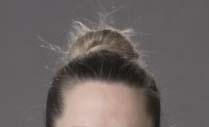
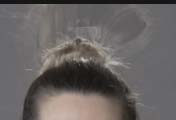
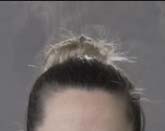
January 27, 2022 at 5:06 pmI have client permission to post images where you can see the artifacts. Some are of a woman’s head, her bun is neat but the artifacts look like she stuck her finger in a lamp socket. The others are ‘ghost’ images of her arm.
My hope is that seeing these images might help determine why the artifacts are happening.
thanks
-
Thomas Kaufman
January 28, 2022 at 4:27 pmJoe, thanks so much for this information, I will pass it on to the client and editor.
-
Thomas Kaufman
February 2, 2022 at 8:33 pmDoes anyone have an opinion, having taken a look at the stills I provided?
thanks,
-
Joe Marler
February 2, 2022 at 9:08 pmEach NLE and plugin implements morph cuts differently. They also vary in the available controls to adjust the cut. It’s similar to using a built-in stabilizer and finding it creates artifacts for a certain clip. You could file a bug or open a support case but it’s unlikely to be addressed in a time frame meaningful to your task at hand. The most expedient approach is try a different one.
For stabilization I may try the built-in FCP effect, if that doesn’t work I’ll try Core Melt Lock-n-Load or CrumplePop’s BetterStabilizer plugins. If that doesn’t work I’ll will try round-tripping to Premiere Warp Stabilizer or Resolve Studio, or maybe the the Mercalli stand-alone stabilizer.
For morph cuts the main strategy is avoid them by having other camera angles, b-roll or insert shots. You just cannot guarantee a morph cut will work perfectly. With 4k material you can often fake a jump cut to a tighter shot, cutting out the problem frames in the process.
I’ve used MotionVFX’s mMorphCut plugin, sometimes it works better than FCP: https://www.motionvfx.com/store,mmorphcut,p1906.html
Here are some suggestions about how to fix artifacts with Premiere’s MorphCut, maybe some of those will work with FCP: https://youtu.be/boP5SN6vO7Q
Some contents or functionalities here are not available due to your cookie preferences!This happens because the functionality/content marked as “Google Youtube” uses cookies that you choosed to keep disabled. In order to view this content or use this functionality, please enable cookies: click here to open your cookie preferences.
-
Thomas Kaufman
February 7, 2022 at 9:39 pmJoe, this is great! Thanks so much, I will send this to the producer straight away!



Reply to this Discussion! Login or Sign Up