

Activity › Forums › Adobe Premiere Pro › Exports don’t match Premiere Pro video look in timeline.
-
Exports don’t match Premiere Pro video look in timeline.
Posted by Eric Merklein on March 12, 2018 at 2:26 pmAre there any new tricks out there to try and get video exports to look the same as what I see in my timeline?
I export MP4 at 1080, 10 megs bit rate, double pass and the video levels are still higher than what I see in timeline playback.
Premiere Pro continues to be a sub standard toy.
Thanks for any info.
Eric
Oliver Peters replied 5 years, 6 months ago 8 Members · 10 Replies -
10 Replies
-

Tero Ahlfors
March 12, 2018 at 2:37 pmWhat are you using to view these files? If you bring it back to Premiere does the export match the sequence?
[Eric Merklein] “Premiere Pro continues to be a sub standard toy.”
Mismatches between exports and the sequence are in pretty much all the cases caused by the player playing the file, GPU settings and the operating system color handling and not the program where the file came from.
-

Greg Janza
March 12, 2018 at 3:00 pm[Tero Ahlfors] “Mismatches between exports and the sequence are in pretty much all the cases caused by the player playing the file, GPU settings and the operating system color handling and not the program where the file came from.”
Agreed. My exports are a perfect match.
Windows 10 Pro
i7-5820k CPU
Nvidia GeForce GTX 970
Adobe CC 2018
Renders/cache: Samsung SSD 950 Pro x2 in Raid 0
Media: Samsung SSD 960 PRO PCIe NVMe M.2 2280
Media: OWC Thunderbay 4 x 2 Raid 0 mirrored with FreeFileSync -

Eric Merklein
March 12, 2018 at 3:34 pmGood morning Tero.
When I play my MP4 in VLC video is brighter. When I import back to Pro, chroma is not the same. Same deal in QuickTime.
The problem is getting a good setting in the players and then have everyone I deal with set their system to match.
Not wanting to overstay my welcome, can you please point me to the place where I can adjust playback in VLC or QT?
Many thanks or you help.
Eric
-
Tero Ahlfors
March 12, 2018 at 5:09 pm[Eric Merklein] “When I import back to Pro, chroma is not the same.”
I don’t know exactly what you mean by this but when you render to a compressed format that has 4:2:0 chroma subsampling you will lose some color information in the compression. Especially more saturated colors.
I would advise against using Quicktime at all. It is a really bad tool for making any kind of color critical decisions. In VLC you can set different output renderers in the preferences. You should also check your GPU control panel that it doesn’t have anything weird going on.
-

Chris Wright
March 12, 2018 at 7:24 pmvlc set video output openGL output.
nvidia control panel set to 0-255 -

Simon Slovenia
March 7, 2021 at 11:35 amHi,
I know I am not the first, but I also have similar terrible problems with making the export with (latest) Premier Pro in an iMac. I looked through a lot of forums and I cannot find a solution anywhere…
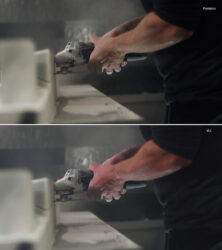
As you can see on the picture, not just that the colors are shifted but also the image / skin colors completely fall apart when I export it…
The higher image is a thumbnail saved from Premiere, lower one is played on VLC (similar to the look on YouTube and other players).
I tried everything I could think of and I am not able to get any better result at all.
I have tried exporting with Premiere and Media encoder.
Using CUDA and software encoding.
Using different codes bitrates for export HD h.264 on 10,35,50mbps, h.265, QuickTime Prores 422HQ, mpeg, jpg export, and it is all more or less the same… every time the skin fell apart.
I tried turning on and off export form previews, render at maximum depth, maximum render quality…
I tried exporting with the LUT from Adobe and it changes color completely in to something else, but the skin still falls apart.
The strangest I think is the difference between save snapshot from the timeline and the frame from jpg export. Does anybody have any idea what to do?
Last resort would be to go frame by frame saving snapshots from program monitor and encoding with something else, but there must be a better way?
Any suggestions??
Thank you.
https://www.dropbox.com/s/hwhflyxv97rdiag/Premiere_export_problem.jpg?dl=0
-
Chris Wright
March 8, 2021 at 2:09 am1. How does it look when you re-import it back into premiere? it looks like a colorspace issue. imac uses P3 for their native display. some users change the os to rec. 709 to match premiere.
2. youtube reads nlc metadata codes inside video where rec 709 can be either gamma 2.2 or 1.96.
3. as a last resort, try shutter encoder to determine if media encoder isn’t encoding the file correctly.
-
Steve Wilson
March 9, 2021 at 1:45 pmUse the QT Gamma compensation LUT on export, if that doesn’t work, try this: https://community.adobe.com/t5/premiere-pro/is-there-another-solution-for-gamma-compensation-lut-on-premiere-2020-too-dark/m-p/11312632
-

Joby Anthony jr
March 10, 2021 at 9:21 pmOur team are on iMacs, and we’ve struggled with the same discrepancy between what we see in Premiere and our exports. Premiere is too dark. And though toggling the Display Color Management preference setting off and on helps some, it doesn’t solve it. Some team members have tried to go down the LUT route without good success.
So what we’ve done, for now, is turn Display Color Management ‘on’ (or ‘checked’), and then apply to clip(s) in the timeline the Gamma Correction effect set to 8. Color to taste and then turn off the Gamma Correction effect before export.
The resulting export is close to what we see in Quicktime, and more importantly appears to match our deliverable played back through a web browser.
-

Oliver Peters
March 10, 2021 at 10:51 pmYour Premiere viewer will never match what you see on a Rec 709 reference display. Likewise what you see in the viewer will also not match the way it looks in a media player. There simply is no foolproof way for this to be accurate. Generally, there are gamma, contrast, and saturation difference. VLC will look different than Switch and different from QuickTime Player.
Reply to this Discussion! Login or Sign Up