Creative Communities of the World Forums

The peer to peer support community for media production professionals.

Activity Forums Adobe Photoshop Camera raw lens correction

  • Camera raw lens correction

    Posted by Scott Depace on March 27, 2024 at 9:15 pm

    I’m trying to composite two images… a DNG shot from a drone opened in Camera Raw using the auto lens correction used for my Mavic 3 drone, and a JPG created by Photomatix with no lens correction. When I try to open the JPG and apply the lens correction filter in Photoshop, the profile used in Camera Raw, “DJI FC4382 Mavic 3pro 70.0 mm f/2.8” isn’t available as a lens preset. Any ideas on how to composite the two images? Is there a way to turn off the auto lens correction in camera raw or is there some way to import the Mavic 3 lens profile that Camera raw auto uses?

    Thanks

    Scott Depace replied 2 years, 1 month ago 2 Members · 2 Replies
  • 2 Replies
  • Tom Morton

    March 28, 2024 at 7:57 am

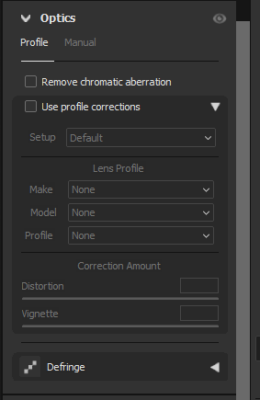
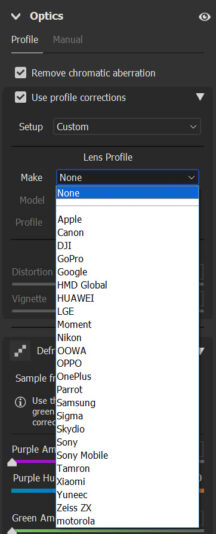
    You can turn lens correction off in Camera RAW for the DNG file – you’ll find it under the Optics section as per screenshot below.

    If lens correction is off for both images, they should composite correctly. Once you’ve composited and got your final image, you can apply Camera RAW as a smart filter to re-apply the lens correction afterwards.

  • Scott Depace

    March 28, 2024 at 1:12 pm

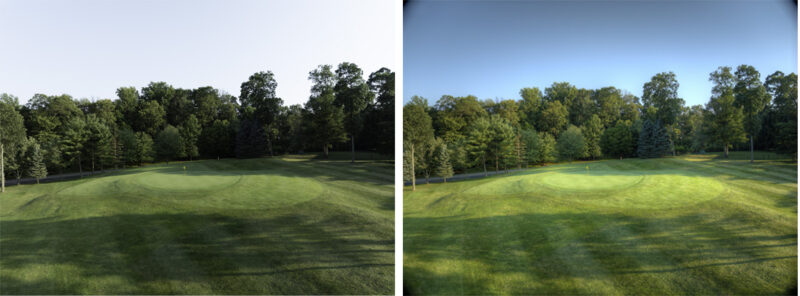
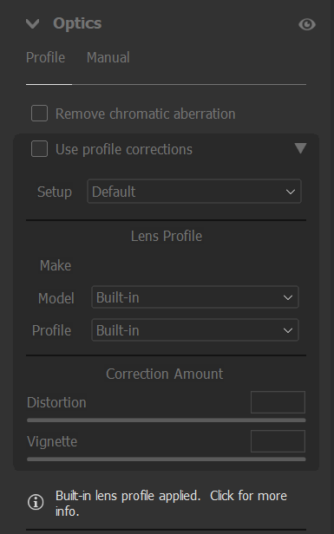
    Thats not what I see. Even if I choose to use no profile, there is a message that an auto setting has been applied. Here is a screen shot of that and another of a side by side showing a dng opened in camera raw with no profile selected on the left and another opened and saved through photomatix with no lens correction. Notice the corners of the photomatix showing the image of the complete sensor.

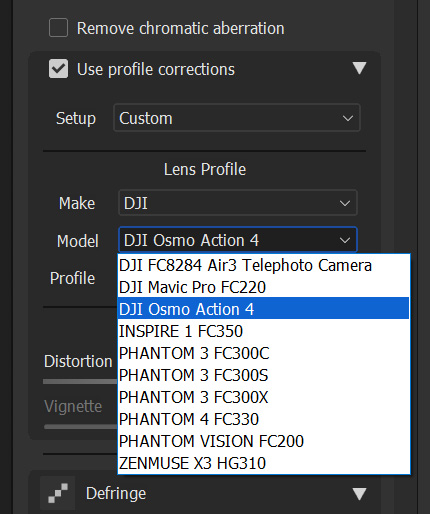
    Lastly, I noticed when I open the photomatix JPG in Camera raw to try to apply the same DJI lens correction that Raw uses on the DNG files, the mavic 3 lens profile isn’t an option in the DJI category and Hasselblad isn’t even listed in the Make selector pull down. I’ve attached screen grabs.

    Thanks for your help.

We use anonymous cookies to give you the best experience we can.
Our Privacy policy | GDPR Policy