

Activity › Forums › Adobe After Effects › Bounding box problem / importing from AI to after effects
-
Bounding box problem / importing from AI to after effects
Posted by Katia Papkov on January 5, 2024 at 3:42 amHi All!
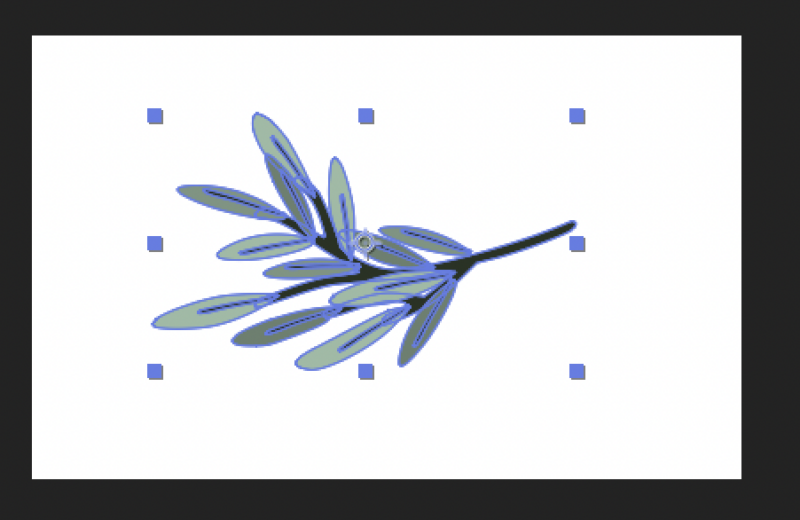
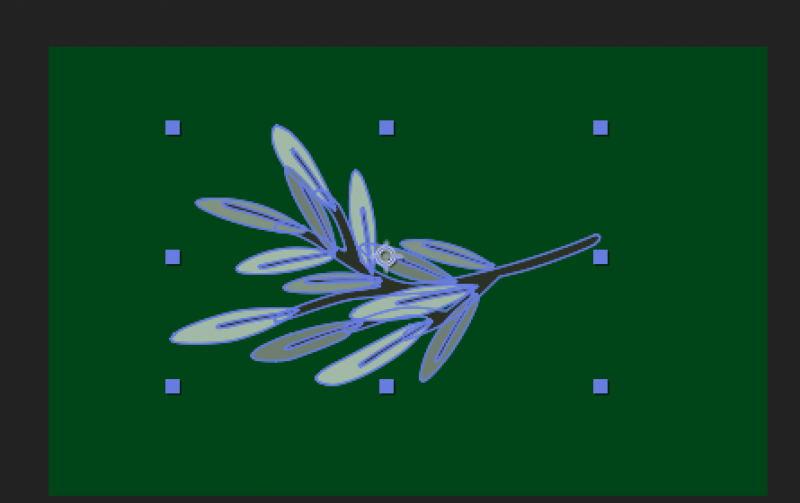
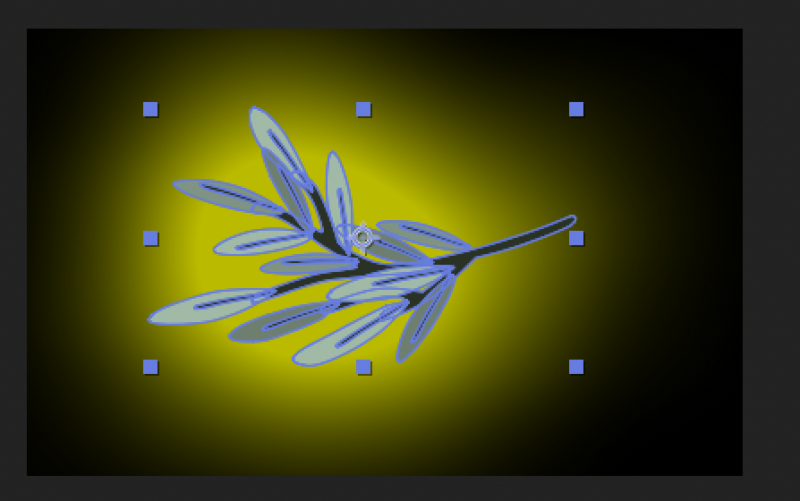
I imported an AI file into AE and converted it into a shape layer. The bounding box shows correctly – it hugs the shape layer. However it doesn’t actually work as such (photos attached for every example):
1) when I add a Solid Composite effect, the entire canvas is filled rather than just the bounding box.2) When I add a Grow Bounds effect and increase the scale, nothing happens.
3) If I add an Outer Glow layer style, you can see that the effect exceeds the bounding box.
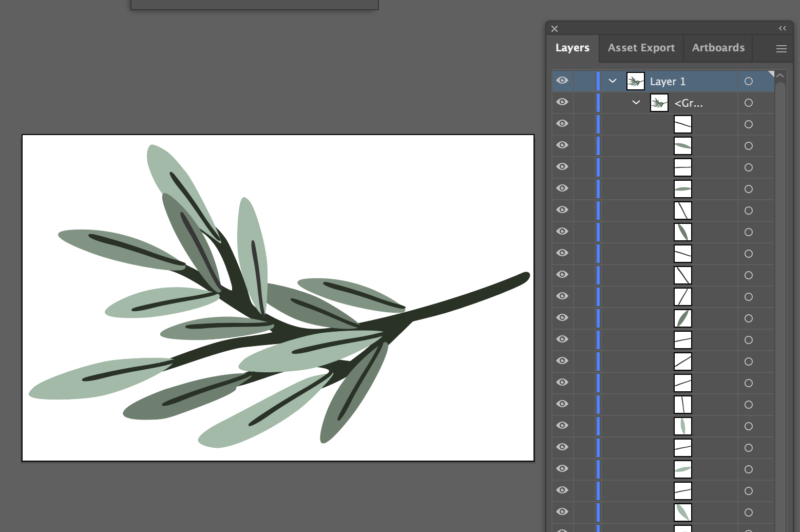
My illustrator file does not include any blending modes / opacity and is comprised of fill only, with no strokes. In AE, the contents tab shows that there aren’t any merged paths within groups that include the AI artboard (if that were the case I would see a bounding box that is bigger than the shape).
What is the issue?
Thanks in advance!
 Katia Papkov replied 2 years, 8 months ago 3 Members · 7 Replies
 -
7 Replies

-

Tom Morton
January 5, 2024 at 7:42 amI might be missing something but aren’t all of these things just normal behaviour?
1: I don’t use solid composite much, but I thought the main purpose was to fill the whole background, I’ve never wanted it to only fill the bounding box.
2: for the grow bounds effects, this is just for raster effects where the original layer preview is cached. This can result in the effects having a cutoff point because the cache is only the size of the composition. Using this effect enables AFX to calculate more of the layers preview, and I don’t think it ever changes the visible bounding box, it’s just in the “backend” where it’s calculating what to show you. (This might help you more: https://helpx.adobe.com/uk/after-effects/using/utility-effects.html#grow_bounds_effect )
3: and for outer glow, I don’t think I’ve ever seen this constrained by a bounding box in any application. Imagine you had a square, the bounding box would be the same size as the square and if the glow was limited by the bounding box you wouldn’t see the glow at all.
I think maybe you’re trying to treat the bounding box like it’s own layer, and it’s not really, it’s just an indicator of the size and position of the object you’ve selected… does that help at all?
-

Katia Papkov
January 5, 2024 at 3:36 pmThank you Tom for your reply! I’ve attached some youtube videos that I relied on (I am a beginner):
You are correct that the Grow Bounds Effect is invisible, that’s where the Solid Composite Effect comes in handy: https://www.youtube.com/watch?v=-JzYpi6Uyb4&ab_channel=JakeInMotion
Solid Composite Effect fills only the bounding box and how the effect can be used: https://www.youtube.com/watch?v=ZZiabVb-OEg&ab_channel=JakeInMotion
Effect like glow can be constricted by the bounding box (but I don’t know if that’s the standard behaviour as I am new to AE): https://www.youtube.com/shorts/9WZSdjnbAew
Some contents or functionalities here are not available due to your cookie preferences!This happens because the functionality/content marked as “Google Youtube” uses cookies that you choosed to keep disabled. In order to view this content or use this functionality, please enable cookies: click here to open your cookie preferences.
-
Tom Morton
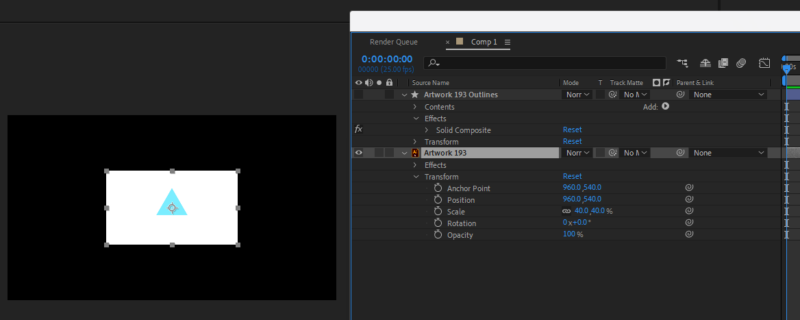
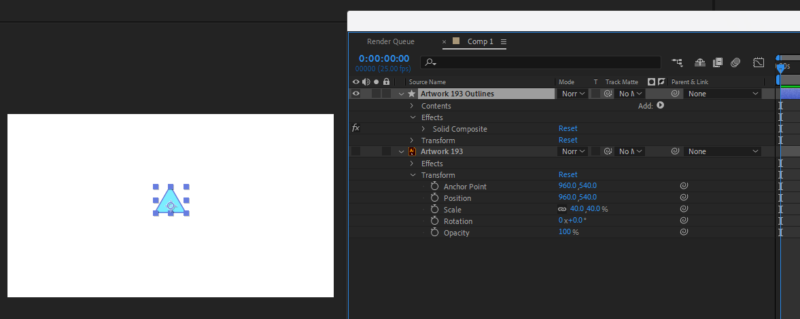
January 5, 2024 at 4:29 pmRegards the solid composite effect, I see why you thought this, but note the difference in my attached screenshots.
When you drag in a non-native file such as an Illustrator project file or Photoshop file, the layer size (grey squares on the corners) is limited to the file dimensions, this is effectively being interpreted like a raster image that has been imported. An effect like the solid composite will fill in the whole layer background, but the layer dimensions are being restricted.
If you convert that AI file into into a native After Effects object like I’ve done in the top layer on the screenshots, this will become native vector layer that doesn’t have layer bounds. Now when you click on it, you’ll see the object bounds (blue squares on the corners), but the layer background is essentially covering the entire composition now. This holds true for all vector shapes in After Effects. In the same way the outer glow won’t be affected by the bounds for layer shapes.
The reason you’re not seeing the Outer Glow is because this is a layer style, which sits below Effects on the hierachy. So After Effects is first adding an outer glow, then adding a composite solid on top of the outer glow, then showing the shape on top of that. If you disable the Solid Composite, you should see your glow appear.
You can either turn off solid composite and just add a background solid color below the shape layer, or you can try using the Stylize > Glow effect and ensure it is above the Solid Composite effect.
Layer order matters everywhere in After Effects – parents, sublayers, groups, effects, masks, precomps – all layers are rendered from the bottom upwards – so the highest layer is in front of all the other layers.
-

Walter Soyka
January 5, 2024 at 4:45 pmTom’s right on — Ae’s shape layers and text layers are always continuously rasterized at the size of the comp. When you apply Solid Composite to a shape layer or a text layer, it will always fill the screen.
-
Katia Papkov
January 5, 2024 at 5:19 pmThank you Tom and Walter for your help! I understand much better now.
My initial aim was to apply a CC Bend it Effect on the layer. The effect had a problem: it cropped some of the layer, especially if it was on the canvas edge. And no matter how I positioned the Bend start and end points it would still crop the image. I needed this to remain as a regular layer and not a comp. One of the suggestions I saw, was to increase the layer’s bounding box. I tried it now with the AI file and it seems to work well with the Bend effect. Are there any disadvantages to keeping the layer as an AI file and not converting it to a local shape? i.e AI would be heavier, or won’t accept certain properties.
Thanks again I really appreciate it! -
Tom Morton
January 8, 2024 at 3:16 pmThe layer type is personal preference mostly. If you keep it as an AI file, and you update the AI file in illustrator, those updates will pull through to your After Effects project. That can be good / bad depending on your workflow. Some effects work best or only work on native layers, but that’s only a problem if you’re using those specific effects. If it works with you then go with it, no massive drawbacks i’m aware of.
Reply to this Discussion! Login or Sign Up