Creative Communities of the World Forums

The peer to peer support community for media production professionals.

Activity Forums Adobe After Effects Animating stacks of bills that rise and fall at different times

  • Animating stacks of bills that rise and fall at different times

    Posted by Andrew Plowright on August 10, 2021 at 11:36 pm

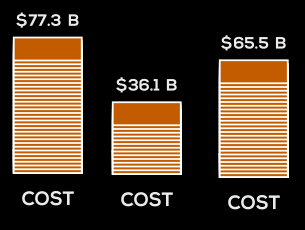
    I’ve created a precomp of a stack of bills that rises and falls according to the value of a slider control. There’s also a little box of text that indicates the value of the stack.

    I’d like to reuse this multiple times but have the stacks’ sizes be controlled independently, so that they show different values at different times.

    I’ve attached an image of what it might look like. (Imagine these stacks rising and falling at different times)

    Is this possible? Should I be using something different than a precomp for this purpose?

    Thanks!

    NOTE: The bills will eventually be represented by images, so I can’t just use a repeater on a rectangle. Instead, the “repeating” effect is accomplished using this technique: https://www.youtube.com/watch?v=P2_kTlNzfKk


    Some contents or functionalities here are not available due to your cookie preferences!

    This happens because the functionality/content marked as “Google Youtube” uses cookies that you choosed to keep disabled. In order to view this content or use this functionality, please enable cookies: click here to open your cookie preferences.
    Andrew Plowright replied 5 years ago 3 Members · 5 Replies
  • 5 Replies
  • Kevin Camp

    August 11, 2021 at 1:54 am

    You can have a slider control layers and properties in another comp.

    Since you have a slider in the money comp and it is all set up and working, you may only need to control that slider in the master comp. Try this:

    Bring the stack comp into a new comp, name it ‘master’ and add a slider to the nested stack comp (note: you can name it anything, but it will need to match the following expression).

    Back in the stack comp, add this expression to the slider that controls the stack:

    comp("master").layer(thisComp.name).effect("Slider Control")("Slider")

    Go back to the master comp and adjust the slider. It should control the slider in the stack comp and thus should control the stack.

    To have multiple stacks controlled independently, you’ll need to duplicate the stack comp in the project window and then add them to the master comp and then add a slider control to each nested stack comp.

  • Andrew Plowright

    August 11, 2021 at 7:27 pm

    Thanks for the reply! Would there be any way to do this without needing to duplicated the comp for multiple independent stacks? Is it possible to have an “instance” of a master stack template (again, perhaps doing this with comps is not the right way)?

    I think the solution you outlined will work, but if I ever want to go back and change what the stack looks like, it’d be nice to only change it in one place, and have all the instances update accordingly.

  • Walter Soyka

    August 11, 2021 at 7:46 pm

    Yes, I can think of two ways:

    1. (Old-school, less flexible) Build your animation in one precomp so it animates from 0 to your maximum value, then duplicate that layer as many times as necessary in your main comp and use time remapping to individually animate them.

    2. (New-school, more flexible) Use Ae’s new Essential Graphics workflow, which lets you build a precomp like a template once, publish specific properties (like the slider to control the size of the stack) and then re-use the one comp multiple times, as separate instances with separate values, elsewhere in your project.

    This will make much more sense after you read through a couple of relevant links to get you started:

    https://helpx.adobe.com/after-effects/using/creating-motion-graphics-templates.html

    https://www.schoolofmotion.com/blog/essential-graphics-panel

  • Kevin Camp

    August 11, 2021 at 7:48 pm

    I see your ex.png today (for some reason it did not show up last night, it was a broken image link).

    That stack could be created with a single shape layer and ‘repeater’… Try this:

    Double-click the rectangle shape tool without any layer selected in the comp (this will make a new rectangle shape that is the same size as the comp and with the anchor in the center of the shape layer.

    Twirl down the shape layer properties to get to rectangle>path>size and enter the size needed (ex: 200×75) and set the fill color and stroke as needed.

    Now add a repeater by clicking the ‘add’ menu in the ‘Contents’ row for the layer and choose ‘repeater’.

    twirl down the repeater options and set ‘composite’ to ‘above’ and twirl down ‘transform: repeater’ and set the position attribute affect the repeating shape on the y-axis (ex: 0, -10).

    now scrub the repeater’s ‘copies’ attribute and the stack should grow and shrink accordingly.

    you should be able to tie a slider to control the stack and the value similar to your current setup.

    The you’d just duplicate that stack (and values, etc) to make more of them. And to change the look (fill color, stroke) you can select all of the stacks and set the fill or stroke as needed for all of them at once.

  • Andrew Plowright

    August 11, 2021 at 10:49 pm

    Awesome! Turns out Essential Graphics was exactly what I was looking for. Thanks.

We use anonymous cookies to give you the best experience we can.
Our Privacy policy | GDPR Policy