

Activity › Forums › Adobe After Effects › After Effects Optical frames (0) problems
-
After Effects Optical frames (0) problems
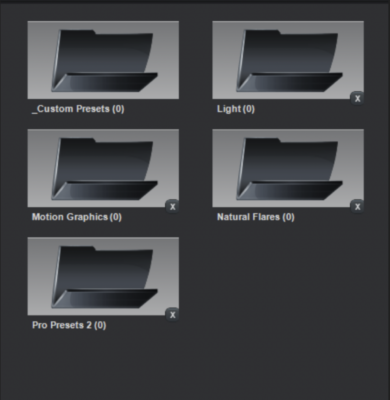
Posted by Bang kiyoun on April 19, 2023 at 5:02 amI’m currently using After Effects 2023 and have optical frames installed, but all the files in the preset menu have 0. There are actually .Otp files in the optical frame folder, but After Effects says there are 0. Can you tell me why?
 Shahid shahan replied 3 years, 5 months ago 3 Members · 2 Replies
 -
2 Replies
-

Graham Quince
April 20, 2023 at 2:54 pmMy guess is you’ve not installed After Effects and Video Copilot on your primary hard drive. I didn’t and had all sorts of issues with Video Copilot’s stuff. Their installer makes it easy if you stick to the C: drive, but does seem to get screwed up if you don’t.
If I’m wrong and reinstalling doesn’t work, contact the help on Video Copilot. They have always responded to me promptly and been very helpful.
-

Shahid shahan
April 21, 2023 at 9:33 amHey
It’s possible that the optical frames you installed are not compatible with After Effects 2023, or there may be an issue with the installation itself.
Here are a few steps you can try to troubleshoot the problem:
1. Double-check that you’ve installed the optical frames in the correct folder. By default, the optical frames folder is located in the following directory:
Windows: Program Files\Adobe\Adobe After Effects 2023\Support Files\Optical Flares\OpticalFlaresPresets
Mac: /Applications/Adobe After Effects 2023/Plug-ins/Optical Flares/OpticalFlaresPresets
2. Make sure that the optical frames files are not corrupt. Try opening them in a different application or re-downloading them from the source you originally obtained them from.
3. Check that you’ve installed the correct version of the optical frames. Some versions of Optical Flares may not be compatible with After Effects 2023. Double-check the system requirements for the version you’ve installed.
4. Try resetting the optical frames cache in After Effects. Go to Preferences > Media & Disk Cache and click the “Clean Database & Cache” button. Then, restart After Effects and see if the optical frames appear correctly.
5. If none of the above steps work, try contacting the support team for Optical Flares or Adobe After Effects for further assistance. They may be able to help you diagnose the problem and find a solution.
Reply to this Discussion! Login or Sign Up