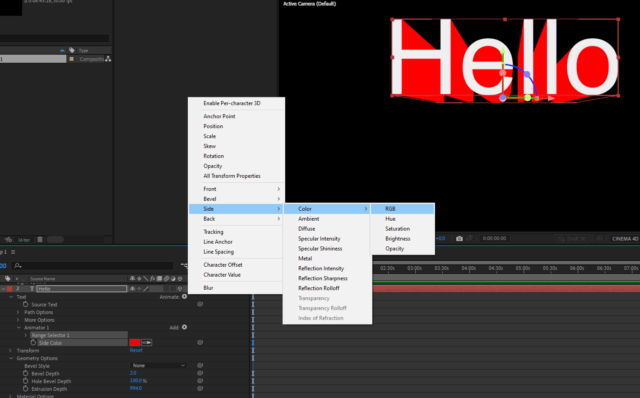
-
3D text copying property links
Hello,
I am trying to create some 3D text in after effects. I have followed this tutorial :
https://www.youtube.com/watch?v=2Tj4kTBLUuI&list=PLi8J8q4itcl3J7Ld1kzf-qwM_vIbYpiF-
And I have everything working fine, apart from one small nagging problem.
This tutorial basically creates a text face composition and an extrusion composition. This allows to stylise the extrusion and the face differently (which is what i want). There is also a text container composition with a text layer in it. You then have to copy this text layer (with property links) to the face and extrusion comps. This then means as you update the text layer in the text container comp it updates everywhere else. Perfect. But not quite.
In my text container comp I have a text layer which contains two lines of text. The text on the first line is slightly smaller, and the text on the second line is bigger and has a baseline change etc.
When I copy this text layer (with property links) to the extrusion and face comps, the text (on two lines) is copied over, and if I update the text container comp it indeed updates the text on the extrusion and face comps. However it does not seem to copy the character properties over. So the text size is the same on both lines and the baseline adjustment is not there either. I have no idea why. And its driving me nuts. I tried precomposing the text layer within the text container comp and then copying that precomp with property links over to the extrusion and face comps, and hey presto it seems to work, the text and character styling is there. The problem: I cant extrude that precomp in the extrusion comp, because its a comp not a text layer.
Any ideas?
Happy to share a aep if anyone wants to see it.
Kind regards
Some contents or functionalities here are not available due to your cookie preferences!This happens because the functionality/content marked as “Google Youtube” uses cookies that you choosed to keep disabled. In order to view this content or use this functionality, please enable cookies: click here to open your cookie preferences.