Creative Communities of the World Forums

The peer to peer support community for media production professionals.

Activity Forums Adobe After Effects 3d camera tracking with green screen background

  • 3d camera tracking with green screen background

    Posted by Anja Hose on February 6, 2021 at 2:25 am

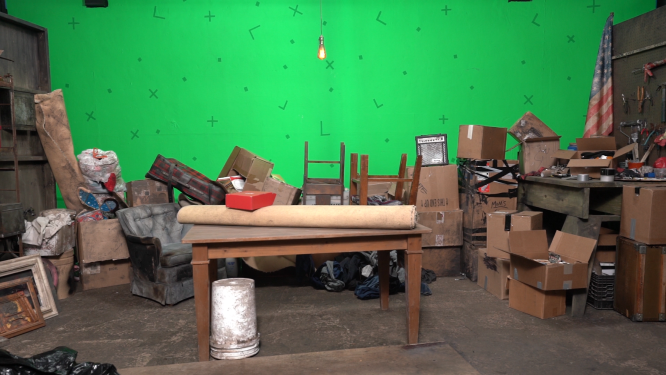
    Hello lovely CC community! We filmed a project with a green screen background, intending to use the built-in camera tracker to drop in a background in place of the green screen and have it track to stay in place in relation to the camera. I have watched a bunch of tutorials and even did some Mocha work in the past, placing objects or text into footage, and so I wasn’t expecting to have any trouble with this.

    However, I’m running into problems in most of our scenes, where despite having placed a bunch of green screen trackers and having set dressing in the foreground, the camera tracker keeps failing. When it doesn’t fail, it is hardly finding any points and generates keyframes for the 3d tracking camera that are all over the place. When I try and choose a point on the green screen back wall, it hasn’t found enough points to give me a bullseye. Is there anything I can do now, besides go back and re-shoot everything (not an option), to help attain better tracking? I’ve already tried splitting clips up into smaller sections with fewer camera moves.

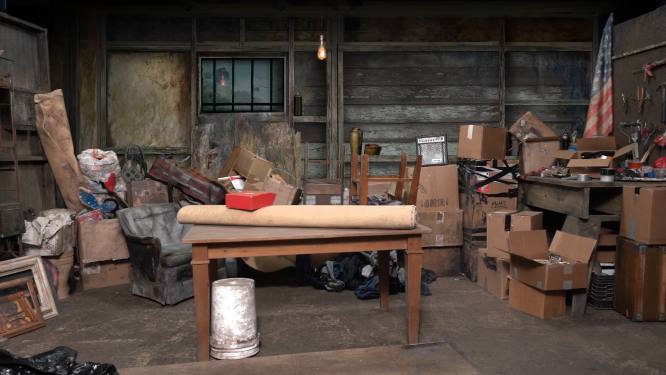
    I’ve attached two exported frames to show you the green screen and a still of it keyed out with the background in place. Keylight works great, it’s the tracking to keep it all properly related to the camera moves that’s the problem. I’d really appreciate any insight! Thanks!

    Eric Santiago replied 5 years, 6 months ago 4 Members · 5 Replies
  • 5 Replies
  • Michael Szalapski

    February 6, 2021 at 3:02 am

    Since the background is going to be right up against the objects in the back, you should be able to just use Mocha to track it into the shot based on one of the items in the very back of the shot. Or, heck, the wall itself. Mocha should be able to grab onto that just fine.

    Depending on what kind of camera move you have, I would have expected the Camera Tracker to work though. Is the camera moving around a lot or is it pretty stationary and just kinda handheld wobbling?

    Sometimes, if your footage is MP4 (or some other variant of H.264 or H.265 compression), AE’s camera tracker has issues with it. If I have problems, I usually transcode it to ProRes before I try much else.

    If that doesn’t do it, you could also crunch the colors a bit to bring out more contrast in the tracking markers and try tracking that, but, again, I think you could just do Mocha and be done with it.

  • Anja Hose

    February 6, 2021 at 3:11 am

    Thanks for the advice! We were mostly sitting on tripods and just panning to track actor motion. There were a few moments where a camera was panning and zooming simultaneously, which I suspected might be culprits for a difficult track, but in general I thought this would just go super smoothly and was surprised when it didn’t.

    They *are* mp4 files so I wonder if it’s the compression causing the issues as you mentioned. I’ll try the things you suggested and hope something works out!

  • Kevin Reiner

    February 6, 2021 at 3:47 am

    Maybe temporarily add more contrast pre-camera solve. Try to really bring out those marks. Might have to precomp. Solve to get the data then turn off the high contrast effect. Worth a try.

  • Michael Szalapski

    February 8, 2021 at 10:39 pm

    If the camera is sitting on a tripod, there is no parallax movement. Therefore, the 3d Camera Tracker (which uses parallax movement to solve a shot) doesn’t really have the info to work with. That’s likely why you’re not getting good solves.

    DEFINITELY go with Mocha AE (or even AE’s point tracker). They’re intended for this sort of thing. And, yes, transcoding to ProRes first is going to make everything go more smoothly in AE.

  • Eric Santiago

    February 8, 2021 at 10:46 pm

    Agree with trying Mocha.

    Question on the green screen, how are you able to remove the green along with the markers?
    I ran into this issue with the simplest GettyImage video of an iPad.
    Using Keylight in my case.
    I had to play with some settings that would ruin the overall look at times.

We use anonymous cookies to give you the best experience we can.
Our Privacy policy | GDPR Policy