


Adobe Premiere Pro June 2022 Release

New Essentials Workspace
The new Essentials workspace offers a clean and simple layout and presents the panels in a logical left-to-right workflow, with a generous timeline across the bottom of the screen.
In the Essentials workspace, all core Premiere Pro functions are easily accessible without requiring you to switch workspaces, and it is optimized for using Premiere Pro on a laptop or a single screen.
New Vertical Video workspace
The new Vertical Video workspace offers a clean and simple layout, optimized for vertical content. Social media creators working in this format will find the Program Monitor on the right of this workspace, set up for viewing vertical 9:16 video.
Proxy workflow improvements
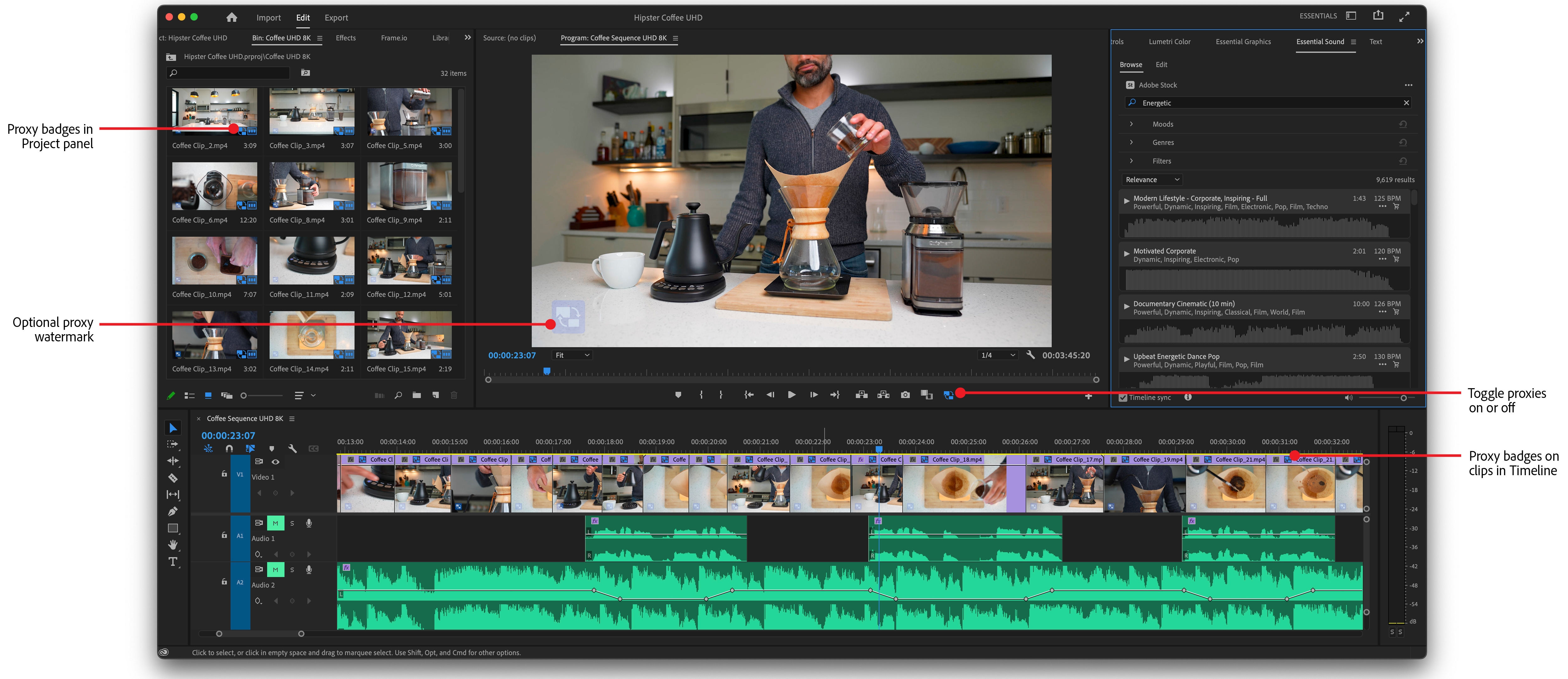
New Proxy badges in the Project panel and timeline enable you to easily distinguish between proxy and source media while editing. For absolute certainty when working with proxies, you also have the option to burn-in proxy watermarks.
In addition, proxy files now default to ProRes format, which is a better format to use when working with proxies.

Gradients for strokes and shadows

Add visual impact to characters and graphics, with the ability to add gradients to strokes and shadows. Use gradients to create a sheen or other colorful effects. Gradients can be linear or radial, based on opacity, color, or a combination of color and opacity.
Design elements like these are widely used for decorating Asian characters, such as Japanese and Korean video content, and provide additional parameters for users who are upgrading legacy titles in Premiere Pro.
For more information, see Applying gradients.
Improved H264/HEVC Encoding on Apple M1 systems
Premiere Pro now has improved encode quality of H264/HEVC encoded files on Apple M1 systems. In particular, the bit rate of the H264/HEVC encoded files on Apple M1 systems is now as good as the bit rate of encoded files on Mac Intel systems.
Support for RED V-RAPTOR camera
Premiere Pro now offers support for the RED V-RAPTOR cameras.
More GPU-accelerated effects
Newly GPU-accelerated effects include Magnify, Replicate, Spherize, and Wave Warp. GPU processing means faster performance for these effects, smoother playback during editing, and faster rendering and exports.
Paste to same track keyboard shortcuts
When copying and pasting assets in a timeline, Premiere Pro now defaults to pasting items to the same track instead of always pasting according to track targeting.
In addition to this more useful default behavior, Premiere Pro includes the following functions:
Paste to Same Track
This new keyboard shortcut always pastes items in the Sequence to the same track the item was copied from.
Paste Insert to Same Track
Similar to Paste to Same Track, this keyboard shortcut can be used to perform a ripple (insert) paste operation.
Paste to Target Track
This new keyboard shortcut provides the same behavior as legacy copy and paste operations. The Paste to Target Track command pastes according to the lowest targeted track(s).
Paste Insert to Target Track.
This new keyboard shortcut can be used to create an additional keyboard shortcut that provides the same behavior as legacy copy and pasteinsertoperations. The Paste Insert to Target Track command performs a ripple paste (insert) operation according to the lowest targeted track(s).
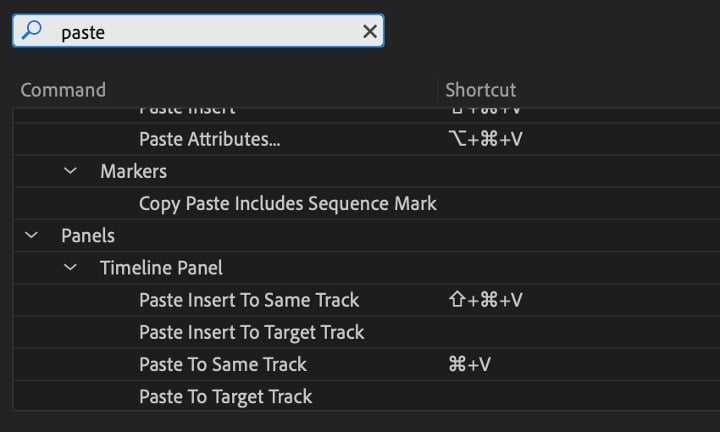
You can assign all four of these functions to keyboard shortcuts providing the ability to paste to the same track or according to track targeting. These shortcuts override the legacy application-wide default copy-paste keyboard shortcuts when the Timeline panel is active and can be accessed from the Timeline Panel shortcuts in the Keyboard Shortcut Editor.
###
Enjoying the news? Sign up now for the Creative COW Newsletter!

Sign up for the Creative COW newsletter and get weekly updates on industry news, forum highlights, inspirational tutorials, tips, burning questions, and more! Receive bulletins from the largest, longest-running community dedicated to supporting professionals working in film, video, and audio.
Enter your email address, a first and last name, and let us know what you’d like to see more of in the message!
[contact-form-block name_label=”Name” email_label=”E-mail” message_label=”Message” header=”false” header_image_id=”null” header_image_size=”50″ header_image_align=”left” header_title=”Get in Touch” header_text=”Leave your message and we’ll get back to you shortly.” button_text=”Send” button_color=”#3d84f6″ button_text_color=”white” align=”undefined” theme=”default” message_rows=”5″][/contact-form-block]
Responses