Creative Communities of the World Forums

The peer to peer support community for media production professionals.

Activity Forums VEGAS Pro Horizontal bars at top+bottom clipping image animation

  • Horizontal bars at top+bottom clipping image animation

    Posted by Neil Pollick on October 2, 2025 at 10:37 am

    Why are there white bars at the top and bottom?

    I have basically created a 4k project and I am working on a simple idea for the titles where a series of images, about 1/4 size of the frame enter from bottom right one after another, slightly overlapping, and then arc across the frame till they disappear from the top left corner.

    I included some video clips. It’s simple and striking. The opening titles will go in the empty space on the right hand size of the frame.

    It’s all working fine, easy to adjust the speed and degree of overlap.

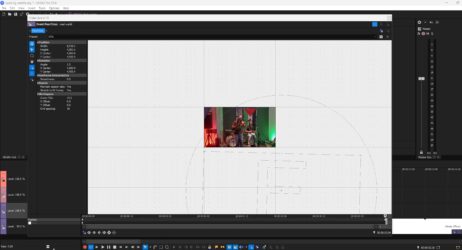
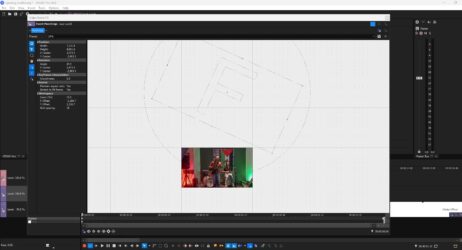
    But I can’t figure out whey the frame the stage they appear on is smaller from the frame, i.e. why there are white bars at the top and bottom of the screen, so that the images don’t move from the bottom of the frame to the top. What’s more, the bar on the bottom changes size as the animation progresses.

    I hope you arre able to see the video I am talking about here.

    Your input is appreciated. I am truly perplexed.

    Derek Moran replied 7 months, 1 week ago 3 Members · 13 Replies
  • 13 Replies
  • Eric Santiago

    October 2, 2025 at 3:22 pm

    Not a Vegas user but that looks like aspect ratio for project is different from sources.

  • Neil Pollick

    October 3, 2025 at 2:45 am

    Thanks for the suggestion – that only matters, I think, if you the clips are not rotated or don’t have their size reduced. It’s when you are trying to fill the screen with a source clip of a different ratio.

    In the “pan and crop” tool in Vegas there are options to choose “match source aspect” and “match output” aspect – these options apear when you right click on the videoclio/image and also when you click on the frame — but no combination makes a difference.

    I have attached a screenshot for anyone who might want to take a look – there are settings on the side and maybe its related to those – idk
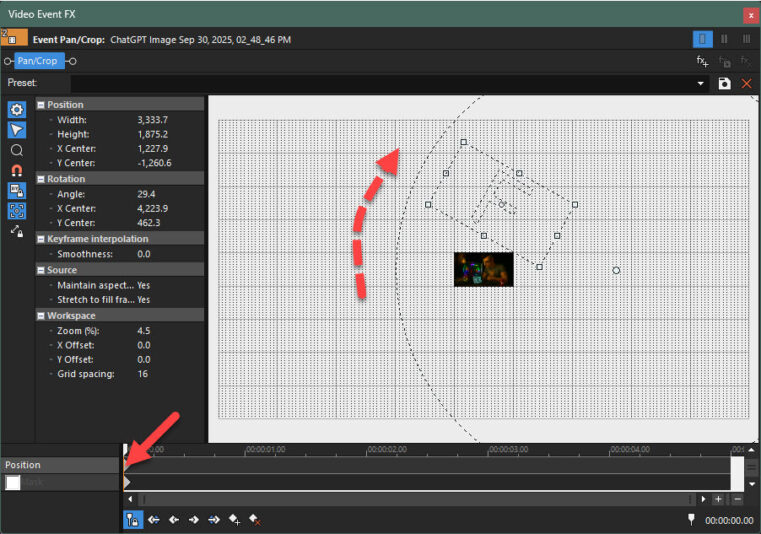
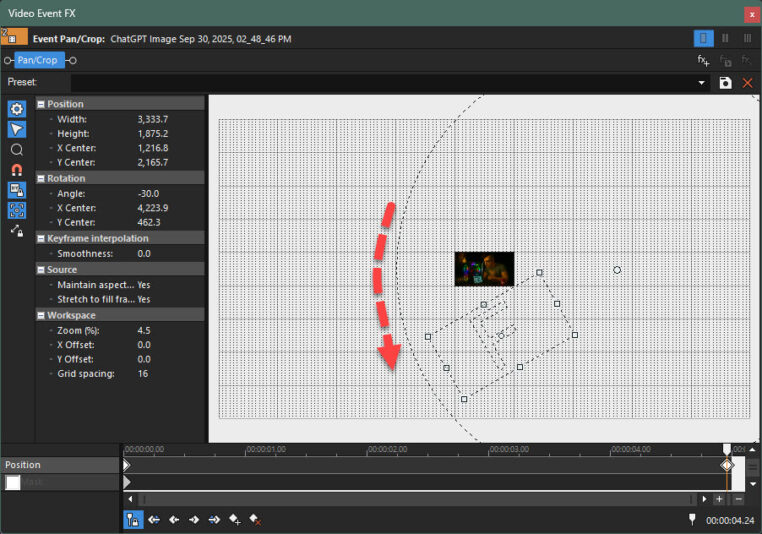
    There are 2 screenhots from the PAN+CROP tool, image no.1 shows the positon of the clip at the start of the animation, and image no.2 is the position at the end, when the image has moved through the frame

    It’s weird, something else I can’t identify seems to be limiting the area of the screen where the images are allowed to appear, and the size of the lower horizontal bar changes!

  • Derek Moran

    October 3, 2025 at 2:47 am

    Hi Neil
    The fastest way to solve your problem, is to share your .veg project file. It contains no video or image files, but will show me ALL of your settings.
    It sounds like you have multiple problems:
    1. Possible mismatch between Project Properties, Events on Timeline and the Render Template frame dimensions you selected.
    2. You have also accidentally added Key-Frames to the Event Pan/Crop window and/or Track Motion window, which is why it is constantly shifting at the bottom of the frame. I suspect Event Pan/Crop contains most of the errors.
    I’m not sure if CreativeCOW allows the uploading of .veg files? You may have to create a zip file before upload is allowed. Or, upload .veg file to Google Drive and share link, so I can download. After I open your file and find errors, I can upload screen shots to show what to fix.
    Regards
    Derek

  • Neil Pollick

    October 3, 2025 at 3:14 am
  • Neil Pollick

    October 3, 2025 at 3:18 am

    There are only 2 key frames, one at the start and one at the end. I don’t see any others that I added accidentally.
    The start and end keyframes are essential for the animation.

  • Neil Pollick

    October 3, 2025 at 3:39 am

    If you can’t access that attached veg file I will happily upload it to google drive, just let me know – thanks again

  • Derek Moran

    October 3, 2025 at 4:55 am

    Thanks for .veg file.
    It took me a while to work out what was wrong!
    The problem is your Event Frame is changing aspect ratio as it moves from one key-frame to the next.
    It can get very complicated to explain, so here is the method I recommend.
    I have also uploaded a file you can experiment with. When you open my .veg file, substitute image with one of your own 16×9 images – make sure it’s 16×9 aspect ratio, so you see what I saw. My .veg was made with VP23. If you are using older version, let me know and I’ll make with your version of VEGAS Pro!

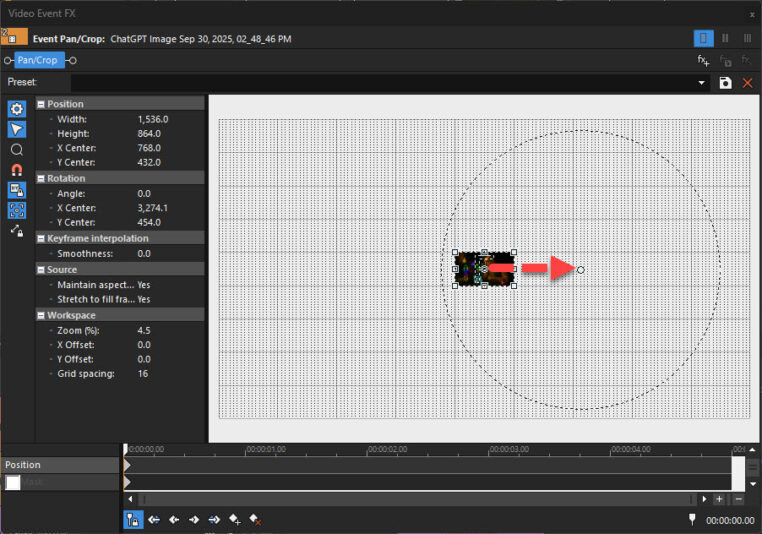
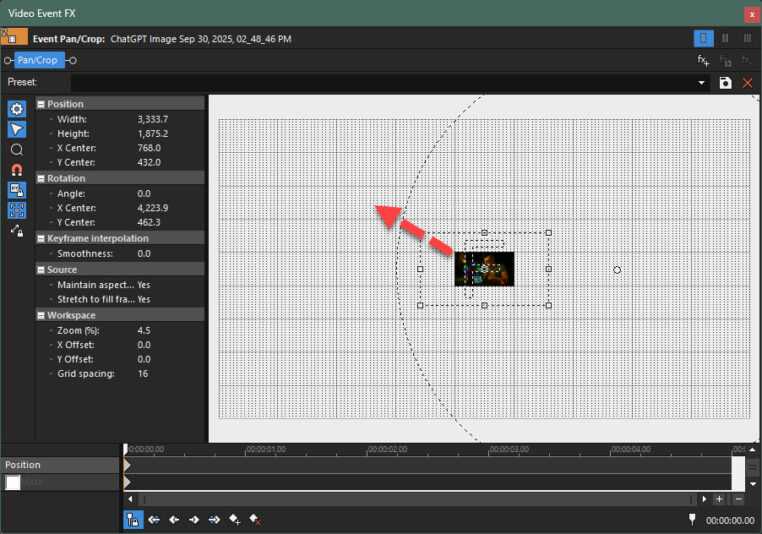
    Using my method, you are going to move the Center of event frame, way outside to the right.

    1. Clean slate project. Zoom way out in event pan crop for first image. Then grab hold of center dot and move to right. What distance you choose is up to you.

    2. Drag corner of image diagonally to “zoom out” and make image smaller.

    3. Hover near circle until spin icon appears and spin upwards. Make sure it creates an actual Key-Frame. Click on key-frame if it does not auto-create.

    4. Move along 5 seconds, then spin circle down. That’s it.

  • Derek Moran

    October 3, 2025 at 4:56 am
  • Neil Pollick

    October 3, 2025 at 5:08 am

    Thanks a lot

    I will check it out when i get time.

    All my photos and video clips are full hd, 16:9, 3840×2160. Making them the same size overcame other problems I was having but not all 😀 as you know

    I hope I can get back to you if I am still confused?

  • Neil Pollick

    October 3, 2025 at 5:13 am

    I was going to ask you to send me a Vegas 20 compatible file but it’s not necessary, it’s fixed!
    Thanks for your help

Page 1 of 2

We use anonymous cookies to give you the best experience we can.
Our Privacy policy | GDPR Policy