Creative Communities of the World Forums

The peer to peer support community for media production professionals.

Activity Forums Maxon Cinema 4D several plugins missing

  • several plugins missing

    Posted by Laura Fischer on July 9, 2023 at 6:47 pm

    Hello, I am just started to use R25 for modeling. I used to model since R18. But I am facing one issue. Any model I make in R25 when I try to open in an older version like R19 or R21 I receive these message before opening the scene: several plugnins used in this project are missing. saving may cause loss of plugin data! plugin ‘magic bullet looks’ (id 1054755).

    One thing, I made the most simple scene in one project using R25. Just a Cube, only a Cube with no materials, no plugins, light, effects, nothing…just this Cube and when I try to open this scene in R19 and R21 I do receive the same message: several plugnins used in this project are missing. saving may cause loss of plugin data! plugin ‘magic bullet looks’ (id 1054755).

    Why it happens? I usually send projects to my clients and some of them have old versions of Cinema 4D. Will they have any problems using my projects made in R25? Or they just have to click the OK button and keep on working? Because even if I save a project (original one made in R25) inside R19 or R21, when I reopen the project in R19 or R21 I do receive the same message again.

    Brie Clayton replied 2 years, 7 months ago 4 Members · 4 Replies
  • 4 Replies
  • George Charoupas

    July 9, 2023 at 9:55 pm

    Hello,

    Maxon introduced the “Magic Bullet Looks” plugin in Cinema 4D R25. What it does, is it allows its users to collor correct /adjust their renders. So lets say you have a scene which took 2 hours to render and you just realised that you wanted the lighting to be warmer or the scene to be darker/brighter. With Magic Bullet Looks you don’t have to rerender your scene or load your final image into Photoshop. You can do this and more inside Cinema 4D directly.

    So the message you are seeing is mostly harmless.

    How can you avoid this message:

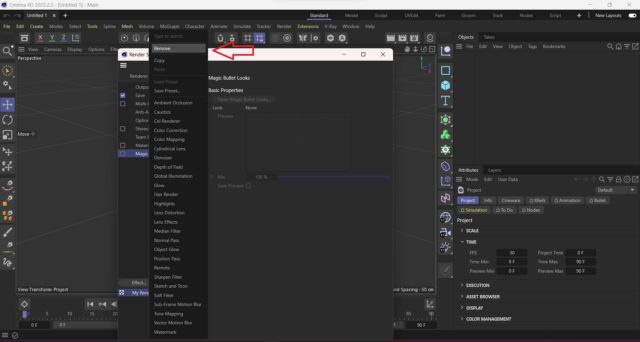
    1) Open Cinema 4D and load your scene.

    2) Open render settings. (Ctrl+B for windows, ⌘ + B for Mac)

    3) On the left list there is a “Magic Bullet Looks” entry.

    4) Right click on that and select remove. You can also select it and press the “Delete” button on the keyboard.

    Now if you save the scene, you should be good.

  • Kouraib Abdmalek

    July 9, 2023 at 10:16 pm

    You did well Georgios, the solution is exactly as you mentioned. I just wanted to point out that the Magic bullet plugin was included by Maxon in R23 and later, so it is better to open the file with an old version and delete this effect from the render setting because it is not activated in the old versions, and do not do that in R25 because it may need this effect in the future

    Thanks

  • Laura Fischer

    October 8, 2023 at 3:13 pm

    Hi George, thank you so much for your time and help, I really appreciate it! I did it the way you explained and it was really OK! Thank you once again! My best! Lau

  • Brie Clayton

    October 8, 2023 at 4:10 pm

    Thank you for the solve, George!

We use anonymous cookies to give you the best experience we can.
Our Privacy policy | GDPR Policy
