

Activity › Forums › Avid Media Composer › Patching on AvidXPro 4.6
-
Patching on AvidXPro 4.6
Posted by Joshua Earles-bennett on July 26, 2005 at 1:27 pmOkay I have two video sources I’m using for a live show and the first camera I’m using on V1 and the second camera I want to use on V2, but I can’t seem to drag the video from Source to the Timeline V2, it wants to go to V1 instead.
How do I set it up so that it goes straight to V2 and A3 and A4?
Here’s a screenshot of what I want.
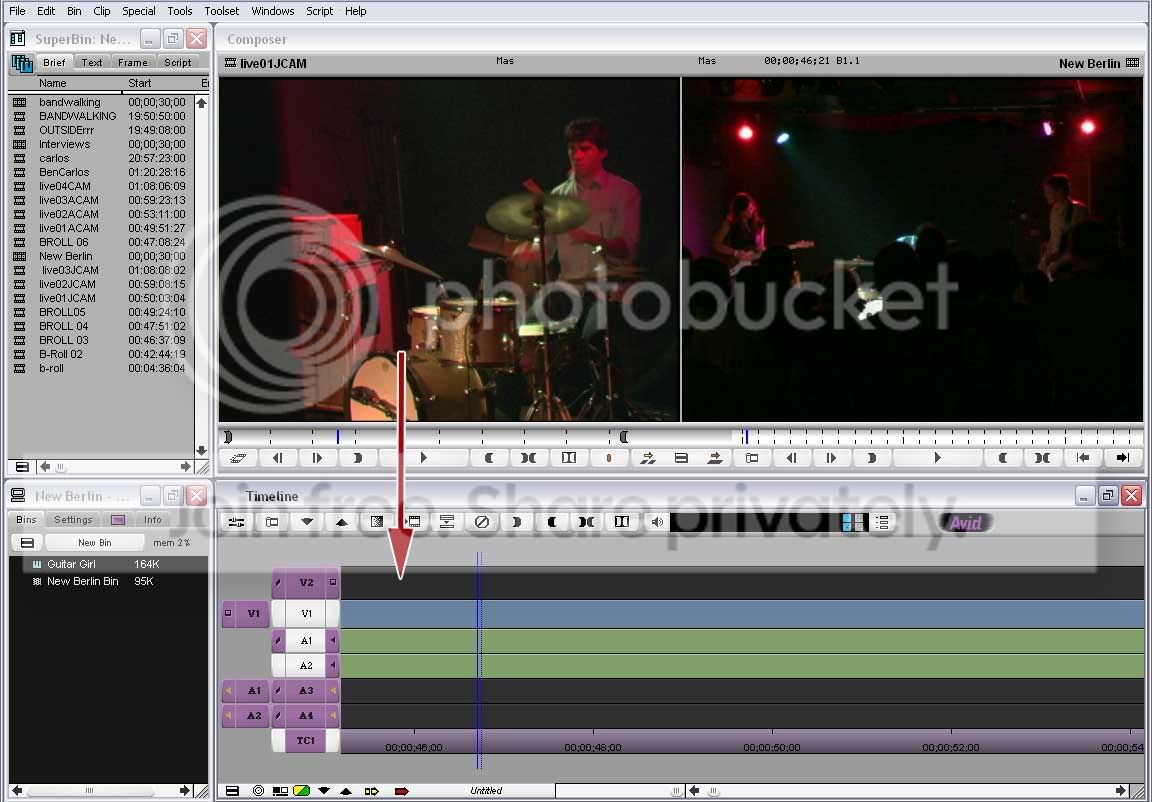
I can’t seem to change the V1 patch to V2 or add the V2 patch. Can that be done? Thanks.
Murlee replied 21 years ago 4 Members · 8 Replies -
8 Replies
-
Anonymous
July 26, 2005 at 7:20 pmIf you click and drag the v1 on the left, click and drag to the v2 on the right,(as you do this you will see an arrow as you drag to v2) now you will have v1 on the left and v2 on the right. I hope you can understand that.
-

Joshua Earles-bennett
July 27, 2005 at 2:08 amKevin, Thanks for replying. I’ve done that and it still moves the video and audio to V1A1A2. Is there a way to create a Patch V2? I think that will work.
-

Jon Zanone
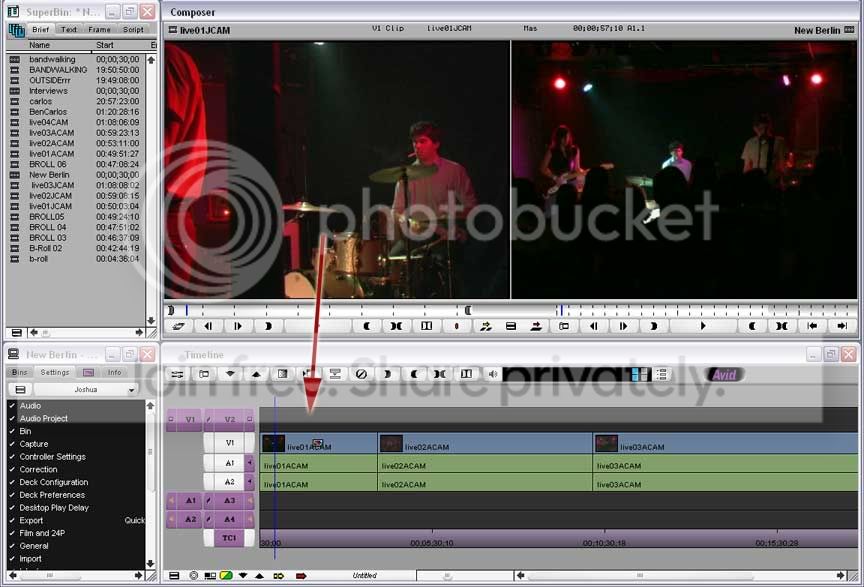
July 27, 2005 at 12:54 pmDrag you active track indicator to V2. Right now, your screen shot shows you have V1 as the active track. Click and hold on active track indicator, and you’ll see a list of tracks. Select V2, and you should be golden.
Jon
-
Joshua Earles-bennett
July 27, 2005 at 2:36 pmJon, I did that and AvidXPRO still forces me to drag from the source to V1 even though I’m holding my cursor over V2 on the timeline. Here’s a screen shot of what you wanted me to do right?
-
Jon Zanone
July 27, 2005 at 9:48 pmWhy don’t you edit it to V2? It accomplishes the same thing. If you are doing a music video, try multicam – it’s da’ bomb…
Jon
-
Jon Zanone
July 28, 2005 at 3:45 amJust like you did to V1, except you patch the active track to V2, and hit the little red arrow…. Avid doesn’t really do drag and drop. It’s more of a ‘park the blue line and overwrite/splice in’ kind of thing…
Jon
-

Murlee
July 29, 2005 at 5:30 amHi aplusjimages, Right click on the timeline to revel the timeline settings and go to the “edit” tab > and select “Auto patching” and once you do this, any active video source track (V1) will automatically patch to the active video track on the time line (V1 or V2 or V3…. which ever is highlighted). Now in your case, you need to highlight V1 on your source side and select V2 on the timeline and de-select V1. You will notice that the source V1 has automatically patched to V2. Now drag the source clip from the source monitor and place it on V2. (Happy editing)

Reply to this Discussion! Login or Sign Up