Creative Communities of the World Forums

The peer to peer support community for media production professionals.

Activity Forums Adobe After Effects Puppet tool – Unpin / move / pin again

  • Puppet tool – Unpin / move / pin again

    Posted by Stephane Levy on March 18, 2022 at 9:11 pm

    Hello,

    I would like to use the puppet tool on many head shots for a project.

    In order to gain time, I’m thinking about doing the following:

    – create a template of an AE project

    – load a reference head shot in the template

    – position 80 pins on the head

    Then, every time I want to use the puppet tool for a new project, do the following:

    – open the template project, and do save as… with a new name

    – replace the footage of the reference head shot with the new head shot I would like to work on

    – then, I will find the 80 pins I have placed in the template project but misplaced on the new head, and this is where I need help: I would “unpin” all pins, and move them without applying the puppet tool, and once I’m happy with the new 80 positions, I would re-pin them on the head

    This way, I would not have to create from scratch 80 new pins on the shape of a human face every time I start working with a new shot.

    How could I unpin and move, and re-pin, without applying the effect?

    Thanks a lot for your help.

    Best regards,

    Stéphane

    William Varganov replied 1 year, 1 month ago 5 Members · 17 Replies
  • 17 Replies
  • Filip Vandueren

    March 19, 2022 at 7:26 am

    I would use expressions to copy the relative position changes of a pre-animated copy of the effect, which is locked and hidden.

    I could be mistaken, but I don’t think that you can relocate a puppet pin after it has been placed without it acting as a distortion move.

  • Stephane Levy

    March 21, 2022 at 2:00 pm

    I’ve tried using an expression, but, 2 things : 1) I can’t control visually the positions of the pins, I have to guess, 2) and that’s the most important: distortion is applied right away.

    Thanks.

  • Stephane Levy

    March 22, 2022 at 11:58 pm

    Anyone has an idea regarding this puppet tool / mesh – removal and repositioning, without applying distorsion while moving? Thanks!

  • Filip Vandueren

    March 23, 2022 at 8:24 am

    Hi Stephane, you simply can’t move a puppet pin after it has been placed. Moving it is always distortion, never “relocating”, that’s just how the effect was coded.

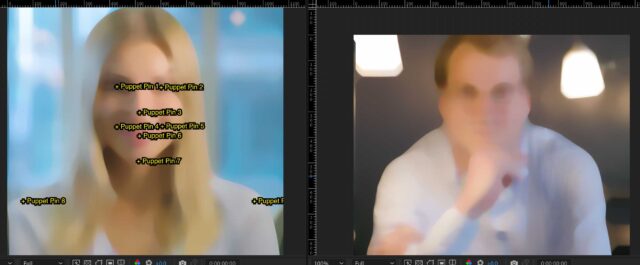
    What I meant was, you create a new puppet pin effect, and click/create the puppet pins on your new layer in the same order. Your reference image could be dots on the face with a number besides it so you know it what order to create them.

    Then each new puppet can get an expression something like:

    var refPuppetMesh = thisComp.layer("reference animation").effect("Puppet").arap.mesh("Mesh 1");
    var thisPuppetMesh = thisProperty.propertyGroup(3);
    var myPinNr = thisProperty.propertyGroup(1).propertyIndex;
    var scaling =
    length(thisPuppetMesh.deform(1).position, thisPuppetMesh.deform(2).position)
    /
    length(refPuppetMesh.deform(1).position, refPuppetMesh.deform(2).position);
    var pos = refPuppetMesh.deform(myPinNr).position;
    value + (pos.value-pos.valueAtTime(0))*scaling;

    Note that I added some scaling, if puppet point 1 and 2 are for example two pupils, then it will give a good indication of the scale of the face in each particular portrait, because just copying the relative position would exaggerate the effect more on smaller meshes of photos with smaller faces.

    Something similar could be done for when the photos are not all exactly level, but that’s more complicated, essentially converting all pin positions to polar coordinates. Depends on how “normalized” your input photos are.

  • Stephane Levy

    March 23, 2022 at 7:38 pm

    Hi Filip,

    I am willing to try this, but first, what do you mean by: “Your reference image could be dots on the face with a number besides it” : how can I achieve this? How can I actually see the number beside the pin on the reference image?

    Thanks.

  • Stephane Levy

    March 25, 2022 at 12:11 am

    Filip, do you know a way to batch rename puppet pins? I get “Puppet Pin 1”, “Puppet Pin 2″… “Puppet Pin 80” ; and I would like to have “Face Outline 1”, “Face Outline 2″… “Face Outline 10”, “Mouth 1″… “Mouth 10” etc. I could do this directly in the comp, not via scripting. Sth like, select 10 layers, then do sth. If I can regroup them into subfolders, I would be as happy. Thanks.

  • Henry Garrou

    March 25, 2022 at 1:02 pm

    Because Puppet creates the mesh based on the alpha of the layer and expansion value set in puppet, you can’t reuse/replace the layer, much less move the pins after the fact. The effect just won’t “reinitialize.”

    While I don’t know how to code this, is stands to reason you (or someone) could write a script that considers 80 Null layers, with the proper names you want. You first reposition the Null layers, then the script is run and it would apply puppet to the selected layer (or bottom layer) in the comp and create/rename pins based on the current position and name of the Null layers.

    Is this a viable solution, coders?

  • Filip Vandueren

    March 25, 2022 at 2:43 pm

    Hi Stephane, first, here is an example of how to visualize numbers/names of Pins:

    https://we.tl/t-bNYuPotEin

    then you could have one reference comp open, and know it what order to click on the second comp, as in the example

  • Filip Vandueren

    March 25, 2022 at 2:49 pm

    in scripting you can do this:

    app.project.item(2).layer(2).effect(1)("arap")("Mesh")(1)("Deform")(1).name = "Face Outline 1";
    app.project.item(2).layer(2).effect(1)("arap")("Mesh")(1)("Deform")(2).name = "Face Outline 2";

    etc.

  • Stephane Levy

    March 25, 2022 at 3:07 pm

    This looks really interesting. I am going to try and test and will get back to you.

Page 1 of 2

We use anonymous cookies to give you the best experience we can.
Our Privacy policy | GDPR Policy