

Activity › Forums › Apple Final Cut Pro › Media no longer linked on storage drive
-
Media no longer linked on storage drive
David Mayer replied 5 years, 4 months ago 4 Members · 26 Replies
-

Joe Marler
April 30, 2021 at 12:25 pmIf you open a “managed” library which supposedly has all internal media, and the media requires re-linking, it’s likely not inside the library. Media inside the library never requires re-linking.
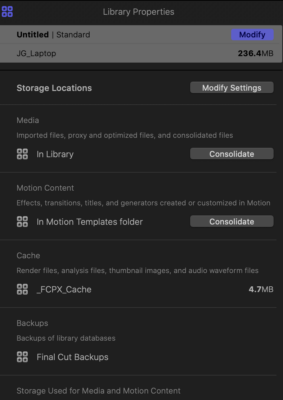
If you click on the library in the left sidebar, then enable Inspector (CMD+4), at the bottom of that pane under “Storage Used” it will show what volumes the files are on. Unfortunately it will not show the individual pathnames to each file.
However you can right-click on individual files in the Event Browser and select “Reveal in Finder”. That will show where the file is (if linked).
If the file is a red thumbnail, you can select a *single* file, then pick Files>Relink Files>Original Media, and (before relinking) note at the bottom of the relink dialog the pathname to the file. That is where it expected the file to be. That can give a hint about why it’s looking in a certain location.
The 3rd-party utility Final Cut Library Manager has an optional feature which scans the library and creates a CSV file showing the complete pathname to each media file: https://www.arcticwhiteness.com/finalcutlibrarymanager/
All media and libraries should be kept on volumes formatted APFS or HFS+ (MacOS Extended Journaled), not ExFAT or any other format. If kept on those formats, external media files can be renamed or moved elsewhere on the volume and they will not require relinking. FCP uses “inode lookup” in that case. If the volume name is changed or the external file is moved to a different volume, relink will be required.
Keeping all media inside the library is not necessarily the best idea. It can make the library unwieldy to manage. OTOH in some archiving cases, creating a separate library using internal managed media for the project can be useful.
Here are some tutorials on FCP media management:
Some contents or functionalities here are not available due to your cookie preferences!This happens because the functionality/content marked as “Google Youtube” uses cookies that you choosed to keep disabled. In order to view this content or use this functionality, please enable cookies: click here to open your cookie preferences.
-

David Mayer
April 30, 2021 at 1:19 pmJoe,
Thanks, this gets to the heart of it.
My hard drive is MacOS Extended Journaled.
When importing media I chose “Copy to Library”.
Is that not enough?
When I open the backup I get “Some storage locations for the
library ‘Library Name’ are unavailable.”
Then I navigate to “Library”.
This still does not help.
-
David Mayer
April 30, 2021 at 1:21 pmBottom of the inspector? I am not seeing “storage used”.
If you click on the library in the left sidebar, then enable Inspector (CMD+4), at the bottom of that pane under “Storage Used” it will show what volumes the files are on. Unfortunately it will not show the individual pathnames to each file.
-

Jeremy Garchow
April 30, 2021 at 1:30 pmOpen the inspector, and then select the library. It should show Library properties.
Like this:

-
Jeremy Garchow
April 30, 2021 at 2:30 pm1) Open the inspector (command-4)
2) Select (click on) the library in the FCPX Browser
3) Look at the inspector.
-
David Mayer
April 30, 2021 at 2:34 pmMedia – In Library
Storage used for Media and Motion Content – it names the correct drive – the backup drive – and one more drive (another backup, not the original)
-
Joe Marler
April 30, 2021 at 5:10 pmIf it lists another drive, then the media is not all internal to the library. Likely part of the media is on that drive.
When you say: “I backup on HDD drives”, does that mean setting the auto-generated FCP library backups to that drive, or is media is backed up there, or did you manually copy the FCP library there for backup?
When you say “every time I open a project on the HDD drive that has been backed up on that drive, I have to relink all media”, do you mean opening a *library* on the HDD drive?
If you have multiple versions of the library, some of which had media imported from different locations, then open an older “backup” version of the library, it won’t know about the new media locations.
However in general the location of the library *itself* doesn’t matter. If you copy a library to another drive, then open the library, any internal media will be found. If that copied library references media on other drives, those references should remain valid, provided the drive volume name has not changed.
FCP keeps a list of the high-level storage locations — the ones denoted in the library inspector>Storage Locations>Modify Settings. Those are stored within the library in the file Settings.plist. If that is deleted or one of those high-level folders or drives change, it will prompt you to update it. However that by itself will not avoid the need to relink. For external “in place” media, the full volume name + pathname for *each* file is stored in the library in binary format. If the drive name changes (as often happens with backup drives vs regular drives) it won’t find the media files without relinking.
It is easier to debug cases like this by using Final Cut Library Manager’s add-on feature to create a CSV list of all media files from each library.
-
David Mayer
April 30, 2021 at 5:32 pmAll good questions.
The second backup drive only had a couple images.
The actual video footage was on the main backup drive.
No, this is not a “backup” setting.
I literally drag and drop the entire project – library and all assets to the backup drive.
It is the exact same size as the original folder.
Everything is there. I know this because when I relink, it is from that drive.
Seems like this should be simple.
-
Joe Marler
April 30, 2021 at 5:56 pmWhen you get a red thumbnail indicating missing media, can you select that one thumbnail, do File>Relink Files>Original Media, then (without relinking) look at the bottom of that dialog. In grey letters it should show the expected pathname to the file. You can resize the window horizontally if needed to show the full pathname.
What is that pathname? You can compare it to the original pathname by opening the normal, non-backup library, in FCP right-click on the same file in the Event Browser, and pick “Reveal in Finder”. You can see the full pathname in Finder by doing View>Show Path Bar. How does the pathname of that same file differ between the backup library vs the regular library?
If you want to inspect the full pathnames of multiple files, you can drag/drop the files from Finder to a TextEdit window. It will not move any files, just display their full pathname.
Reply to this Discussion! Login or Sign Up