

Activity › Forums › Adobe After Effects › I need to make this transparent
-

Bobby Sifon
March 21, 2022 at 4:43 pmAlright Kevin
So when I go to the drop down list by the right, under the transition, I choose “radial wipe”
then I drag it to the logo screen or do I add a keyframe first?
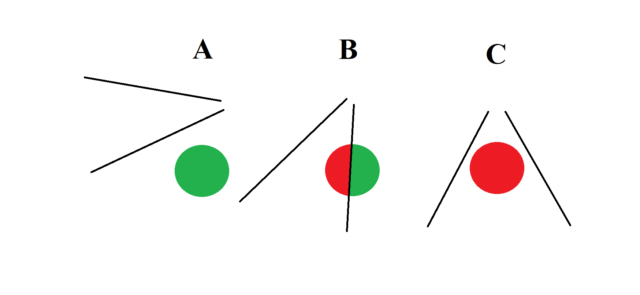
My issue now is how to animate the radial wipe from A to C
problem is I cant see the radial wipe yet

-

Kevin Camp
March 21, 2022 at 6:05 pmWhen you apply radial wipe, I’d first adjust the completion property to be about 80% (based on your illustration). It should cut a wedge shape in your logo. If you drag the completion value you’ll see how the wedge wipes in a radial fashion.
You can drag the start angle to rotate the whole wedge shape to where you need it.
And you can scrub the center property to move the center of the radial wipe to be above your logo. To get the position right, you’ll probably want to set the completion to around 90-95% so you can see the angles better.
Once you have the center positioned, you can just animate the completion from 100% to the value that you need to reveal the whole logo.
-
Kevin Camp
March 21, 2022 at 7:05 pmI will add, that if you simply want your logo to transition from red to green, your set up may not be quite right… I don’t think you need the black solid or the green background below it. I think you could do this more simply, but I may not be following your full intent.
-
Bobby Sifon
March 21, 2022 at 7:25 pmSo does it mean the shape alone has to be green at the beginning when i do the zoom animation
without a green background?
Without the green background below it?
Anyway lets forget about the zoom animation for now. I’ll deal with that later on.
Lets just focus on the wipe animation
So does that means the RDA logo has to be green but with a transparent background as a png then what colour should the solid be?
because my goal is to have the radial wipe transparent with a nice feather blend and the background has to be black….the only thing that should change by the effect of the wipe is the color of the shape of the logo from green to red. The radial wipe should be invisible outside the shape just blackness
-
Kevin Camp
March 21, 2022 at 7:34 pmI may not be understanding exactly what you are trying to accomplish.
In your illustration with 3 stages (A, B, C), is the green circle representing your green RDA logo, and then its transition to red? And do you just want that logo with the color transition over a black background?
-
Bobby Sifon
March 21, 2022 at 7:36 pm“I may not be understanding exactly what you are trying to accomplish.
In your illustration with 3 stages (A, B, C), is the green circle representing your green RDA logo, and then its transition to red? And do you just want that logo with the color transition over a black background?”
Yes Kevin
-
Kevin Camp
March 21, 2022 at 7:50 pmLooking back you your post, you mentioned green screen… are you planning on keying out the green to make it transparent? If so, if you were able to make it transparent without making it green, would that be preferable — note that it will be hard to key a green color with a soft fade to red.
Basically, if your ultimate plan is to make the green transparent to overlay onto video, or something else, it may be easier to just make it transparent to start with.
-
Bobby Sifon
March 21, 2022 at 8:01 pmExactly…
Yes I’m planning on keying out the green to make it transparent
-
Kevin Camp
March 21, 2022 at 8:40 pmGot it…
So you have the logo that knocks a hole in the black solid as it scales down right now. What I think I’d do now is to simply add a new red solid behind the black solid to ‘fill’ the hole that the logo is making.
On that red solid, you can add the radial wipe effect similar to how I described above and you should be able to have it wipe on to reveal the logo.
You can hide the green layer and that will make it transparent rather than green. To see the transparency, click the transparency toggle switch at the bottom of the comp viewer window — it looks like a rectangle with a checkerboard, between the fast preview switch and the mask path visibility switch.

Reply to this Discussion! Login or Sign Up