

Activity › Forums › Adobe After Effects › How do you avoid pixelization when zooming into a map in a 3D scene???
-
How do you avoid pixelization when zooming into a map in a 3D scene???
Eric Santiago replied 1 year, 6 months ago 3 Members · 23 Replies
-

Vasyl Iskovych
March 2, 2025 at 4:50 pmAdd the project file to the zip archive and attach it to the message.

-

Nicholas Natteau
March 2, 2025 at 5:29 pmHi Vasyl. Did you get the project file? I included in the zip file. Let me know if you received the two files. Thanks so much again for all your help.
-
Vasyl Iskovych
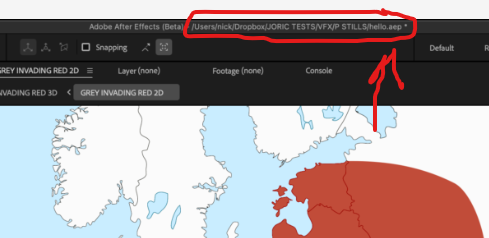
March 2, 2025 at 6:38 pmYou sent us the “premier pro” file. Can you send us the “after effects” file you showed in the screenshot?
-
Nicholas Natteau
March 2, 2025 at 7:19 pmOh I’m so sorry. Please find the After Effects zip package here…
-
Vasyl Iskovych
March 2, 2025 at 10:22 pmI see that you have already found a way to use the “Turbulent Displace” effect.
But in this case, the gray layer you precomposed will still blur at high magnification.
To avoid this, you may want to consider another option.
Please watch the video.
-
Vasyl Iskovych
March 2, 2025 at 11:31 pmIn addition to the previous message, I wanted to say that I don’t quite understand why the “INVADED RED STATE” layer is needed.
It seems to me that this is just a copy of the “RED STATE” layer.
So you can just use the “RED STATE” layer as a mask.
Please watch the video
-
Nicholas Natteau
March 3, 2025 at 1:46 amVasyl, thank you so much for taking the time to make those two videos. I very much appreciate all your help. I thought I needed that duplicate copy of the red state in order for it to act as a track matte to the invasion layer. If I only have one red state layer and it acts as a track matte to the invasion, wouldn’t the red state layer no longer be visible? Thank you very much for that tip regarding the Set Matte option. I never used it before. I’ll watch your two videos several more times to study how you approach it. Thanks again so much for your time and effort in helping me! 🙏 😀
-
Nicholas Natteau
March 3, 2025 at 3:03 amVasyl, do you know if there’s a way to stop Wiggle Paths from moving? Another reason I like Turbulent Displace is that I can get it to stop moving at the end of my animated camera move on a map. But Wiggle Paths keeps the layer’s path moving indefinitely. Is there a way to stop it? Perhaps with an expression, once the camera stops moving over the map? Thank you in advance.
-
Vasyl Iskovych
March 3, 2025 at 9:19 amNow in your project, Wiggle Paths are animated using the Wiggles/Second parameter.
You can set the Wiggles/Second to 0 and animate either the Temporal Phase or Spatial Phase parameter (or both).
This also gives you the ability to smooth the start and end of the motion, resume the motion, and speed up or slow down the motion as needed.
-
Nicholas Natteau
March 3, 2025 at 2:48 pmHi Vasyl, I was just wondering if you might know how I can achieve this reveal effect in After Effects. It appears at 00:31 seconds in this Johnny Harris video. It looks like some kind of animated mask showing Japan’s occupation of China. This might work better for me than Turbulent Displace:
https://youtu.be/TOJQkhzpLyQ?t=31
Thank you so much in advance for any suggestions you might as to how to replicate this effect:
Some contents or functionalities here are not available due to your cookie preferences!This happens because the functionality/content marked as “Google Youtube” uses cookies that you choosed to keep disabled. In order to view this content or use this functionality, please enable cookies: click here to open your cookie preferences.

Reply to this Discussion! Login or Sign Up