Creative Communities of the World Forums

The peer to peer support community for media production professionals.

Activity Forums Adobe Premiere Pro Manually generate peak audio files?

  • Manually generate peak audio files?

    Posted by Brian Sarfatty on January 15, 2014 at 6:13 pm

    Hi – I have a project that has eons of B-roll and just a few interviews mixed in. I don’t want to automatically generate peak audio files for everything, because most of it is a waste. I DO want to manually generate peak audio files by selecting which clips should have a waveform. How do I do this? When I disable automatic peak file generation, it only generates a waveform when I press on the clip in my timeline. For the interviews, I want to tell it to generate a waveform for the whole clip, not just the parts I play. HELP?

    David Bowen replied 2 years, 3 months ago 2 Members · 2 Replies
  • 2 Replies
  • Brian Sarfatty

    January 15, 2014 at 6:19 pm

    After a lot of research, here is the best work around I’ve found to cherry-pick which clips to generate waveforms for.

    “If you want the audio waveform to generate for a single clip you can right click the clip and select “audio gain” then adjust the gain and it will generate a waveform. ”

    Not ideal, but if anyone has other suggestions let me know. I’d think you could just lasso a bunch of clips in a bin, and then select “generate waveform” or something. Not have to edit it all in, then do this sillyness.

  • David Bowen

    April 9, 2024 at 5:48 pm

    Sorry to Necro this thread but I found one workaround.

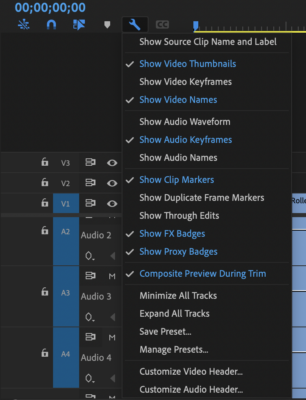
    If you click the wrench in the timeline (timeline display settings) and DEselect Show Audio Waveform, Premiere will prioritize generating a peak file for that sequence. If it’s currently working through a batch of peak generations, it will finish the current file then switch to generating peak for the master in that sequence.

    Then, once it’s done generating, turn Show Audio Waveform back on and bam, there it is.

We use anonymous cookies to give you the best experience we can.
Our Privacy policy | GDPR Policy