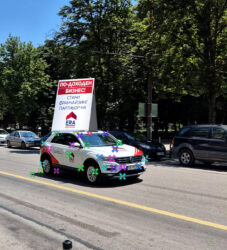
I found these steps online that can help you quite a bit. Let me know if you are stuck somewhere to see if I can see what else I can find. Hope this helps:
In order to achieve this effect, you can use the 3D camera tracker tool in After Effects. Here’s an overview of the steps you can follow:
- Import the footage into After Effects.
- Add a solid layer to your composition and select it.
- Go to “View” > “Motion Tracker” and draw a box around the car. This will allow After Effects to track the movement of the car.
- Adjust the tracking parameters to get a smooth track.
- Once you have a good track, create a separate scene for the triangular sign.
- Use the 3D camera tracker tool again to track the movement of the car in the separate scene.
- Import the tracking data into your first scene.
- Create a new solid layer and use the “3D Camera” effect to add a 3D camera to your scene.
- Add a 3D plane layer to your composition.
- With the plane layer selected, choose “Edit > Convert to 3D Layer” to enable 3D controls.
- Set the layer’s properties to your desired look and size.
- With both the plane layer and sign layer selected, right-click and choose “Keyframe Assistant > Create Null Objects” to create a null object that will act as the parent for the layers.
- With the null object selected, go to “Layer > New > Collapse Transformations” to enable tracking.
- In the “Motion Tracker” panel, select the null object and apply the tracking data from the other scene to it.
- Apply any necessary transforms to align the sign with the roof of the car.
In order to connect the front with the rear tracking, you can use the “Split Layer” command on After Effects. This will create 2 layers from one with one layer containing the front and one layer containing the rear. Then you can apply the 3D Camera Tracker to the layter containing the rear of the car. Also to have the keyframes align with the speed of the car.