

Activity › Forums › Adobe After Effects › Map coordinates pulled from excel?
-
Map coordinates pulled from excel?
Posted by Adam Lewen on December 10, 2023 at 3:41 pmHi.
I have an excel sheet with a column of hundreds of coordinates.
I would like to “pop” dots of those coordinates on a map of the world.
How should I approach this?
Thank you so much! Tom Morton replied 2 years, 7 months ago 2 Members · 14 Replies
 -
14 Replies
-

Tom Morton
December 11, 2023 at 8:39 amI think it should be possible to use an expression to map a range of dots to the location on the map. Can you give some examples of locations from your excel document to see what data we’re working with?
-

Adam Lewen
December 11, 2023 at 12:44 pmThanks for replying Tom.
Sure,
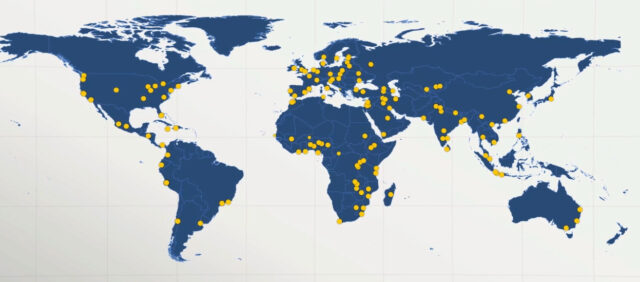
I have a long list of locations (370 Hospital) around the world, in a spread sheet:
Name | Location
here are some of the locations:40.2053040516947, 44.5313374967476
-37.79305806827382, 144.94968784081559
-27.484088336469163, 153.0263611816673
-33.8016024265893, 150.9921414713299
How would such thing can be achieved, putting an dot being animated on each?
Thank you so much
-
Tom Morton
December 11, 2023 at 4:41 pmBoom, just had a look at this and it was easier than I thought. Save the excel sheet as a CSV file, and then drag in that CSV straight into the project panel of your After Effects Project (don’t add it into your comp). Then, create a marker in any style you want, and paste in this code into the expressions field of the “Position” property:
—————————————————————————————-
// get the coordinates from the CSV file in the project panel
pos = footage(“afxtest.csv”).sourceText.split(“\r”)[index-1].split(/,/); // “index” get current layer number so for each duplicated layer this will +1
latitude = pos[0];
longitude = pos[1];
// need to map lat and long to pixel position
highestPoint = 90; // the highest point of latitude shown on map: corresponds to 0 on the Y axis
lowestPoint = -90; // the lowest point of latitude shown on map: corresponds to the canvasYsize on the Y axis
leftmostPoint = -170; // the point furthest to the left in longitude: corresponds to 0 on the X axis
rightmostPoint = 185; // the point furthest to the left in longitude: corresponds to the canvasXsize on the X axis
// size of your comp so we can map the coordinates to pixels
canvasYsize = 1080;
canvasXsize = 1920;
// calculate the position of the X point
xRange = rightmostPoint – leftmostPoint;
trueX = longitude – leftmostPoint;
xPos = canvasXsize * (trueX / xRange);
// calculate the position of the Y point
yRange = highestPoint – lowestPoint;
trueY = latitude – lowestPoint;
yPos = canvasYsize – (canvasYsize * (trueY / yRange));
// boom
[xPos, yPos]
—————————————————————————————-
On the second line, rename “afxtest.csv” as the name of the CSV file in your project panel.
This code will reposition the centre of the marker to be roughly at the latitude and longitude of the points on the map. Every time you duplicate this layer, the duplicate layer will read from the next line of the CSV file and change the position of the marker.
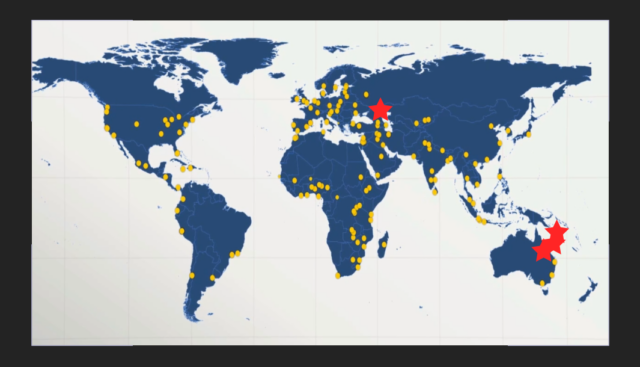
I’ve done this very quickly and used a screenshot of your map as a base, and used red stars as markers. See the attached screenshot.
For fine tuning, you can adjust thse variables: “highestPoint”, “lowestPoint”, “leftmostPoint”, “rightmostPoint” and it will adjust the position to your map. You may want to test it out, get them right and then duplicate the layers. Otherwise, tie these variables into control sliders so you can duplicate them all and adjust them all at once.
-
Tom Morton
December 11, 2023 at 4:51 pmOn my project, I just quickly tied those variables to expression controls, which made it really easy to fine tune the stars to match the points on your map. Hope I helped!
-
Adam Lewen
December 12, 2023 at 11:13 amWOW, Tom thanks so much for the investigation 🙂
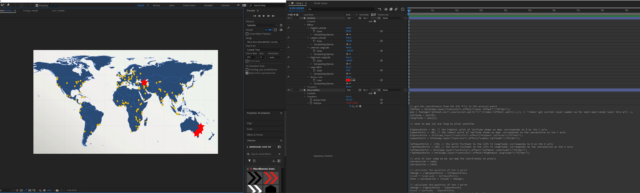
I am trying to do what you have described (the attached img of you work space is a bit fuzzy, but I think I understand)
Do you mind explaining the steps once more in a bit more detailed way?
As I try to follow your steps (by marker you mean a shape layer dot for example?)
I have a 1080 comp with a map and a dot where I try to give the dot’s position the script + putting a csv file in the project, but I get a syntax error. I assume it is a basic misunderstanding of me…
I will keep on trying -
Adam Lewen
December 12, 2023 at 12:20 pmMy I ask how does your afxtest.csv look? I guess the formatting is the issue.
Appreciate your time and help Tom -
Tom Morton
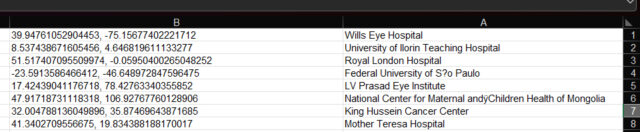
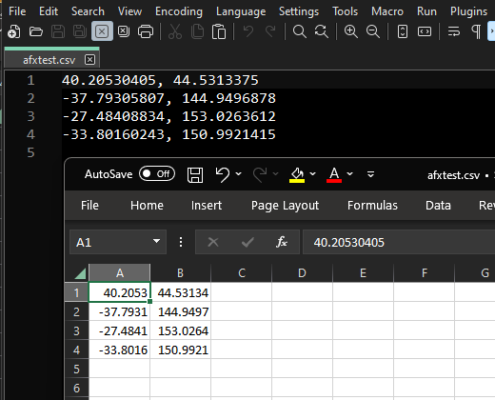
December 12, 2023 at 4:29 pmAh yes, there is a slight issue there. The latitude and longitude variables get the first and second cell of each row, but in your example both coordinates are in the same cell. You might be best off using the excel split function to split this column into 2 columns using the comma as a delimeter.
I’ve added a screenshot of the afxtest.csv with it open in excel and Notepad++.
-
Tom Morton
December 12, 2023 at 4:37 pmI’m just going to dash a quick step by step from out of my head in case you’re still struggling. Any problems, let me know and I’ll try and clarify later.
1. Create your project / comp.
2. Ensure each value you want to use is in a separate column in the CSV file.
3. Drag the CSV file into the project panel
4. Create the design of the marker you want to use for the pin on the map (pin, dot, star etc) and add this into your comp (make sure it’s a single layer)
5. Open the transform properties for this marker and Alt + click on the stopwatch next to “Position”. This opens the expressions panel for the Position property.
6. Paste in my code above in the expressions panel.
7. Rename the “afxtest.csv” file in the code to be the same name as your CSV you imported.
8. Now, the position of the marker layer should be adjusted to match the first coordinates on the CSV file.
9. Duplicate the marker layer. Every time you duplicate it, each layer should automatically pick the next row in the CSV file and adjust the position accordingly.
10. Keep duplicating 🙂 Hopefully this will work!
-
Adam Lewen
December 13, 2023 at 12:33 pmTom, I really appreciate your time with this and the step by guidance.
I am embarrassed to admit that although all this, I am still have issues, not I have been working with AE for a good few years and I do follow all your steps and my csv is similar to yours now…
You have an idea what am I doing wrong?

Reply to this Discussion! Login or Sign Up