

Activity › Forums › Adobe After Effects Expressions › 1 box around two text-layers
-
1 box around two text-layers
Posted by Kurt Jarnes on July 26, 2023 at 1:38 pmHei. I need help to code a automatic box around two tet layers.
The two text layers will be the same font, but different size. The first layers will be a heading in large letters. The second will be one ore several lines in smaller letters.
I need a box that automatic adjust it self on the widest width, and the same for the hight.Anyone?
Dan Ebberts replied 3 years, 1 month ago 2 Members · 3 Replies -
3 Replies
-

Dan Ebberts
July 26, 2023 at 3:01 pmIf you have two text layers (“Text 1” and “Text 2”) and you create a shape layer by just clicking on an empty spot in the comp window with the pen tool, if you apply this expression to the shape layer’s path, you should get a box around your text layers:
margin = 10;
L1 = thisComp.layer("Text 1");
L2 = thisComp.layer("Text 2");
r1 = L1.sourceRectAtTime(time,false);
r2 = L2.sourceRectAtTime(time,false);
ul1 = L1.toComp([r1.left, r1.top]);
lr1 = L1.toComp([r1.left + r1.width, r1.top + r1.height]);
ul2 = L2.toComp([r2.left, r2.top]);
lr2 = L2.toComp([r2.left + r2.width, r2.top + r2.height]);
top = Math.min(ul1[1], ul2[1]) - margin;
bottom = Math.max(lr1[1], lr2[1]) + margin;
left = Math.min(ul1[0], ul2[0]) - margin;
right = Math.max(lr1[0], lr2[0]) + margin;
ul = fromComp([left, top]);
ur = fromComp([right, top]);
lr = fromComp([right, bottom]);
ll = fromComp([left, bottom]);
createPath([ul, ur, lr, ll], [], [], true); -

Kurt Jarnes
July 27, 2023 at 8:11 amTanks, this works perfectly.
And by adding +, -, / or * in the end of line 10 to 13, I could adjust the shape of the box.
Ex :top = Math.min(ul1[1], ul2[1]) – margin-10;
bottom = Math.max(lr1[1], lr2[1]) + margin+15;
left = Math.min(ul1[0], ul2[0]) – margin-60;
right = Math.max(lr1[0], lr2[0]) + margin+60;
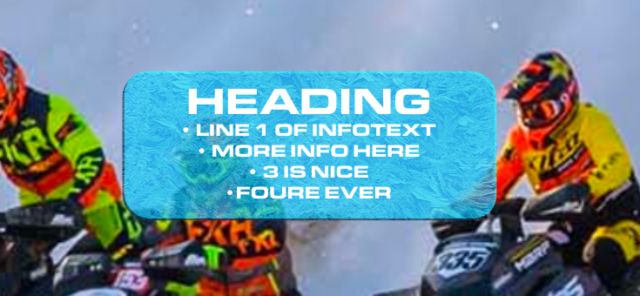
By adding round corners, Color Emboss and a texture, this is the final :

-
Dan Ebberts
July 27, 2023 at 4:23 pmNice. You could also set it up with different variables to define each margin:
leftMargin = 70;
topMargin = 20;
rightMargin = 70;
bottomMargin = 25;
L1 = thisComp.layer("Text 1");
L2 = thisComp.layer("Text 2");
r1 = L1.sourceRectAtTime(time,false);
r2 = L2.sourceRectAtTime(time,false);
ul1 = L1.toComp([r1.left, r1.top]);
lr1 = L1.toComp([r1.left + r1.width, r1.top + r1.height]);
ul2 = L2.toComp([r2.left, r2.top]);
lr2 = L2.toComp([r2.left + r2.width, r2.top + r2.height]);
top = Math.min(ul1[1], ul2[1]) - topMargin;
bottom = Math.max(lr1[1], lr2[1]) + bottomMargin;
left = Math.min(ul1[0], ul2[0]) - leftMargin;
right = Math.max(lr1[0], lr2[0]) + rightMargin;
ul = fromComp([left, top]);
ur = fromComp([right, top]);
lr = fromComp([right, bottom]);
ll = fromComp([left, bottom]);
createPath([ul, ur, lr, ll], [], [], true);
Reply to this Discussion! Login or Sign Up