Creative Communities of the World Forums

The peer to peer support community for media production professionals.

Activity Forums Adobe After Effects Why does preview window still show image even with all layers muted?

  • Why does preview window still show image even with all layers muted?

    Posted by Hilary Tsai on August 6, 2021 at 9:10 pm

    I downloaded a template and wanted to swap out a background element, so I went through and muted each layer to find which one I needed to work with. I ended up with all layers muted, and the preview window still showed the whole composition as if I hadn’t turned off any layers. As a result, I’m not able to isolate the layer I want to adjust. I believe this was intentional, but I’ve never seen this happen and don’t know how the project was set up so that the background can’t be modified. Has anyone seen anything like this, and how is it that the background is still visible with all layers muted?

    I tried to include an image, but it wouldn’t post for some reason..

    I can include the project download, but that’s a lot of trouble for people so I will keep trying to link the screenshot.

    https://www.dropbox.com/sh/7ig6zzhv49u9yyh/AACiGG25C_JgFQqOeBviVCiwa?dl=0

    Walter Soyka replied 4 years, 11 months ago 3 Members · 4 Replies
  • 4 Replies
  • Andy Kiernan

    August 10, 2021 at 12:31 pm
  • Andy Kiernan

    August 10, 2021 at 12:33 pm

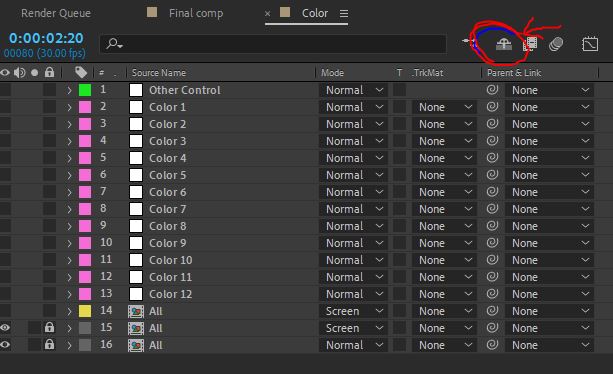
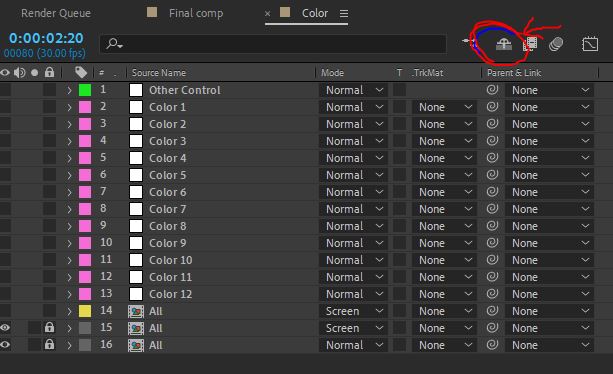
    i posted some screengrabs but dunno if it worked. Use the shy guy switch, it will reveal some extra layers.

  • Hilary Tsai

    August 11, 2021 at 4:33 am

    The images aren’t showing up, but I know what you’re talking about. Unfortunately I have that bug where shy layers are visible anyway (or something similar where toggling shy does nothing). Otherwise, I’m sure that would’ve done the trick. Thank you for this!

  • Walter Soyka

    August 11, 2021 at 6:57 pm

    Just to be sure you are both talking about the same thing — the Hide Shy Layers composition switch is Kilroy, the little guy with the big nose looking over a wall, and it’s up at the top of the timeline panel, above all the layers, just to the right of the timeline search box. This is different than the Video or Visibility layer switch (eyeball) or Solo layer switch (circle).

    When that Hide Shy Layers composition switch is blue, that means the switch is active, and any layers with their individual shy switch enabled will be hidden from view in the timeline. Toggle that composition switch to reveal them. (You’ll also note thicker line dividers in the timeline panel when layers are shy, and you’ll see the layer index skipping numbers for the hidden layers.)

    More here:
    https://helpx.adobe.com/after-effects/using/layers.html#show_and_hide_layers_in_the_timeline_panel

We use anonymous cookies to give you the best experience we can.
Our Privacy policy | GDPR Policy