

Activity › Forums › Apple Final Cut Pro › FCPX Clips gone black [Possible solution]
-
FCPX Clips gone black [Possible solution]
Posted by Samuel Beer on May 3, 2018 at 5:27 pmHi, I’ve seen plenty of posts on internet about clips going black on the timeline. I tried resetting the preferences and relinking files but nothing happened. What worked for me was this:
1. Locate the clips in the finder.
2. Select clip(s) and drag them straight on to the timeline.
3. The black clips will start to show up.
4. Undo to remove the dragged clips.
5. Check if background rendering or transcoding is taking place and let it finish (this is important).I think it has something to do with killing of background tasks when we quit the program.
This method worked for me. Just posting if people want to give it a shot. Thanks!Specs:
FCPX 10.3
Mac Sierra
Intel i7
Gigabyte 1060David Ian replied 3 years, 11 months ago 3 Members · 2 Replies -
2 Replies
-

John Reed Hryszkiewicz
June 27, 2021 at 4:59 pmThank you, thank you, thank you, Sam!
We’ve been encountering this issue, too– Often while relinking externally-stored media within FCPX 10.5.2 on macOS 10.15.7 (Catalina). Your method inspired me to try a similar ‘automatic’ fix today, which was also successful.
Our most recent experience presented after having copied an external media-pool folder structure from one drive to another, which we had done to balance our consumed storage space.
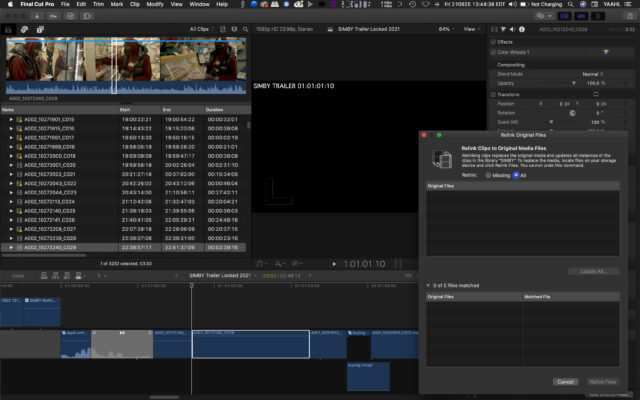
With the media having been moved, FCPX naturally flagged everything as offline the next time we opened the library, but the Relink Media window was allegedly able to ‘Verify’ everything once we pointed FCPX to the identical folder structure on the alternate drive and commenced the Relink Files process.However, while FCPX reported that the Relink was successful, a visual inspection of the timeline revealed that that was not the case.
Symptoms included:
! Multiple clips inexplicably ‘went dark’– (Zero video information, just a black square, without so much as an alert or ‘media offline’ warning).
Subsequent attempts to Re-Relink ‘Dark Clip’ media revealed that FCPX ‘thinks’ the Dark Clips are online.
!! Nonetheless, sometimes the audio of ‘Dark Clips’ continued to play….
!!! Various clips also reported the red alert ‘Missing Camera LUT’ in the viewer, which is typically a tedious pain to resolve by digging into your macOS Library/Application Support folders.
!!!! ‘Reveal in Browser’ would nonetheless successfully display source media of affected ‘Dark Clips’ as if nothing was wrong. From the Browser, ‘Reveal in Finder’ would succeed, whereas it would fail when attempted from a ‘Dark Clip’ instance on the Timeline.
Attempts to replace the Timeline’s ‘Dark Clip’ instances with new clip instances from the browser brought no joy– New edits of the corresponding media always became ‘Dark Clips’ when they were edited to the timeline, regardless of the method (Connect, Insert, Append, Overwrite).All of this brings me to an alternate fix which involves a bit less legwork than Sam’s method. As Sam discovered, the trick seems to be in ‘reminding’ FCPX where the media is for each mysterious ‘Dark Clip’ through workarounds which do not rely on the Relink Files function…
Workflow to Copy affected Timeline to new FCPX Library and restore ‘Dark Clips’:
• File > New > Library… (Place it on the same drive as your affected media and name it appropriately, in my case: SIMBY RESCUE)
• Inspector > Storage Locations > Modify Settings (of your new Rescue Library)
• In the ‘Set storage locations for the library….” window, ensure that both Media and Cache target ‘In Library’• File > Reveal Project in Browser (presuming your ‘Dark Clip’ timeline / project is presently open), or manually navigate to it in the Browser and ensure it is selected
• File > Copy Project to Library > Your Rescue Library
• Include: Media (and check-mark ‘Original media’)
FYI: Selecting ‘Copy media stored in external locations’ may consume additional storage space and take longer to conduct if your Rescue Library is not located on the same drive as your media.• FCPX will create a new Event in the Rescue Library, and will begin to ‘Transcode Thumbnails & Waveforms’ as a Background Task. You can work while it does its thing but as Sam mentions, do not cancel this process for fear of future Spooky Action.
• In your Rescue Library, open the resulting ‘Copied’ Timeline (Project) and skim around to visually verify the results.
In our case, ‘Dark Clips’ were now banished and all of our Camera LUTs were in working order.<font face=”inherit” class=””> This appears to be related to a </font>bug<font face=”inherit” class=””> in how FCPX references external media. For several years, I’ve found that copying problematic timelines to fresh libraries often solves all kinds of bugs and keeps the gremlins at bay.
</font> Thanks again to Sam for revealing how to ‘jog FCPX’s memory’ via manual reimports. Happy Editing!
-

David Ian
August 11, 2022 at 2:10 amHi, just joined your site. I had this problem today, did a quick search for solutions. Looked over the thread. Thought hard about what I might’ve done to cause the problem myself. Nothing came to mind.
Anyway, decided to open the animation window, as it can control opacity. You can right mouse click or go to ‘click’ heading, go to show video animation, go to the bottom and slide the horizontal opacity bar down then back up again. It was fixed instantly. This entire process took under 30 seconds.
Don’t know if that’s the same cause others have experienced, I can’t tell you that I wasn’t anywhere near the animation bar but I might’ve cancelled a rendering process which I think probably caused the issue. Usually I don’t mess with rendering even if I’m tapping my fingers wishing it was going faster.
Hope this solution may work for others.
Be well,
david
Reply to this Discussion! Login or Sign Up